



I ran into a situation recently where one of our VSPC servers stopped working after a Windows patch update. The portal was dead. I went ahead and upgraded to VSPC 9.2 and that brought everything back online. Except the April license usage report never got generated. It was stuck. I could not finalize it or submit it. If you are using VCSP /w rental licensing, you know that the report has to go to Veeam every month. A missing one is not something you can just ignore (Not for lack of trying 😊). I opened a support case and Veeam Support gave me a procedure to regenerate the report. It worked. I am documenting it here because I could not find this written up anywhere and I know other providers might encounter something similar.
Step 1. Back up the VSPC SQL database.
Take a fresh backup of the VSPC database first. Veeam covers this in KB1471. If the SQL work later goes bad you want something clean to restore.
Step 2. Update the configuration overrides file.
Open this file on your VSPC server:
C:\ProgramData\Veeam\Veeam Availability Console\Configuration\Service\configuration.overrides.json
Add these three lines to the config file.
"LicenseManagement_ProviderReportingDay": "[day after today]",
"LicenseManagement_ResellerReportingDay": "[day after today]",
"LicenseManagement_UsageStoreCurrentUsageHistoryLengthInDays": "[number of days to cover the reporting period]"
ProviderReportingDay and ResellerReportingDay tell VSPC what day of the month to trigger the reporting generation. Set both to the desired day. UsageStoreCurrentUsageHistoryLengthInDays needs to be long enough to cover the entire missed period.
I did this on May 13th. I set the reporting days to "14" and the history length to "45". That covered all of April for me.

Here is the part that will ruin your day if you are not careful. Every line in the JSON block needs to end with a comma except the last entry. If you miss one comma or add an extra one VSPC will throw authentication errors on the login page (Or if you are super unlucky, ASP 500 errors). The portal looks like it is running fine, but nobody can log in. It is not an authentication problem. It is a JSON file syntax issue. Fix the syntax and restart the services again.
Step 3. Stop the Veeam Management Portal Service.
Stop VeeamManagementPortalSvc on the VSPC server. Services console or PowerShell.
Step 4. Delete the old report data in SQL. (Again, make sure you backup your DB prior to attempting)
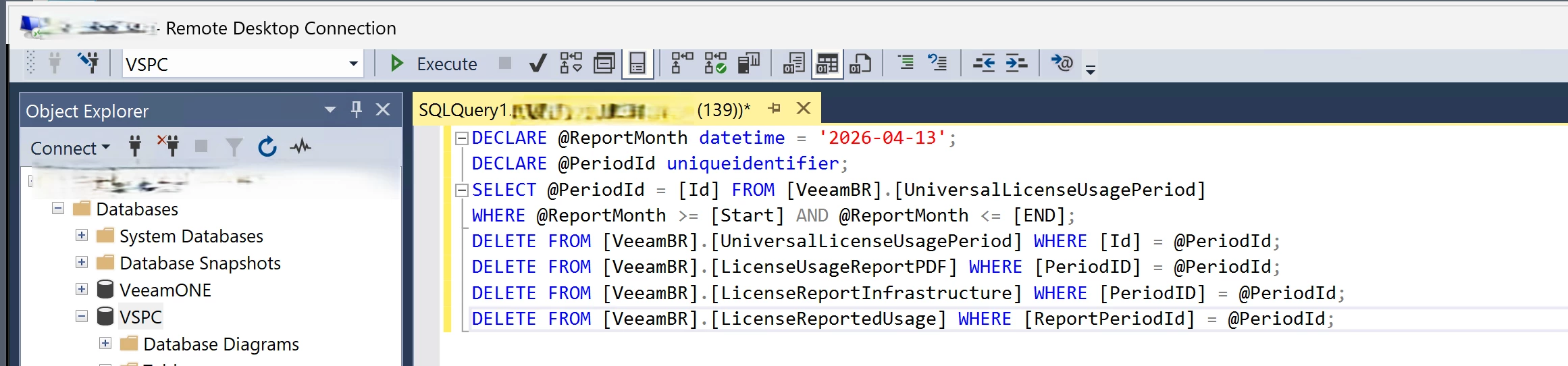
Open SSMS and connect to the VSPC database. Run this as a new query:
DECLARE @ReportMonth datetime = '2026-04-13';
DECLARE @PeriodId uniqueidentifier;
SELECT @PeriodId = [Id] FROM [VeeamBR].[UniversalLicenseUsagePeriod]
WHERE @ReportMonth >= [Start] AND @ReportMonth <= [END];
DELETE FROM [VeeamBR].[UniversalLicenseUsagePeriod] WHERE [Id] = @PeriodId;
DELETE FROM [VeeamBR].[LicenseUsageReportPDF] WHERE [PeriodID] = @PeriodId;
DELETE FROM [VeeamBR].[LicenseReportInfrastructure] WHERE [PeriodID] = @PeriodId;
DELETE FROM [VeeamBR].[LicenseReportedUsage] WHERE [ReportPeriodId] = @PeriodId;
The @ReportMonth value just needs to fall inside the reporting period you want to clear. April 13 lands in the April 2026 period so that worked for me fine. The query finds the period ID and then removes the period record, the PDF, the infrastructure data, and the usage rows tied to it.
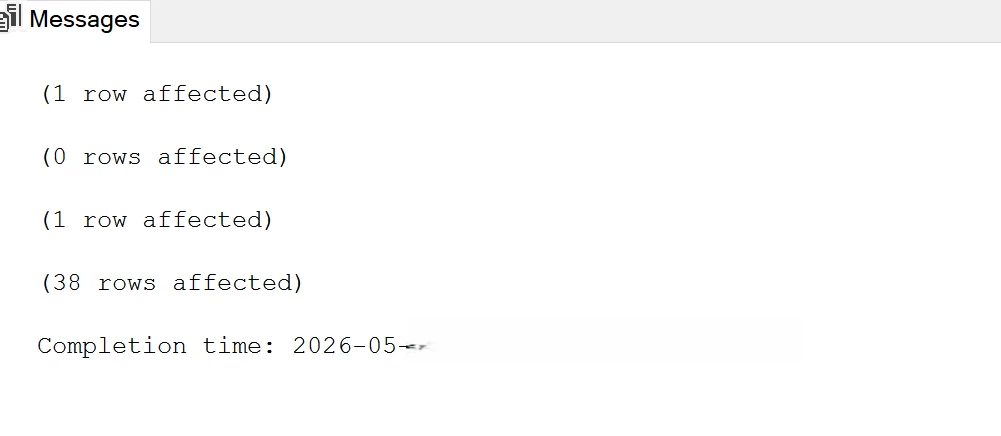
My output showed 1 row affected for the period, 0 for the PDF because the report never finalized in the first place, 1 for infrastructure, and 38 for usage. That told me the old data was now gone.
Step 5. Start the Veeam Management Portal Service.
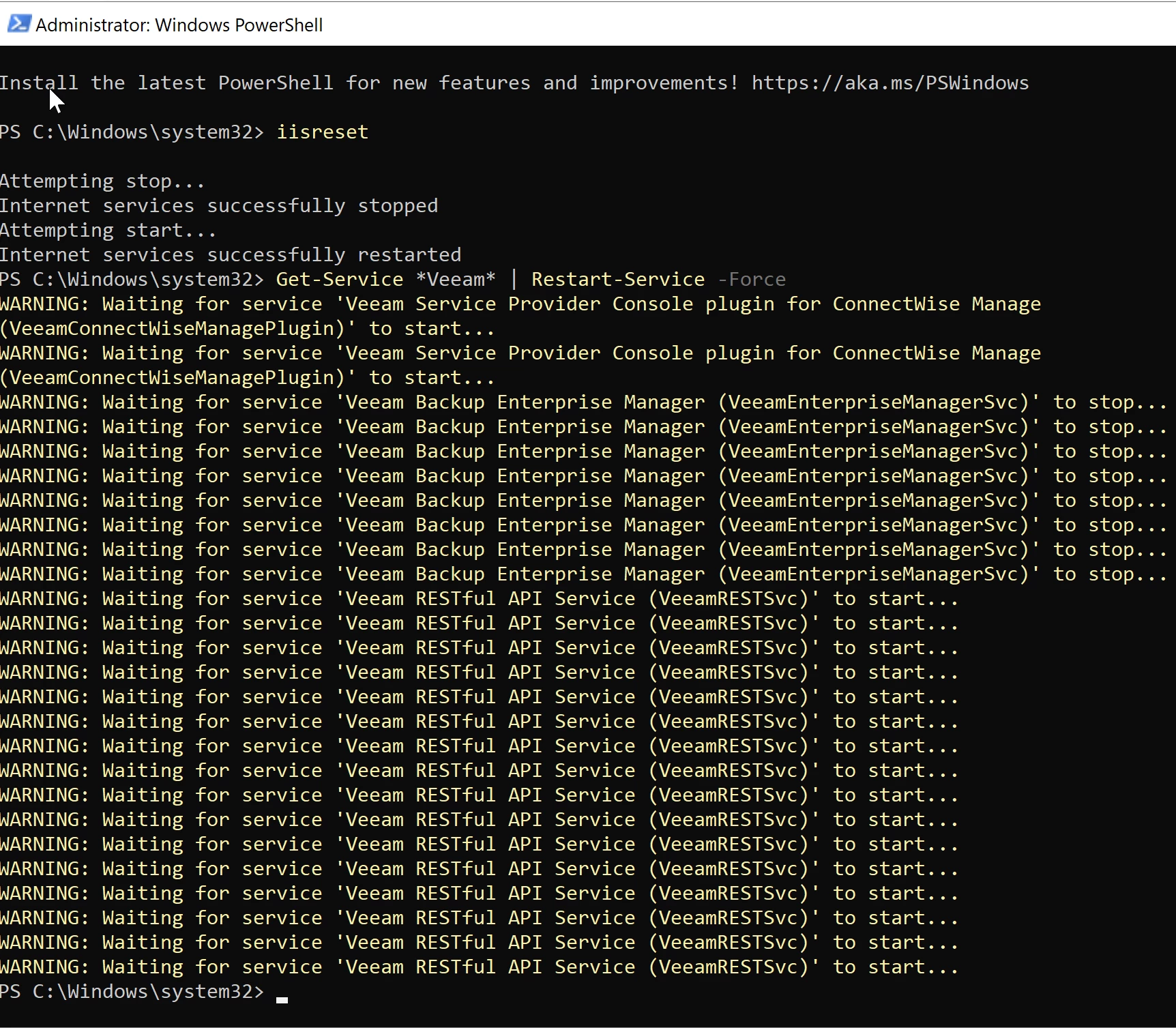
Start VeeamManagementPortalSvc. I also ran an iisreset and bounced all the Veeam services on the box just to make sure everything was clean. The procedure does not call for that, but I wanted a clean start /w it.
Step 6. Wait for the report and finalize it.
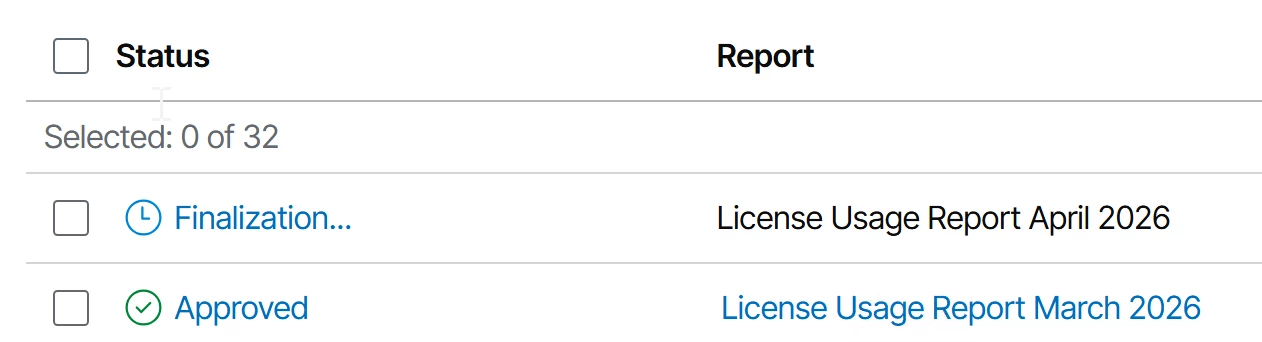
The old broken report will be gone from usage reports in the portal. The new one generates the next day based on the reporting day you set in step two of this process. Once it shows up, finalize it.
Mine appeared the next morning showing "Finalization..." status. That is exactly what it should look like before you approve and submit.
After you are done
Go back to configuration.overrides.json and set the reporting day values back to whatever your normal schedule is. Usually that is "1" for the first of the month. You can also drop the history length back to your normal setting at the same time. Restart the VSPC service after you edit/save the JSON file.
The configuration.overrides.json file controls a lot of behavior that is not exposed in the UI. Back it up before you edit it. Validate your syntax before saving it.
I did this on VSPC 9.2 running on Windows Server 2025 /w MS SQL Server 2022. Your setup may be different so keep that in mind if you attempt the manual report regeneration process here.
