


Status: 16.11.2026
Note: You can find information and links at the end of this post
Introduction:
In part one, we installed and configured the new NetApp ONTAP Storage Plugin based on the Universal Storage API.
Now it is time to make use of the storage integration in your VMware backup jobs.
In addition to configuring storage integration in the backup jobs, I’d like to discuss some important points regarding the implementation of storage integration, as well as a few stumbling blocks I encountered while setting up the infrastructure.
Configuration:
To use the storage integration now, the backup jobs must be configured correctly.
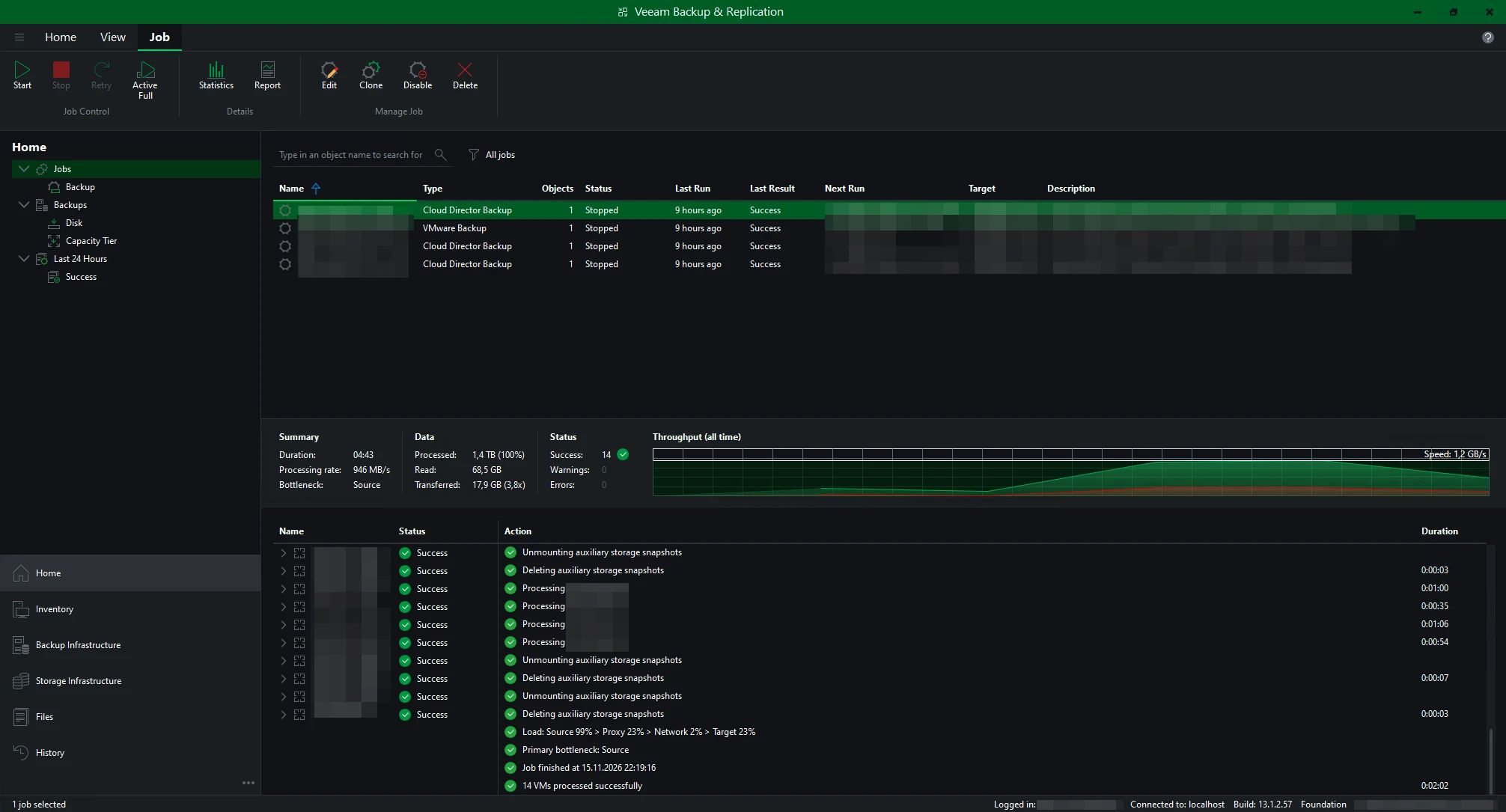
- Open the VMware backup job where the VMs use NetApp storage.
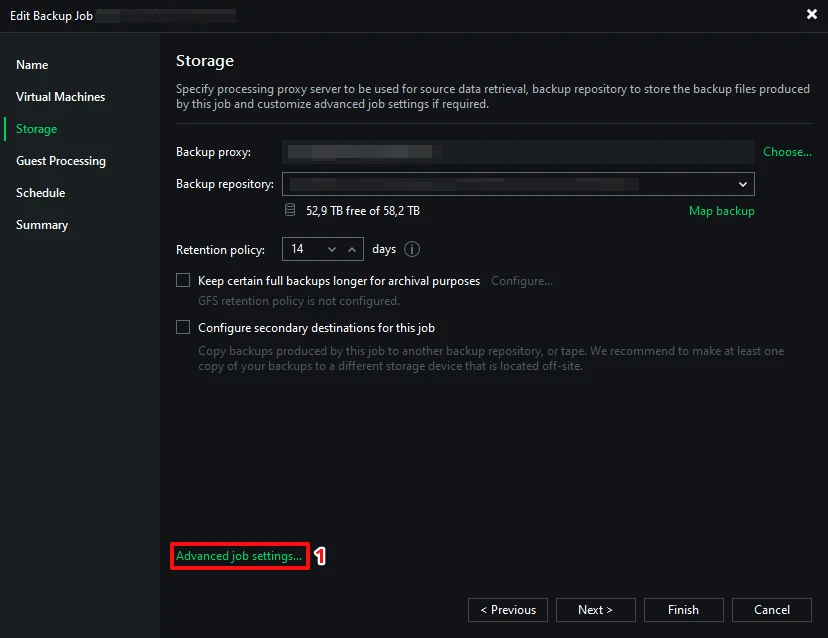
- Navigate to the Storage section and open the Advanced storage settings.
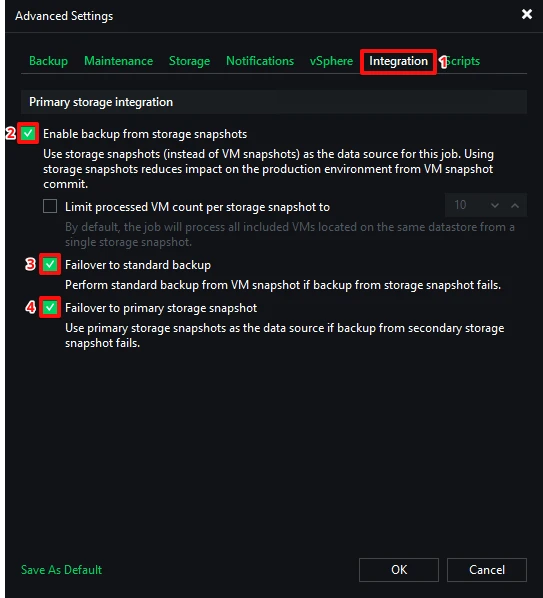
- Open the Integration tab and configure the settings.
Here is an explanation of each point:
Enable backup from storage snapshots
This setting is essential for using storage snapshots via the integration, so be sure to enable it.
Limit processed VM count per storage snapshot to
This option is only useful in certain cases, for example if there are an extremely large number of VMs or very large VMs on the datastore, causing performance issues during the backup.
However, this happens very rarely; it can still be a solution if problems arise.
Failover to standard backup
It is recommended that you check this box so that, for example, if there is no communication with NetApp, a standard VMware snapshot-based backup can still be performed (e.g. via network mode).
Of course, this may be considerably slower than using storage integration to perform backups directly from the storage system.
Failover to primary storage snapshot
This checkbox should only be selected if a SnapMirror relationship exists between multiple NetApp ONTAP systems.
This requires the SnapMirror destination to be configured as a data source in the job’s Secondary Target settings.
In this case, Veeam triggers a snapshot on the primary system, updates the SnapMirror relationship and then reads the data from the secondary system to avoid load on the primary storage.
If this is not possible, the backup will be read directly from the primary storage system.
Challenges and What You Should Know:
Two things stood out to me during the storage integration and the setup of the infrastructure.
The first issue, which was quickly resolved, involved mounting NFS datastores on the proxy or repository.
This was indicated in the job log as follows:
21.09.2026 15:38:53 Failed : Task failed. Error: Cannot find suitable proxy for retrieving data from storage snapshot
An Ubuntu Server 24.04 LTS was used for this, and the nfs-common package is not installed by default on this system.
It can be installed using the following command:
sudo apt update
sudo apt install nfs-common
The second issue, which required a bit more troubleshooting and thought, concerns the network configuration in Ubuntu, specifically IPv6, which exhibits, shall we say, some interesting behavior patterns in connection with storage integration and the Veeam proxy role.
21.09.2026 15:45:45 Failed : Error: API call failed with status code 400 (BadRequest) - Error Message: Invalid clientmatch: clientmatch list contains duplicate string "fe80::588c:baff:fe63:98ea". Duplicate strings in a clientmatch list are not supported.
The core problem was that, because there are multiple VLAN interfaces on the proxy (VMware Network Backup/NFS Storage), Ubuntu assigns a link-local address to each VLAN interface.
Since all VLAN interfaces inherit the MAC address of bond0, and the IPv6 link-local address is derived from the MAC (EUI-64), every VLAN interface ends up with the identical fe80:: address (IPv6 is not actively used in the environment).
And this is precisely where the problem lies:
When attempting to mount the NFS datastore, the system tries to add the proxy’s IP addresses to the NFS export policy, and adding the same IP address three times, for example, results in a failure.
There are several ways to resolve or work around this behavior.
In my case, the only method that worked to permanently resolve this issue even after a reboot was to modify the Netplan YAML file.
To do this, proceed as follows:
# Open the netplan configuration
sudo nano /etc/netplan/50-cloud-init.yaml

# Add this block to the bond and all VLAN interfaces
      dhcp6: false
      accept-ra: false
      link-local: []


# Prevent cloud-init from overwriting the network configuration
echo "network: {config: disabled}" | sudo tee /etc/cloud/cloud.cfg.d/99-disable-network-config.cfg

# Test and apply the netplan configuration
# Note: netplan try cannot roll back bond changes - keep console access (VM console/iLO/iDRAC) ready
sudo netplan try

# Verify that no fe80:: addresses are displayed anymore
ip -6 addr show
Here is an example of the Netplan configuration:
network:
  version: 2
  ethernets:
    ens14f0np0: {}
    ens14f1np1: {}
  bonds:
    bond0:
      interfaces:
      - ens14f0np0
      - ens14f1np1
      parameters:
        mode: "active-backup"
      dhcp6: false
      accept-ra: false
      link-local: []
  vlans:
    bond0.100:
      addresses:
      - "10.100.0.100/24"
      nameservers:
        addresses:
        - 1.1.1.1
        - 1.0.0.1
        search:
        - usapi.veeam
      routes:
      - to: "default"
        via: "10.100.0.1"
      id: 100
      link: "bond0"
      dhcp6: false
      accept-ra: false
      link-local: []
    bond0.110:
      id: 110
      link: "bond0"
      addresses:
      - "10.110.0.110/24"
      dhcp6: false
      accept-ra: false
      link-local: []
    bond0.120:
      id: 120
      link: "bond0"
      addresses:
      - "10.120.0.120/24"
      dhcp6: false
      accept-ra: false
      link-local: []
Once these two issues were resolved, the backups ran without errors and at a very good processing rate (saturating the 25 GbE link).
Considerations:
When implementing storage integration with Veeam, the following points should be carefully planned and considered.
Proper sizing of the NFS storage networks: if the VMware ESXi hosts access storage via NFS and are to be backed up using storage integration, all proxies must also be assigned an IP address on that network, so plan the subnet large enough for hosts, LIFs and proxies.
The same applies, of course, if a separate network is used for Network Backup Mode on the ESXi hosts.
Correct configuration of the proxies is important to ensure stable operation and execution of backups, especially when the Veeam Infrastructure Appliance (VIA) or more specialized network configurations are not used.
Two examples illustrating what is meant by correct configuration can be found in the section above.
Key Takeaways:
Storage integration in Veeam, especially when used in conjunction with NetApp ONTAP systems, is a fantastic way to efficiently extract backups from your storage system and make the most of the technology already in place at most companies or data centers.
As long as you plan the integration carefully, nothing stands in the way, so go ahead and implement it!