

A cartridge move starts as a few selections on the front panel. Inside the library, the accessor has to travel, turn, and position itself to carry out the request. I recorded the IBM TS3100 and TS4300 to connect those two views: the options we select and the hardware that responds.
The walkthrough also answers a practical question: what can we do while standing in front of the library, without opening its web interface? There is more available than a status display. Both panels provide local controls for media handling, configuration, and service tasks, although their menus and capabilities differ.
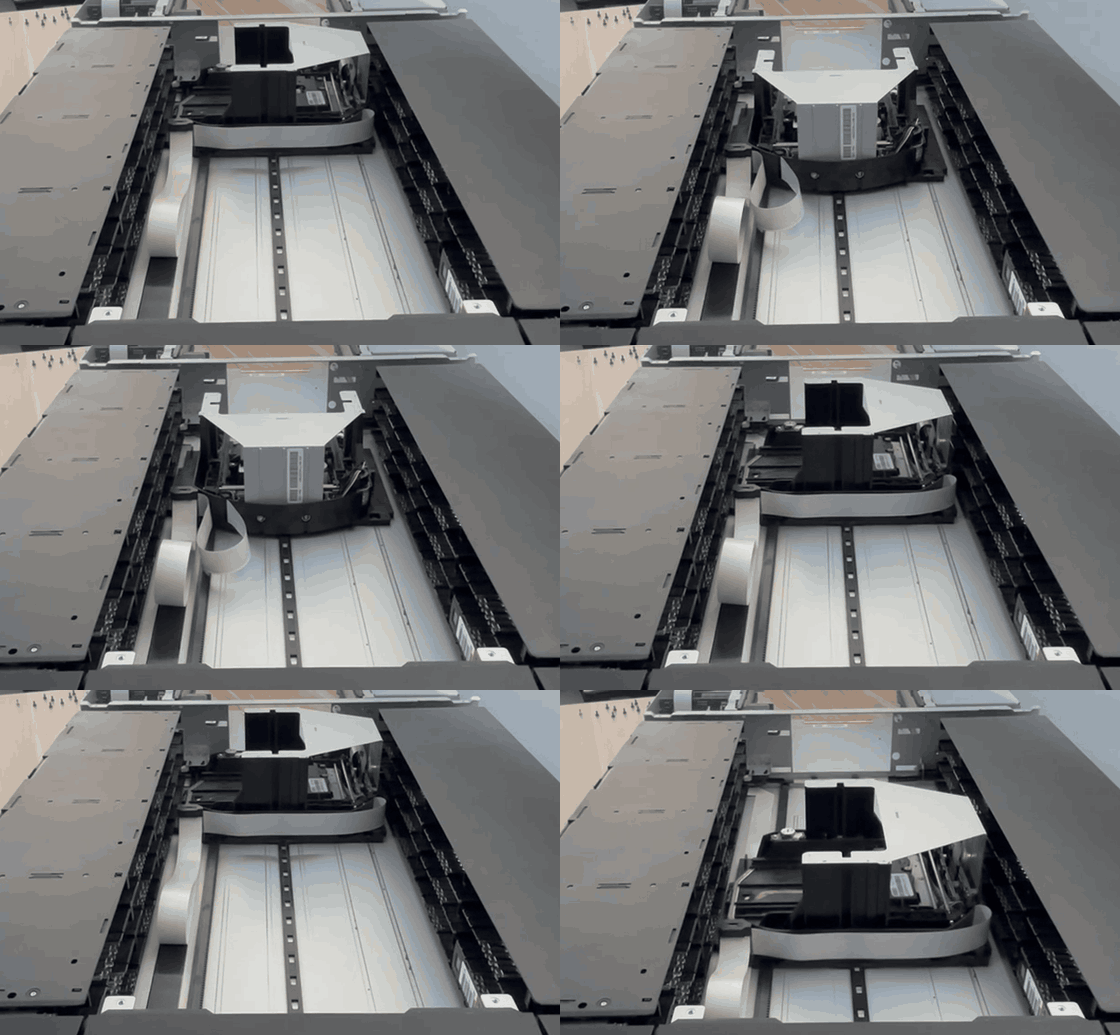
I opened the TS3100 for the internal footage below. It makes the accessor's travel visible; later in the article, I return to its rotation and explain how these movements relate to a cartridge destination. The open-unit footage illustrates the mechanism, not a servicing procedure. Normal operation requires the enclosure in its prescribed condition, with hands and objects clear of moving parts.
Three views of the same library
The front panel, web interface, and backup application each answer a different set of questions. Keeping their roles clear makes local operation easier to understand.
| Where I look | What I can learn or control |
| Local operator panel | Equipment status and the model's available local operations, including cartridge handling and selected setup or service functions. |
| Library web interface | A broader management view, with additional configuration, inventory, and diagnostic functions depending on the model and firmware. |
| Backup application | Backup and restore jobs, media ownership, catalogs, retention, and the application's view of the library. |
A successful cartridge move confirms a handling operation. Reading the cartridge's barcode identifies the medium. Demonstrating that its backup can be recovered requires a separate data-recovery test. Those distinctions apply throughout this walkthrough.
Local access is useful when checking equipment at the rack, preparing management connectivity, or investigating why the browser cannot reach the library. It still uses the configured access controls. Before moving media, opening a magazine, or starting a diagnostic, coordinate with the backup operator and confirm that the affected resources are available.
Finding your way around the TS4300
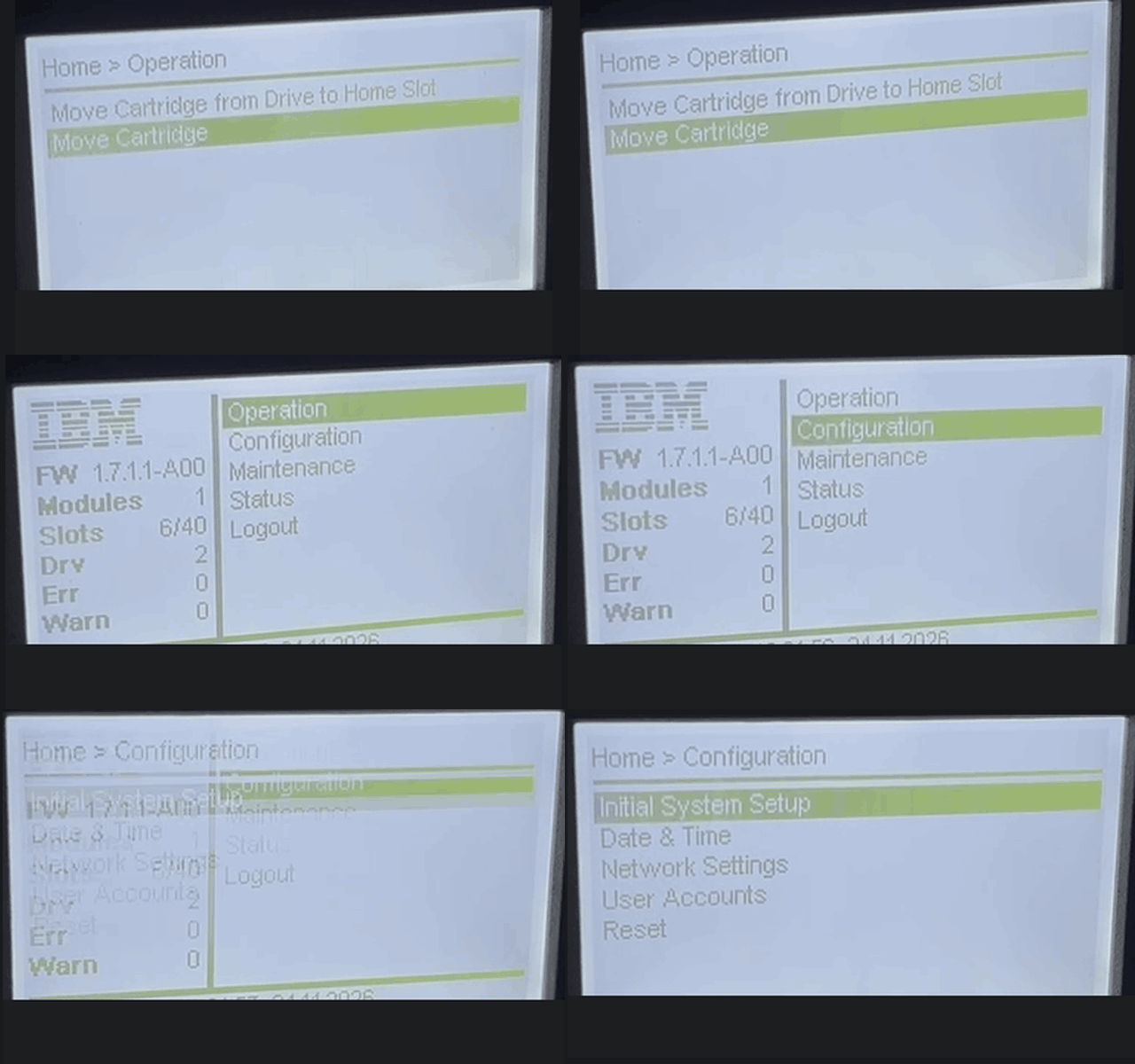
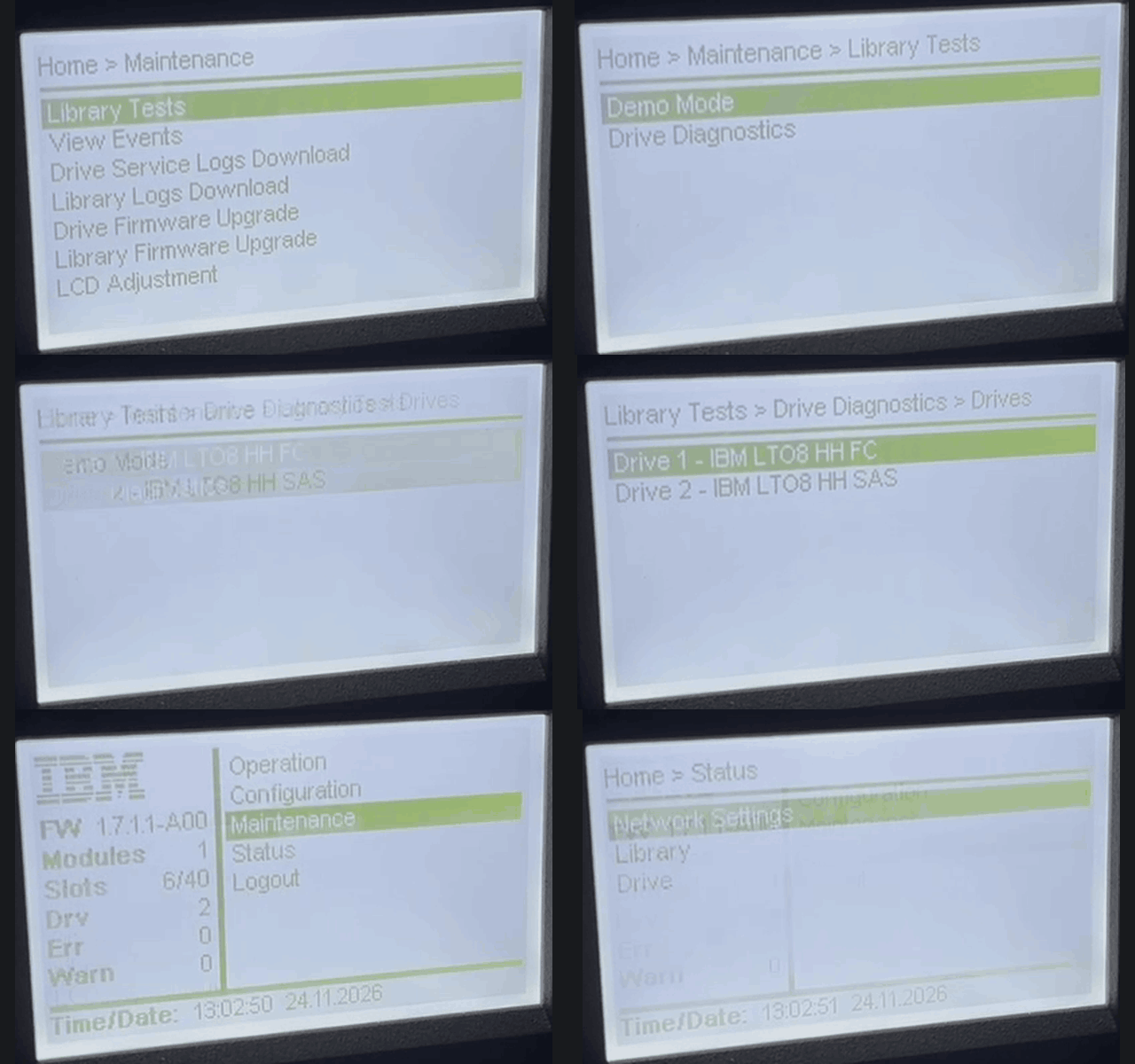
The TS4300 display looks like a small graphical console, but it is not a touchscreen: the buttons beside it move the selection, enter a menu, and return to the previous screen. My recording shows five main entries: Operation, Configuration, Maintenance, Status, and Logout.
The side panel summarizes firmware, modules, slots, drives, errors, and warnings. The recorded unit displays firmware 1.7.1.1-A00. Treat this walkthrough as a view of that equipment; check the matching firmware guide for operations on another unit.
Magazine access and the inventory afterward
The magazine is the removable assembly that holds cartridge slots. Releasing it gives the operator physical access to those positions. That is a different operation from selecting one cartridge for the robot to move.
In this excerpt, I withdraw the TS4300 magazine so its slot arrangement is visible. The library's release mechanism controls access; the operator waits for the equipment to indicate that removal is permitted.
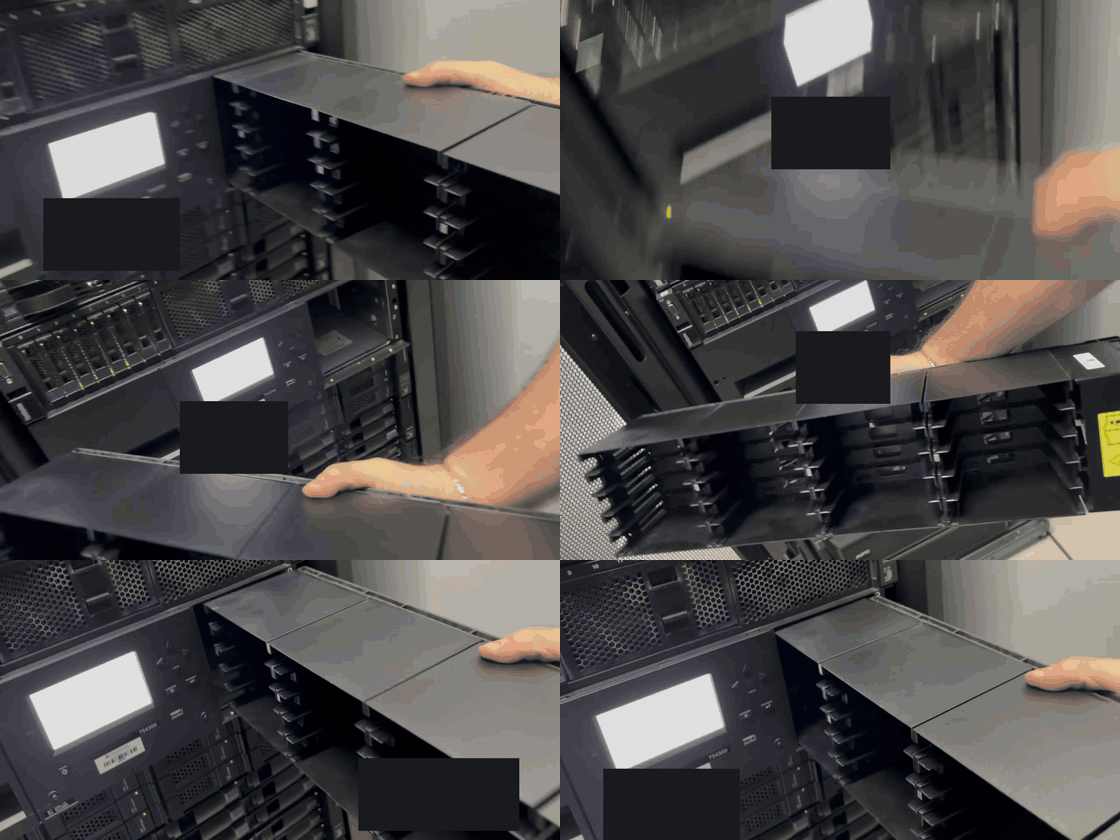
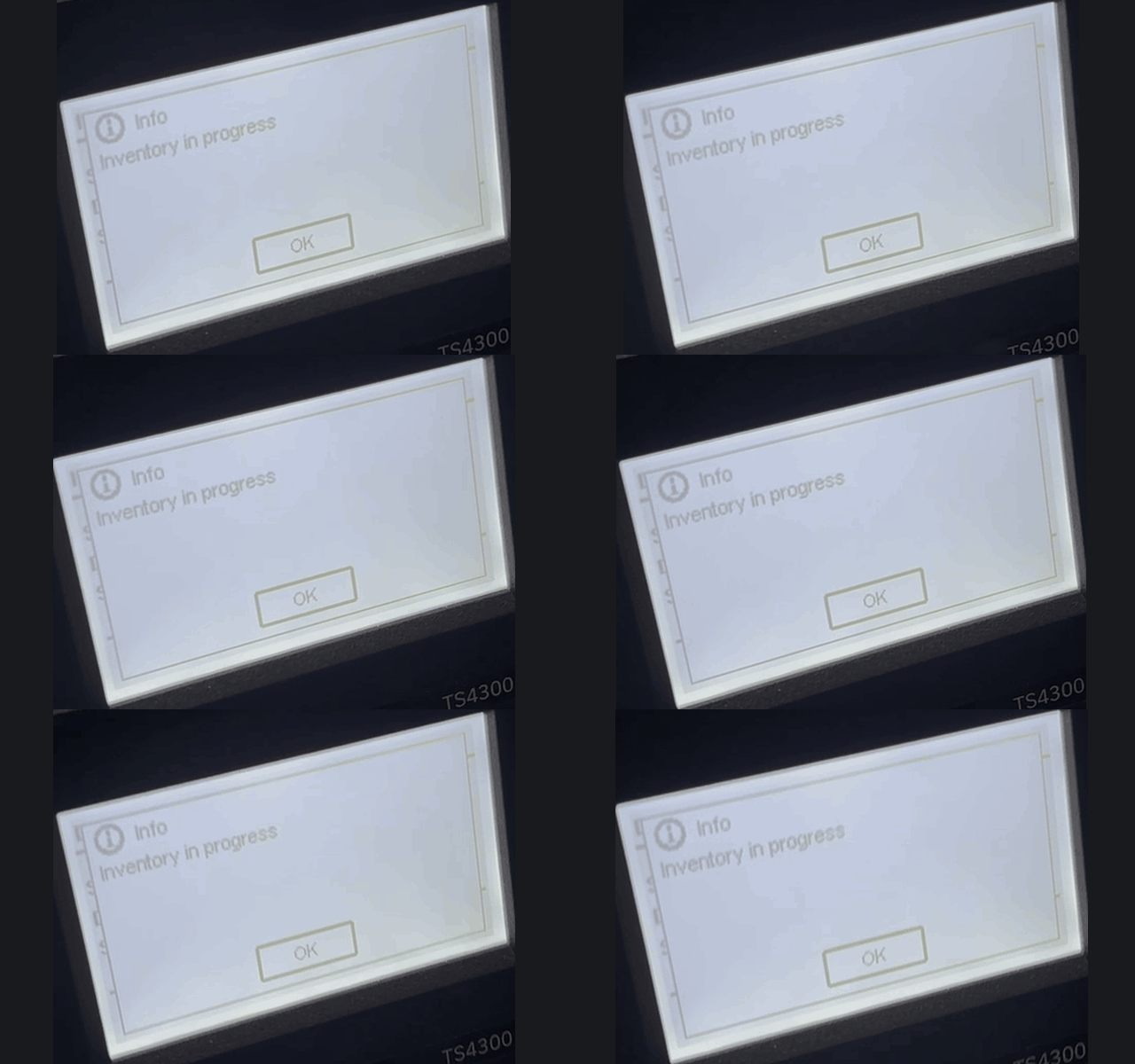
After the magazine is closed, the recording shows Inventory in progress. This is the controller updating its view of cartridge presence and location after physical access. Wait for that work to finish before treating the library as ready for the next operation.
Operation turns a cartridge location into a move
Operation exposes two related choices. Move Cartridge from Drive to Home Slot returns a loaded cartridge to its associated storage position. Move Cartridge opens a more general source-and-destination workflow.
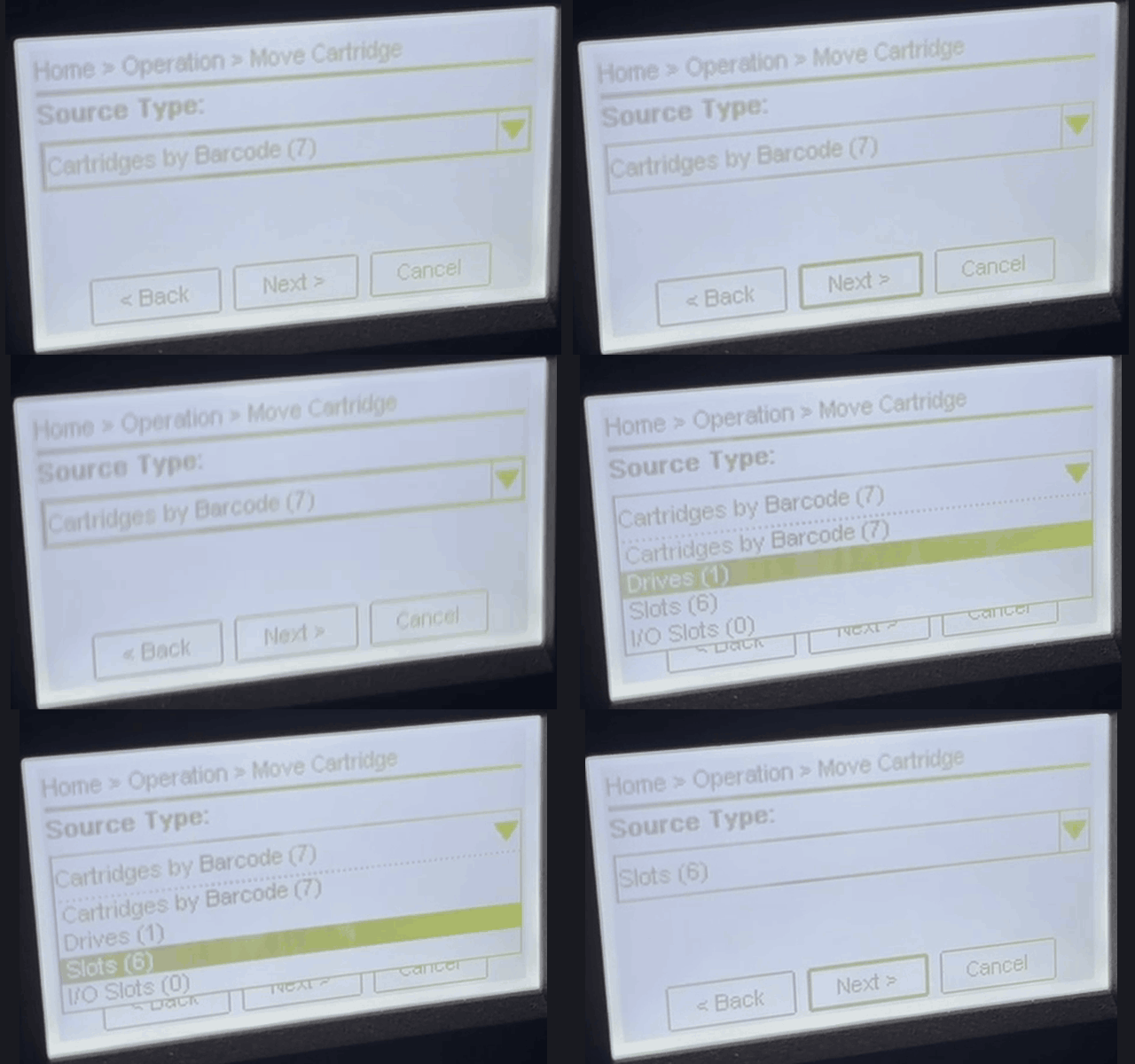
The source selector in the recording offers cartridges by barcode, drives, slots, and I/O slots, with counts beside the categories. This helps the operator approach the same move from different starting points: a cartridge identifier or a location. The barcode is especially useful when several cartridges are present and choosing the wrong medium would matter.
The next stage selects a destination type, then a specific destination. In the recorded example, I choose an empty storage slot. The panel subsequently displays a move from Slot 1.1 to Slot 1.2 within Logical Library 1.
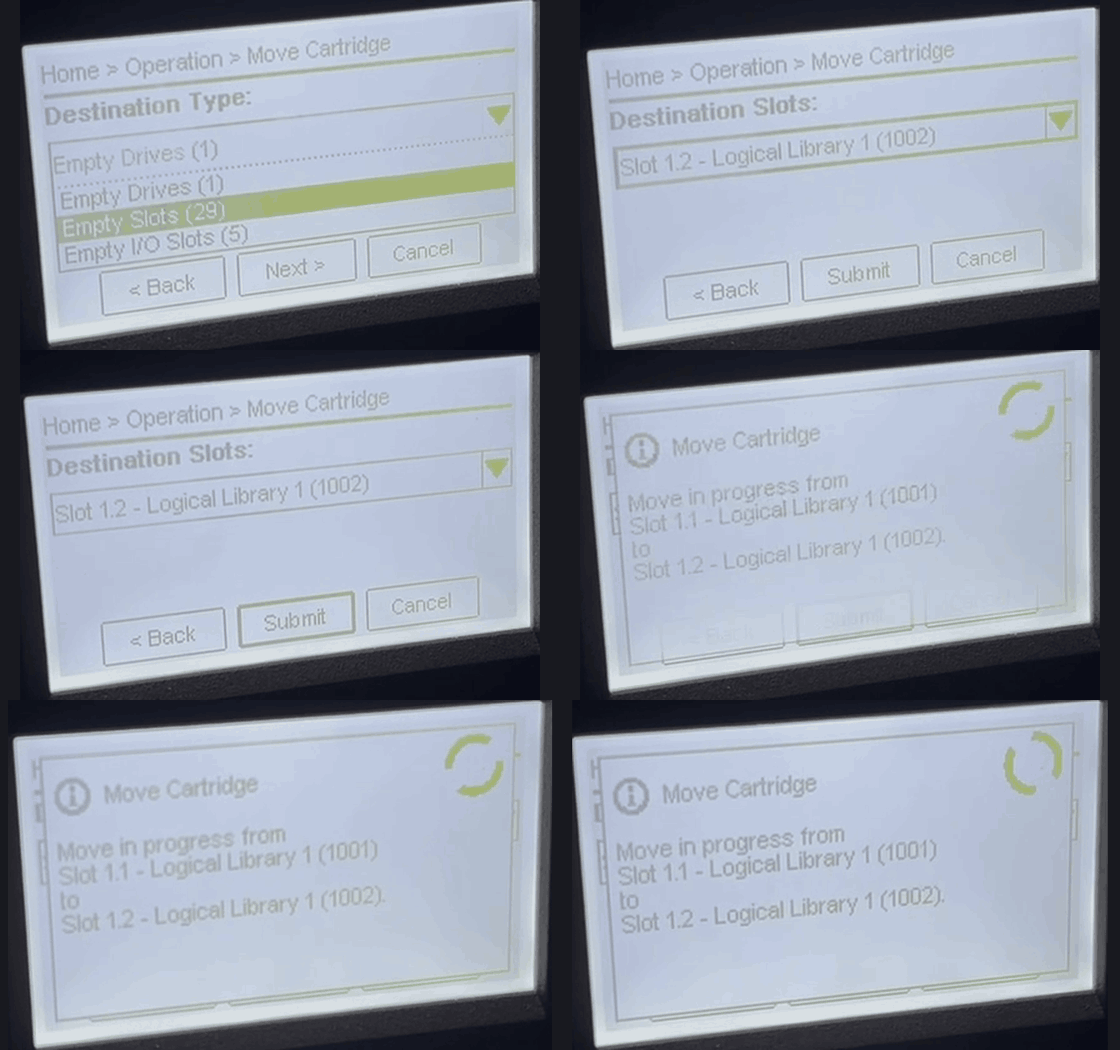
This is useful during controlled media handling or hardware investigation because the operator can name both ends of the movement. For a tape managed by a backup application, the local action also needs to fit that application's workflow. Check its inventory afterward where required, rather than assuming that a hardware move completes a media import or export.
Configuration helps establish management access
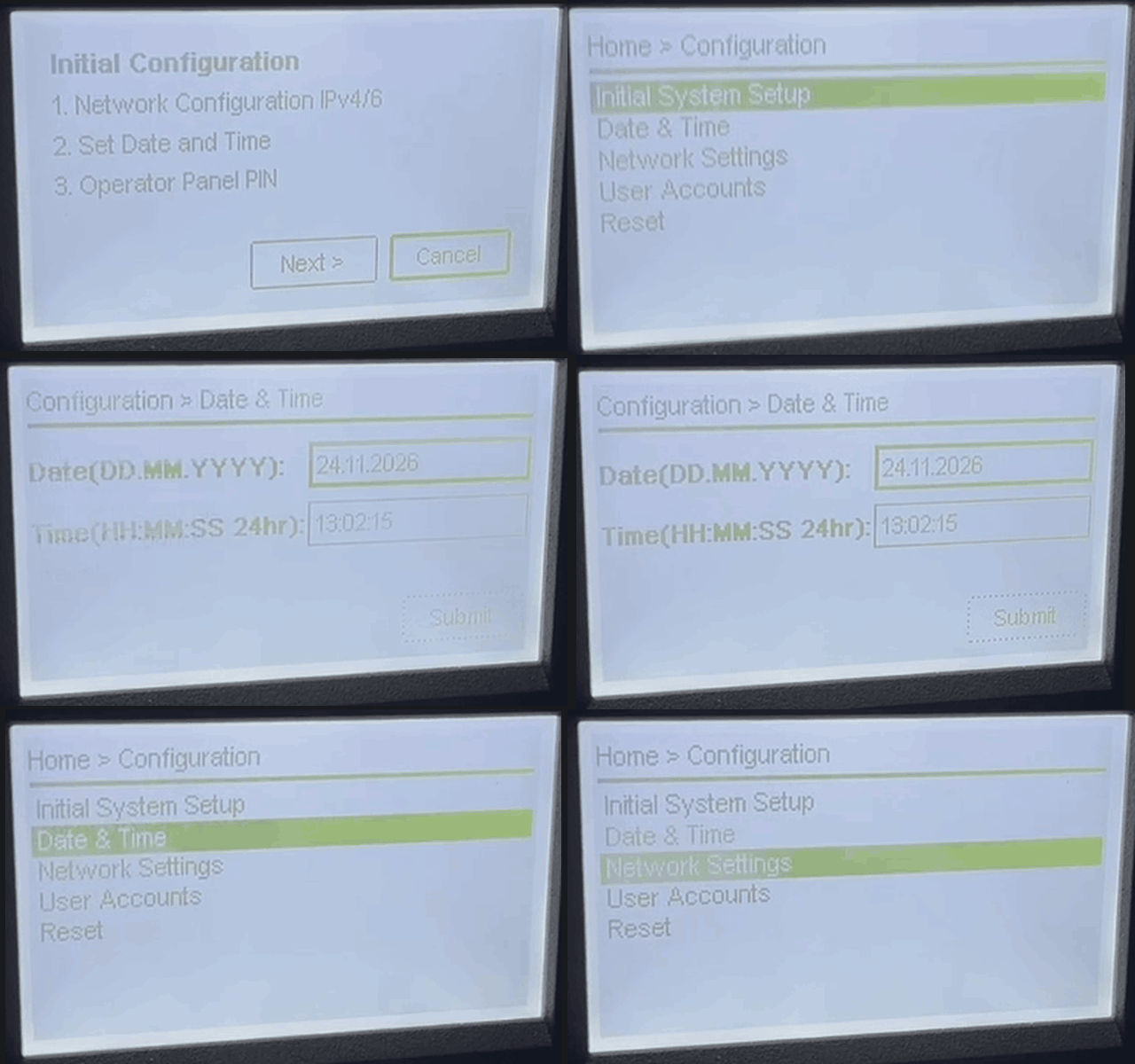
Initial System Setup groups the fundamental management settings. The recorded overview lists network configuration, date and time, and the operator-panel PIN. That makes the panel useful before a working browser session exists: it provides a local route to the settings needed to establish management access.
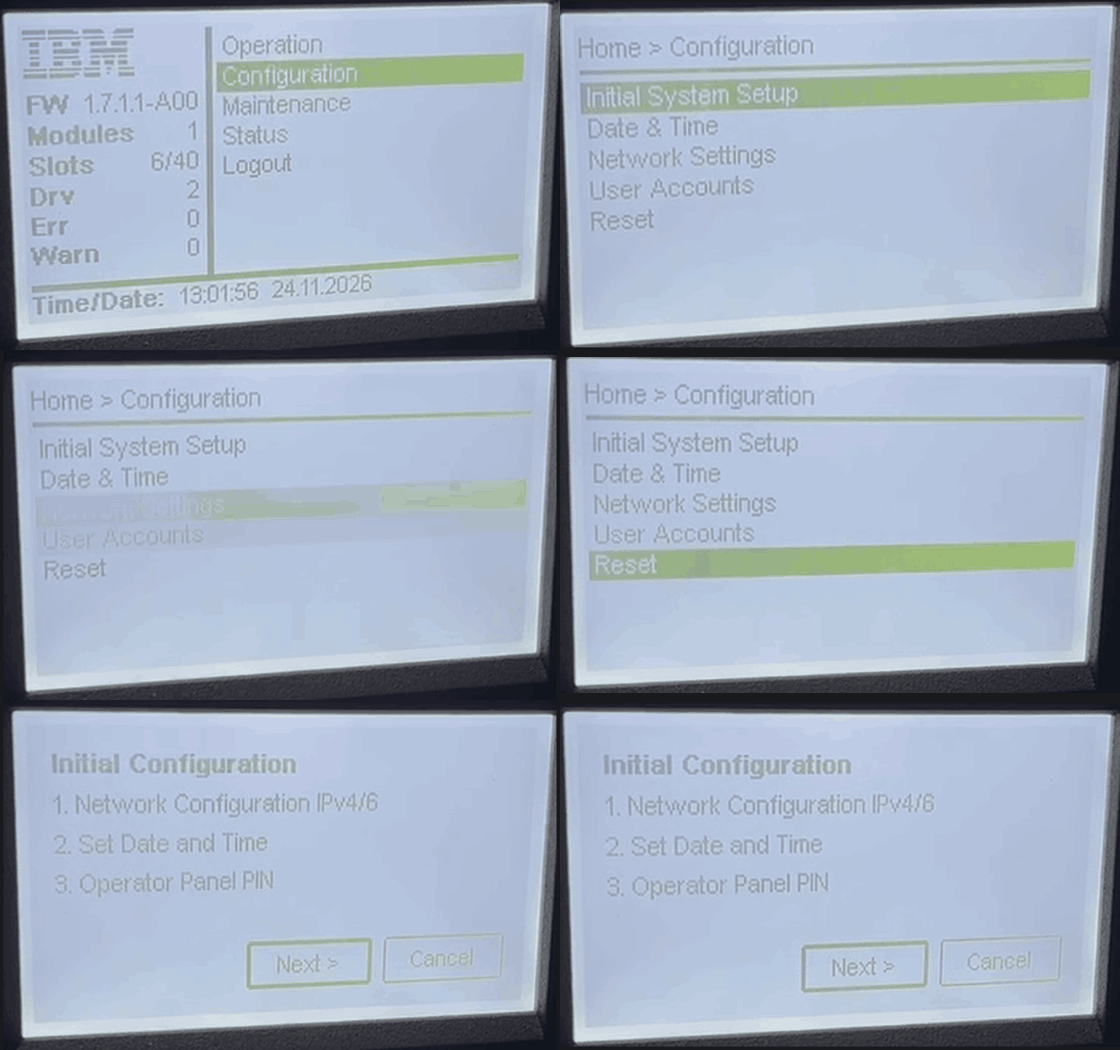
| Option | Purpose and a practical use |
| Initial System Setup | Guides the initial management setup. Useful when preparing a unit before completing its configuration through the web interface. |
| Date & Time | Sets the library clock. Matching timestamps help correlate a library event with a host or backup-job message. |
| Network Settings | Configures management connectivity. A useful place to investigate the library's address configuration when browser access is unavailable. |
| User Accounts | Contains the local access-related options shown below, including panel-PIN changes and access recovery. |
| Reset | Contains specific reset-related functions. IBM documents Reset Internal IP Range here; this concerns the library's internal network and is distinct from a library reboot or restoring all settings. |
For example, when an event appears at a different time from the corresponding host message, checking the library clock helps determine whether the records share the same timeline. The Date & Time screen gives direct access to that setting.
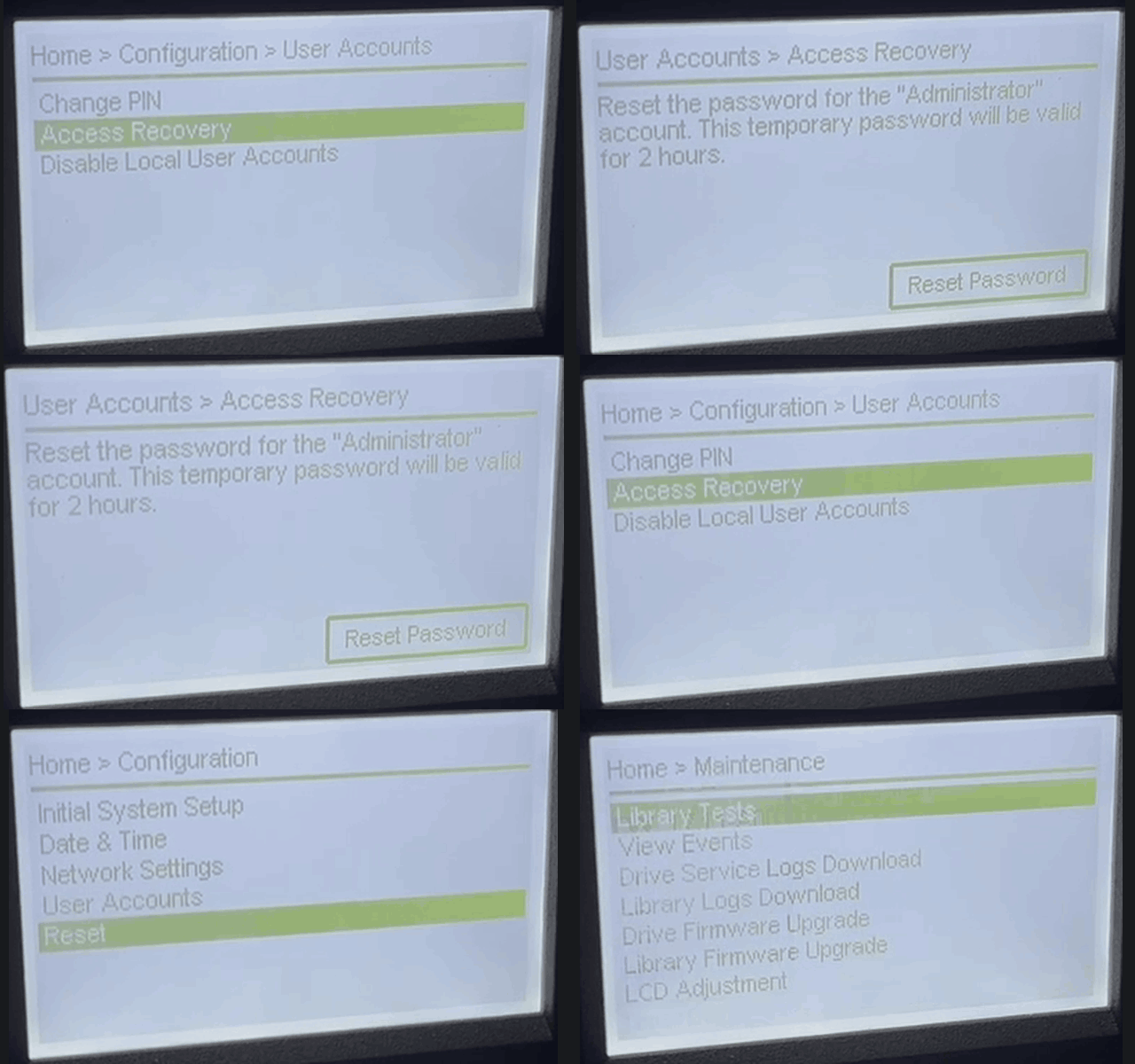
The User Accounts submenu shows Change PIN, Access Recovery, and Disable Local User Accounts. Change PIN concerns the operator-panel login. The Access Recovery screen shown in the recording describes a temporary recovery password for the Administrator account. Disable Local User Accounts concerns local-account access; its prerequisites and effect belong to the firmware-specific access procedure.
These are distinct access controls, rather than a complete replacement for web-based user and role administration. Recovery or account changes should be performed by the responsible administrator through the documented process.
Maintenance separates events from tests and updates
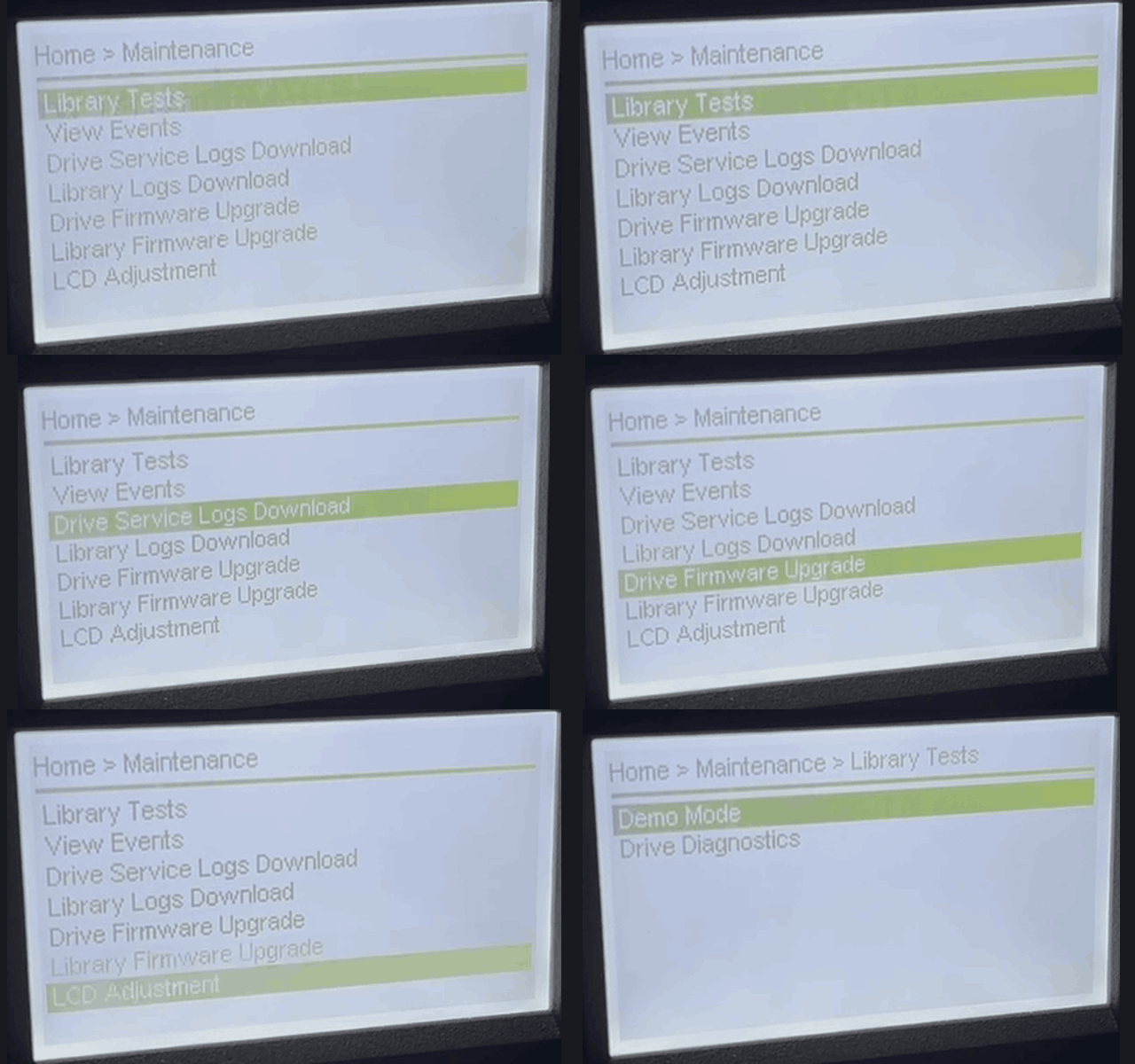
When investigating a warning, I would begin by reading the event before choosing a diagnostic or changing firmware. The Maintenance menu puts these activities together, but each produces a different kind of information or change.
| Option shown | What it is for |
| Library Tests | Opens the available test functions. The recording shows Demo Mode for demonstrating robotic operation and Drive Diagnostics for a selected drive. |
| View Events | Displays recorded events. Use the event and timestamp to connect a panel warning to the sequence of a problem. |
| Drive Service Logs Download | Exports drive service information for deeper analysis of the selected drive. |
| Library Logs Download | Exports controller and library diagnostic information for investigation or support. |
| Drive Firmware Upgrade | Updates a drive with a supported firmware image for that component. |
| Library Firmware Upgrade | Updates the library controller with its supported image. |
| LCD Adjustment | Adjusts the local display for readability. |
IBM documents USB-based log exports and firmware operations through this panel, including device-format requirements. Logs provide evidence to retain and review. Tests exercise selected functions. Firmware upgrades change the component's software and require a compatible image, coordinated library and drive levels, and a maintenance plan.
The following excerpt enters Drive Diagnostics and shows the installed drives as separate selections. Selecting a drive defines the target for the next diagnostic stage; the recording does not show a completed test result.
Status gives a quick local view
Status groups network, library, and drive information. At the rack, that provides a way to inspect management settings and component state before opening a deeper maintenance workflow. Logout ends the local session when the work is finished.
The division between local and web functions is worth checking for a specific task. For example, the referenced TS4300 guide places the complete cartridge inventory list and an explicit inventory rescan in the Management GUI. The automatic inventory message after magazine access does not imply a matching manual-rescan menu on the panel.
Reading the TS3100 menu structure
The TS3100 uses four main categories: Monitor, Control, Configure, and Service. The smaller display is easier to navigate once these categories are connected to the task: inspect information, handle media, change settings, or perform service work.
Monitor identifies the component and its state
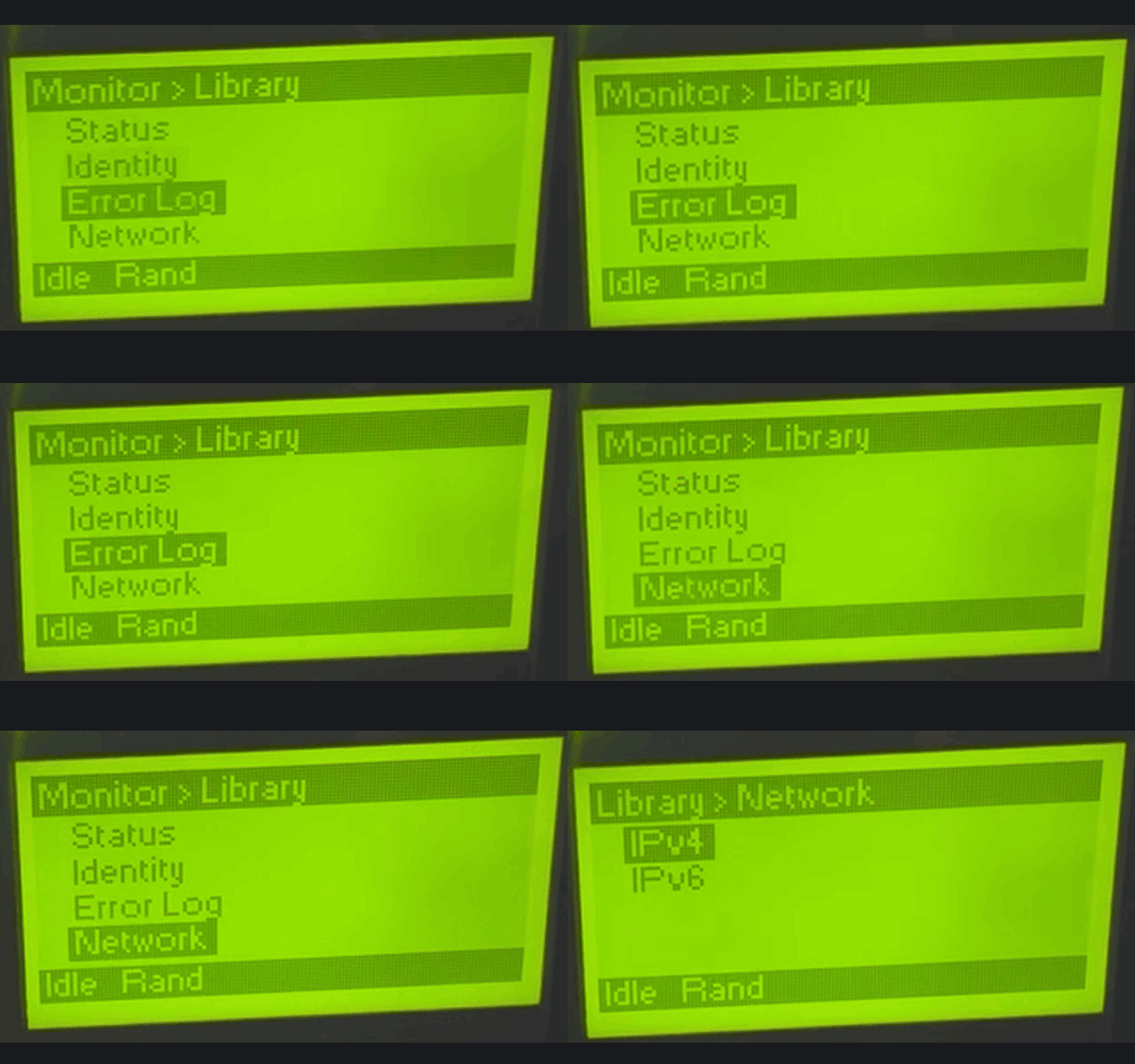
Monitor contains Library, Drive, and Inventory. Under Library, the recording shows Status, Identity, Error Log, and Network. These separate the current operating state, unit identification and firmware, recorded errors, and management-network information.
If I need to confirm which device I am examining, Identity is the relevant starting point. For a reported hardware error, Error Log provides the recorded event. For management connectivity, Network exposes the protocol and address settings to inspect. The excerpt below keeps the menu structure visible while excluding identifying values.
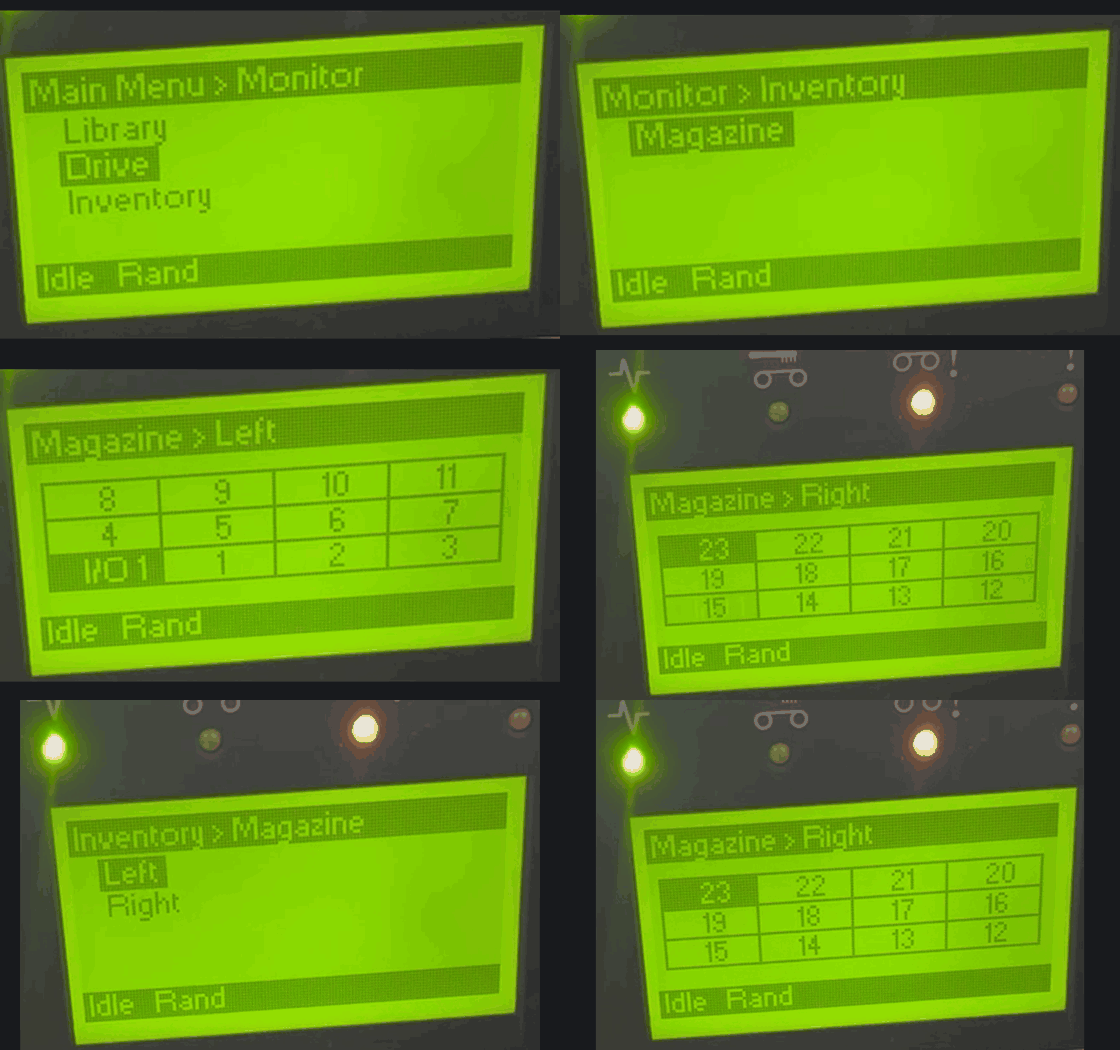
Drive concerns the installed tape drive. Inventory instead organizes the library's cartridge locations by magazine. In the recording, the left-magazine view shows a slot map, making the relationship between the screen and the removable assembly easier to follow.
Control handles physical media access
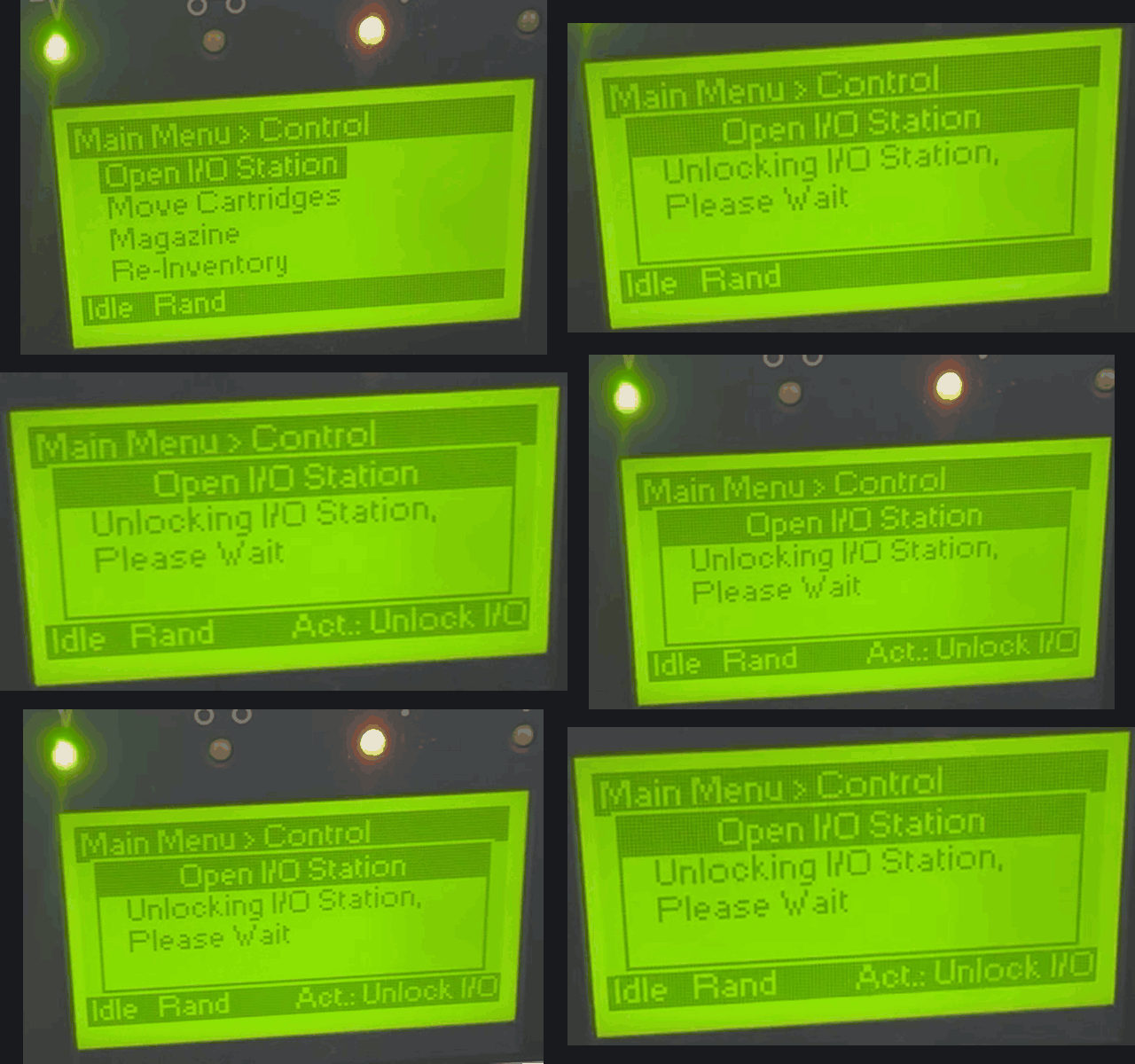
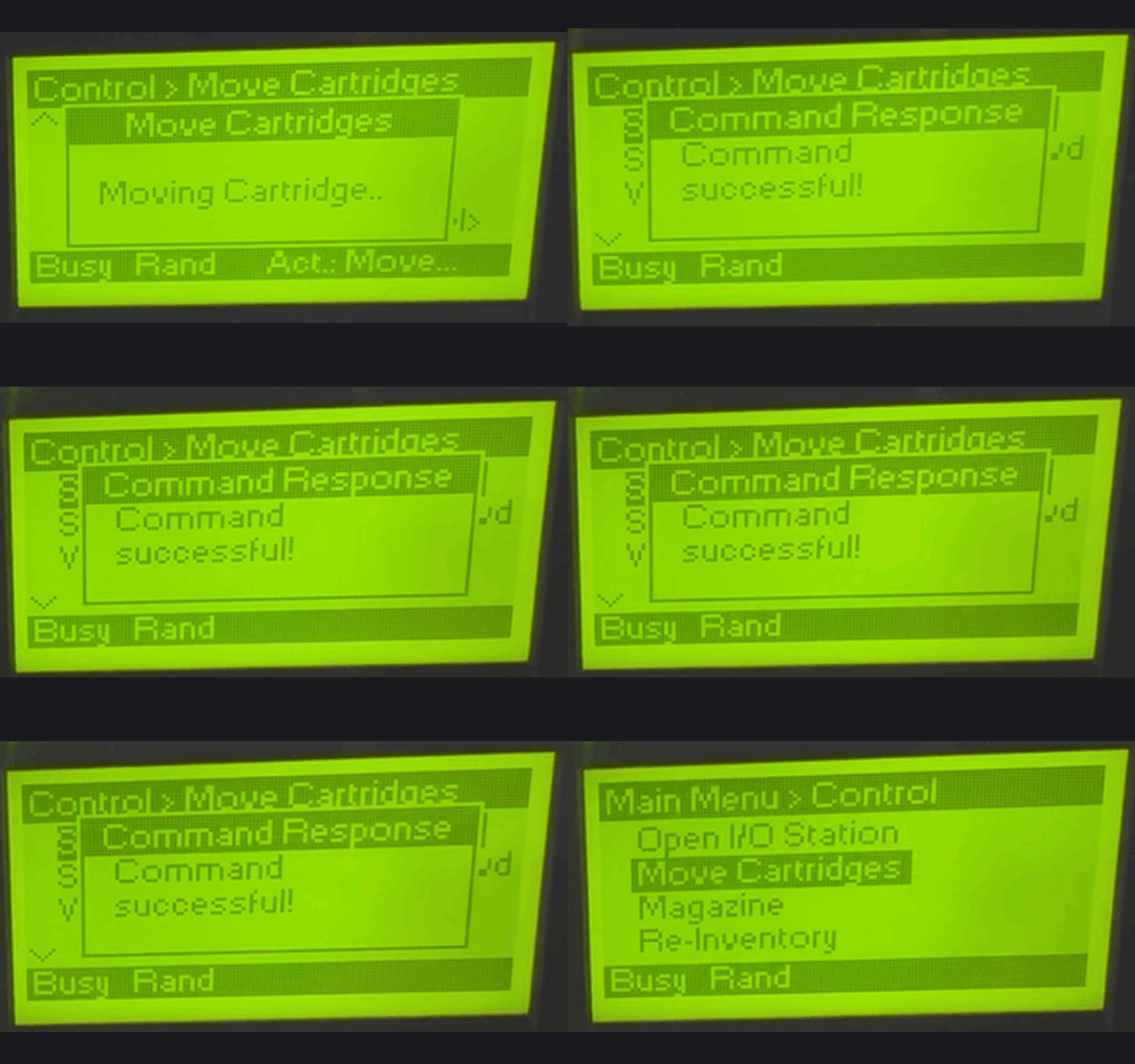
Control offers Open I/O Station, Move Cartridges, Magazine, and Re-Inventory. The I/O station is the designated cartridge insertion and removal point when configured. Magazine releases the selected magazine for access to its slots. Re-Inventory refreshes the controller's knowledge of cartridge locations after appropriate media handling.
Open I/O Station requests the release and displays a waiting message. This gives the operator a clear handoff: issue the request, wait for the equipment's indication, then handle the cartridge through the designated access point.
Move Cartridges selects a source and destination for the accessor. In this recording, I navigate the destination magazine and slot before submitting the request. The change to Moving Cartridge shows that the selection has become a hardware operation.
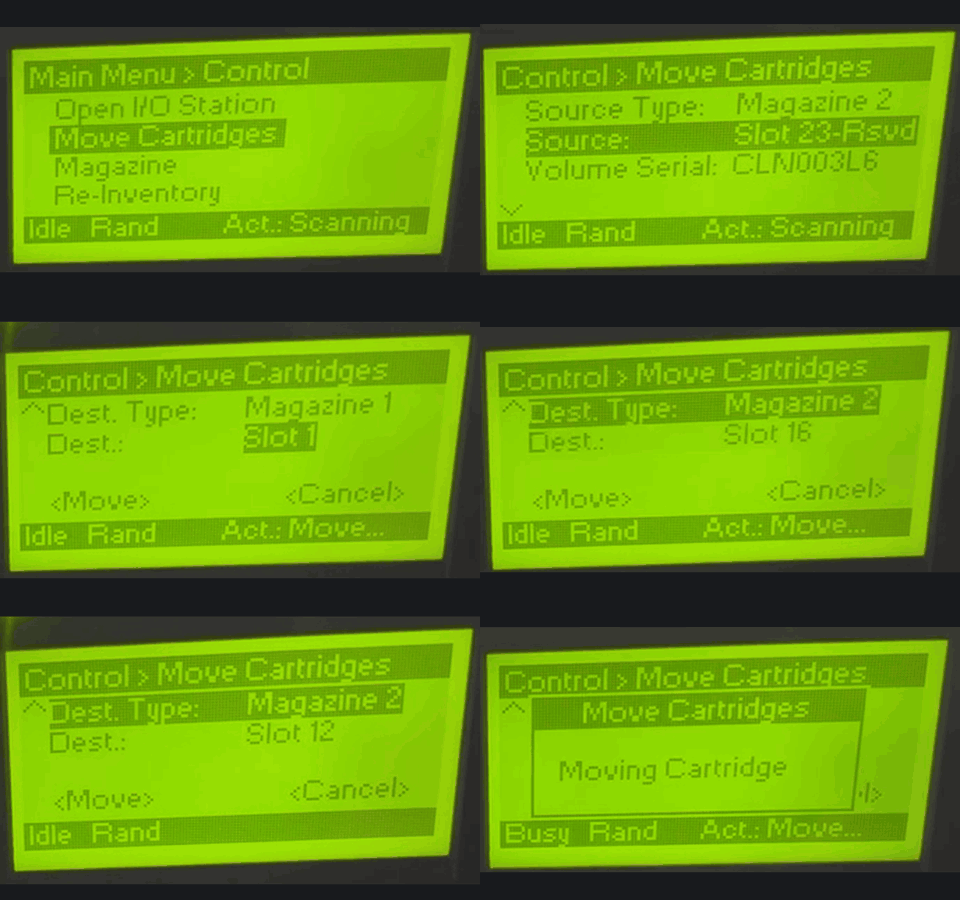
Later in the same recording, the panel reports Command successful. This is the result for that move. I kept the destination selection and result as separate excerpts so each illustrates a clear stage; time between the two is omitted.
Configure manages settings and configuration files
The Configure menu includes settings for the library, drives, and network. The recording also shows Set Access PIN, Save/Restore, Set Date and Time, and Control Path Failover.
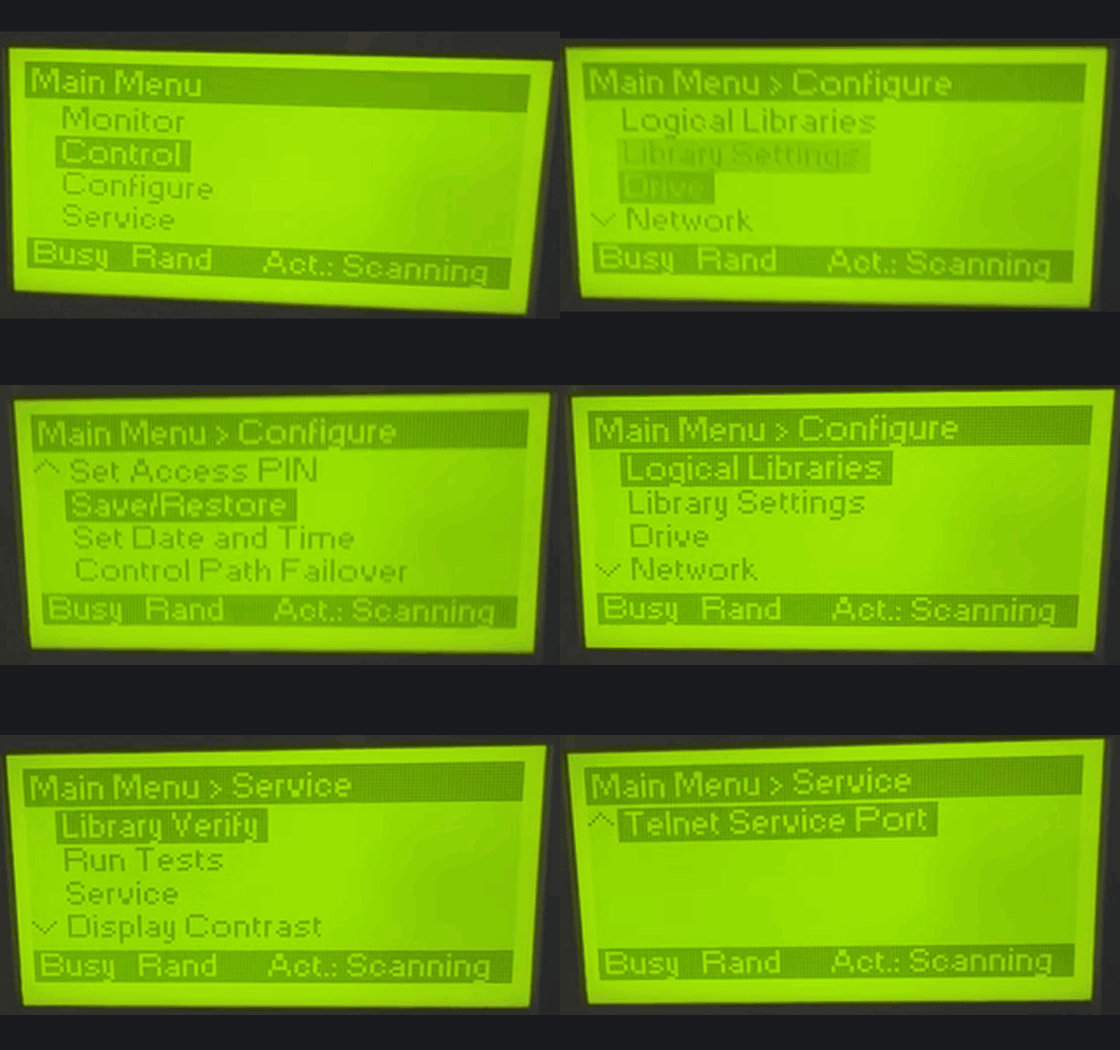
Set Access PIN protects access to local menus. Set Date and Time controls the clock used in event records. Control Path Failover relates to supported path-failover functionality and its activation requirements; operation depends on the licensed feature and the surrounding drive, host, and driver configuration.
Save/Restore deserves a closer reading because it manages the equipment configuration. IBM's guide distinguishes saving a configuration to USB, restoring a saved configuration, restoring passwords, and restoring factory defaults. A saved configuration can support controller recovery, while restoring defaults removes previous settings. The guide also warns that saved configurations may not be compatible across firmware versions.
That is the practical reason to read the exact submenu: preserving a configuration and replacing the active settings have different consequences. Neither is a restore of the application data stored on tape.
Service exercises the hardware
Service is the diagnostic category. IBM's guide describes Library Verify, Run Tests, drive service functions, and display adjustment. The recording also briefly shows Telnet Service Port, a support function to use under IBM support direction.
Test names matter here. The documented System Test moves cartridges between slots and drives without reading or writing customer tape data. Slot-to-slot testing changes cartridge positions and requires inventory afterward. Drive-service diagnostics can include read/write tests, so the media requirements must be checked for the chosen test. Library Verify specifies a blank or scratch cartridge.
Planning a diagnostic means choosing the actual test, target drive, suitable media, and an idle equipment window, then recording its result. The additional recording takes that explanation into the Drive Tests workflow.
Following a drive test from the panel to the cartridge
In the additional TS3100 recording, I select Drive 1 under Drive Tests, choose Normal R/W Test, and leave the source as I/O. The panel then requests access to the I/O station. This connects three choices that can otherwise be easy to miss: which drive is being tested, which diagnostic will run, and where its cartridge comes from.
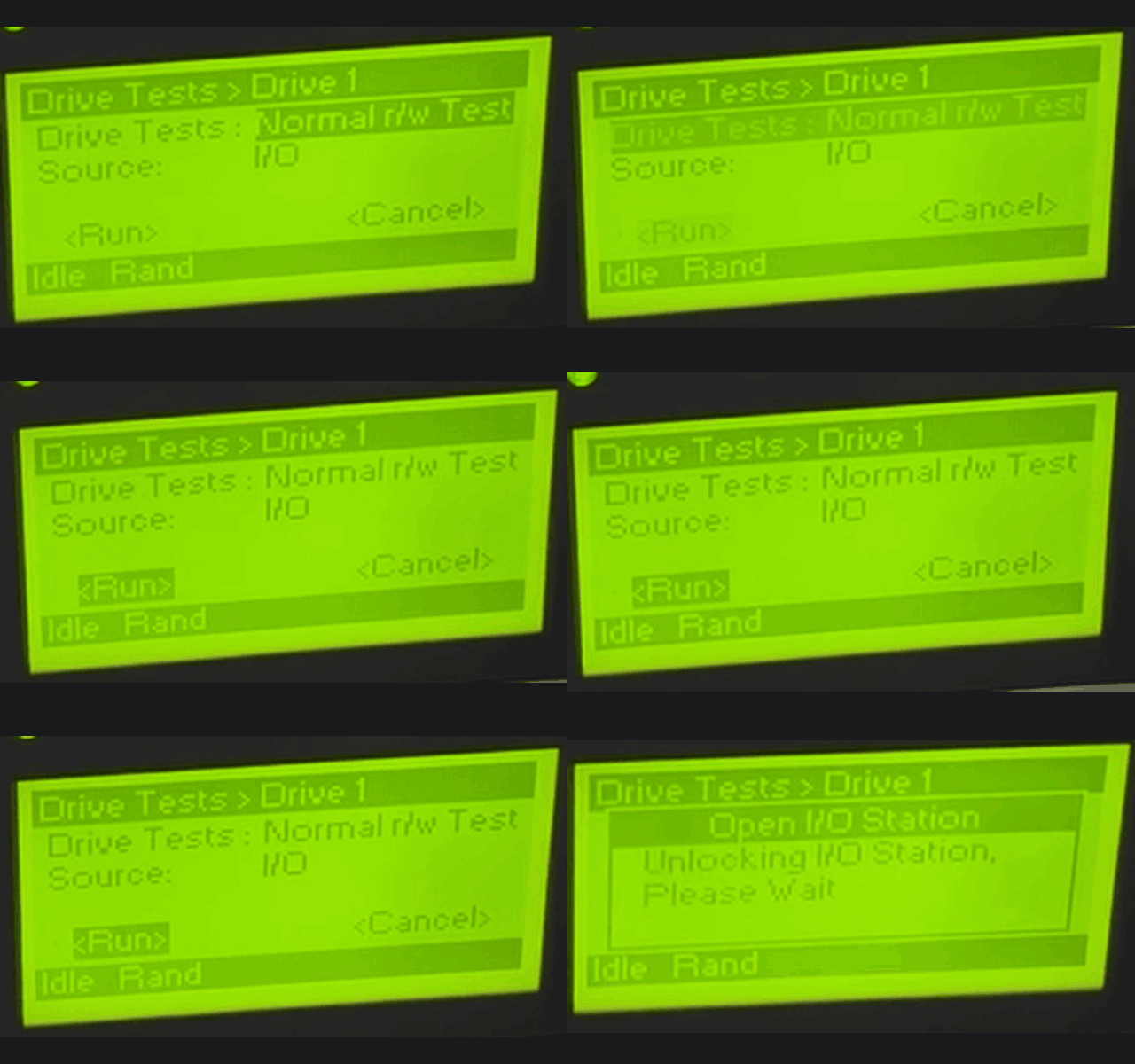
Normal R/W Test is a read/write diagnostic, rather than a cartridge-movement command. IBM lists it among the drive tests available through the panel. The chosen test determines the media requirements; use the specified test media and follow its prompts before starting an operation that can write to tape.
Later in the recording, the accessor turns toward the drive and delivers the cartridge. The view below makes the handoff visible: the robot brings the cartridge to the drive entrance, pushes it into position, and withdraws its handling mechanism.
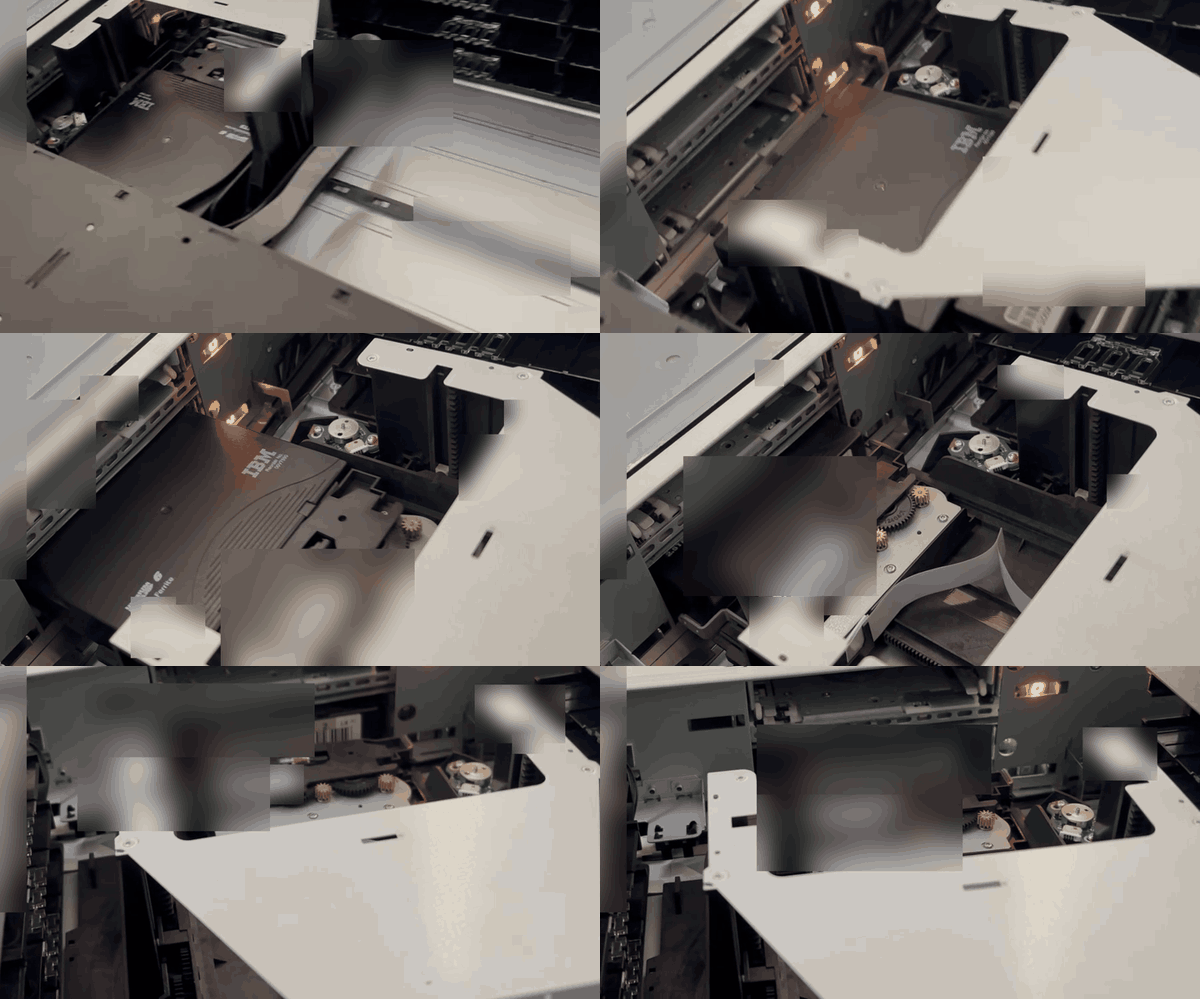
These are separate excerpts from the selection and loading stages; the waiting time between them is omitted. The source video still displays Drive Test running near its end. The visible handoff demonstrates cartridge loading, while the drive's internal tape threading and the outcome of its read/write work are not visible in this view.
Reading a failed test result
The accompanying photograph shows another useful role of the local panel: reporting the diagnostic result. Its screen reads Test: failed!, with ASC 0x00 and ASCQ 0x00, and the amber Attention indicator is lit.
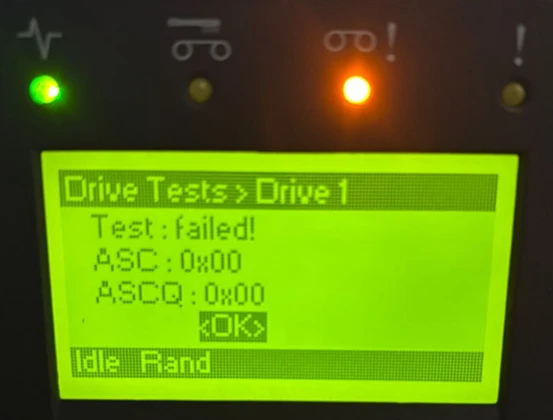
That screen records a failed test; the two displayed values alone do not identify its cause or establish which component needs replacement. I would retain the test name, target drive, media used, timestamp, and full error information, then correlate the library and drive logs through IBM's documented isolation procedure.
The example is useful precisely because the mechanical sequence and the diagnostic result answer different questions. A cartridge can reach the drive while the selected test still fails. Investigating that failure requires the test evidence, beyond observing the robot move.
Connecting the destination to the robot
The internal view becomes more useful after following the menus. The slot selected on the display is a physical destination the accessor must reach. The travel shown at the start of the article positions the assembly along the library; the rotation below changes its orientation toward the cartridge locations.
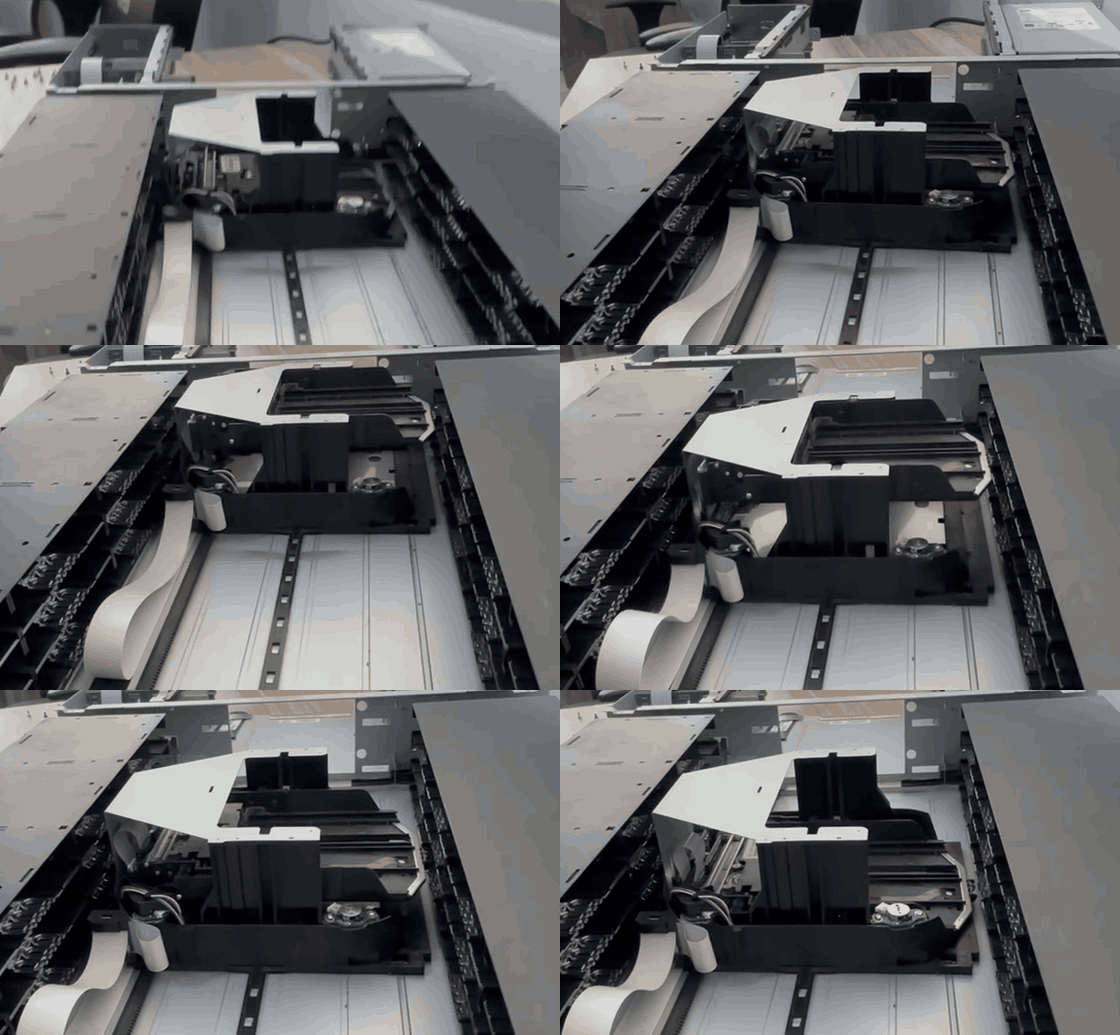
The library robot transports cartridges between locations. Once a cartridge is loaded, the tape drive performs the tape reading and writing. The footage now connects the accessor's travel and rotation to a visible cartridge delivery. The earlier movement clips illustrate positioning; the drive-test excerpts add a selected diagnostic and a view of the handoff to the drive.
What I would check at the rack
At the rack, I would confirm the model and firmware, then read the status and relevant events. For a management-access problem, I would inspect the network settings. For cartridge handling, I would confirm the medium, destination, and host activity before choosing Control or Operation. For a diagnostic, I would select the test and target, check its media requirements, and retain the result.
Both libraries support useful local work without starting in the browser. The menus help identify the task; the internal view shows what a handling command asks the mechanism to do. Connecting those views makes the next action easier to explain and verify, whether the question concerns a cartridge location, a drive, or management connectivity.