Moov: Migrate your Veeam backups straight onto Proxmox, oVirt, and HPE VM Essentials

  • July 21, 2026
  • 10 comments
  • 347 views

Forum|alt.badge.img+3


Excited to share a new project with the Veeam community: Moov

If you run Veeam and you're staring down a move off VMware, you already know the awkward part: the backups are right there, your target hypervisor is ready, but getting the workloads across is still slow, manual, and one VM at a time.

Moov closes that gap. It uses your Veeam Backup & Replication restore points as the source and brings VMs up directly on KVM platforms, Proxmox VEoVirt / OLVM / RHV, and HPE VM Essentials, without ever touching the source vSphere environment during the migration.

It's open to the community on GitHub (VeeamHub), currently in beta.


https://github.com/VeeamHub/moov


Why another migration tool?


Full-restore workflows work, but at scale is complex: extended downtime windows, manual VirtIO driver injection, and moving machines serially while you make some manual tasks. Moov was built for the fleet case, hundreds of VMs, in waves, with the boring parts automated.


Three ideas drive it:

- Veeam is the single source of truth. Every VM comes from a Veeam restore point. Moov never connects to vCenter or ESXi. Your production VMware environment stays untouched.

- The guest should just boot. Moov injects VirtIO drivers and installs the QEMU Guest Agent automatically, so the migrated VM comes up with working storage and networking and reports status to the hypervisor.

- The network should survive the move. Static IPs and multi-NIC layouts are carried over on both Linux and Windows or reassigned per NIC from the console.


How it works

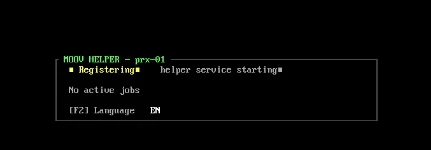
Moov ships as appliance plus lightweight, disposable helper VMs you deploy on the target hypervisor:


1. The Pre-flight Inspector scans your Veeam backups and classifies each VM, OS, CPU, RAM, disks, network interfaces, and VirtIO readiness, so you know exactly what you're moving.

2. You plan a wave in the web console and pick a target and migration mode per VM.

3. The Core publishes the restore point from Veeam and hands the work to a helper, which serves the disk over NBD, injects drivers and the agent, and drives the boot.

4. Progress streams live to the console; the VM boots, the guest agent comes online, and (for Instant Migration) the disk pivots to local storage with no downtime.


Two migration modes
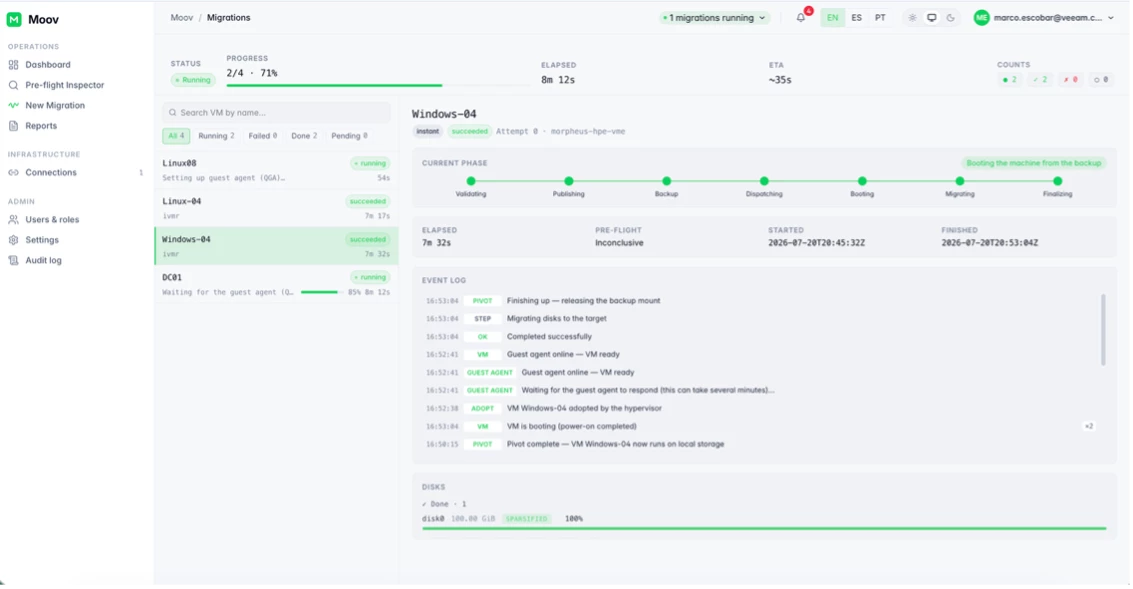
 

Instant Migration (IVMR), in minutes. The VM boots directly from the backup over NBD, then pivots to local storage with no downtime. Best for critical workloads.

Cold Migration (Convert and Boot), in hours. Full materialization before boot, for guests that need conversion.


Scale is just "add helpers"

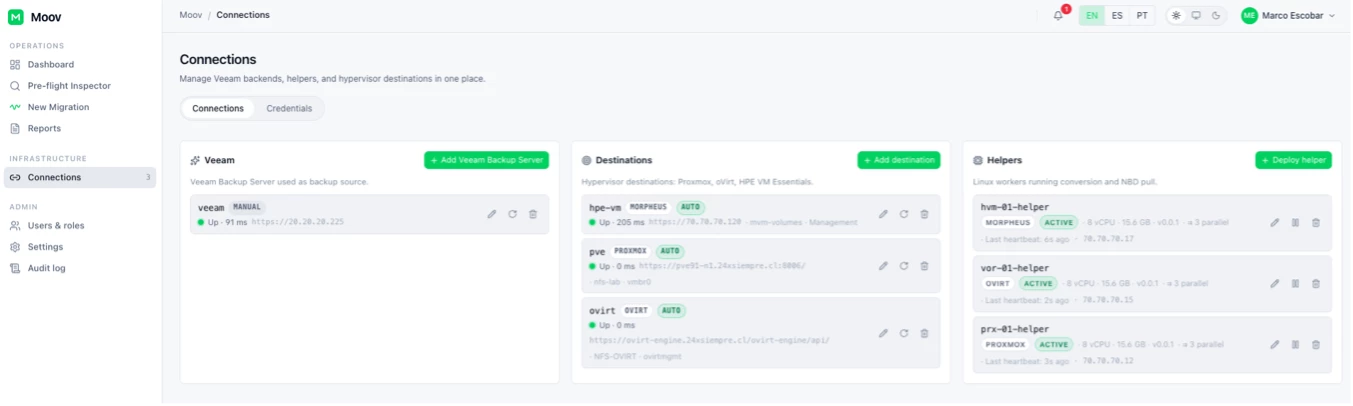
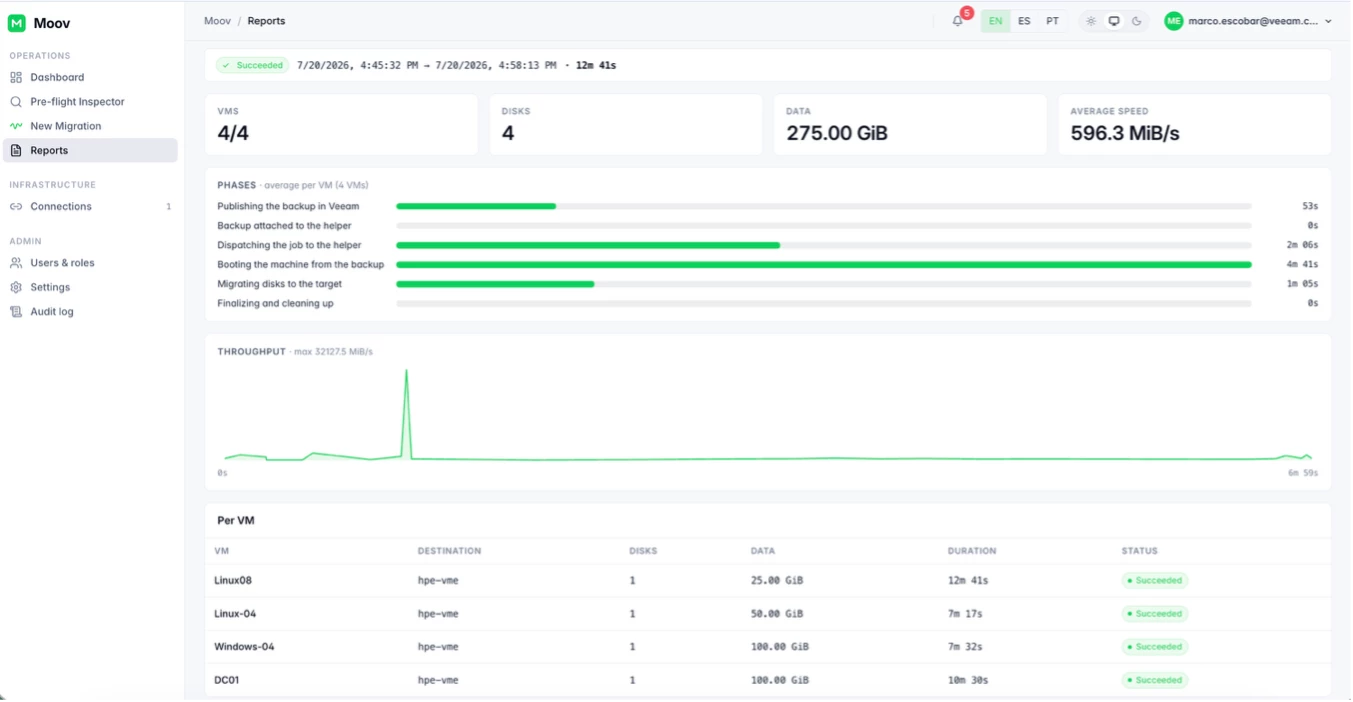
Each concurrent VM needs roughly 1 vCPU and 2 GiB of RAM on the helper, so an 8 vCPU / 16 GiB helper moves 8 VMs at once. Total throughput is the sum across all helpers, deploy more helpers (they can even live on different target hypervisors) and you move more VMs in parallel. Moov also respects the real limits of your Veeam Mount Server so you don't saturate the source.
 

Getting started
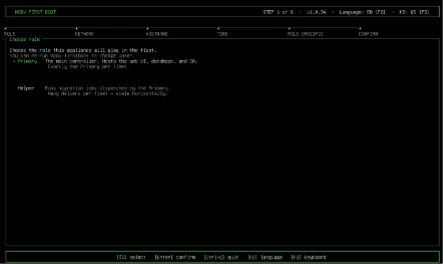
1. Deploy the appliance image and complete the first-boot wizard.

2. Open the web console and sign in.

3. Connect your Veeam server and at least one target hypervisor (Proxmox can bootstrap its API token automatically).

4. Set the per-hypervisor defaults, deploy a helper, run a pre-flight scan.

5. Plan a wave and watch it run.

The appliance is self-contained and air-gap friendly, no internet access is needed during a migration.


Where to find it

Moov is on GitHub under VeeamHub: https://github.com/VeeamHub/moov with the appliance images. It's beta today, so if you're mid-migration, test it and tell us what's missing. That feedback is exactly what shapes the next release.



10 comments

coolsport00
Forum|alt.badge.img+23
  • Veeam Legend
  • July 21, 2026

This is a fabulous effort ​@Marco.Escobar ! Thanks for sharing this with the Community!


  • New Here
  • July 21, 2026

Awsome ! Many thanks 


Chris.Childerhose
Forum|alt.badge.img+22

Very interesting tool.  We are not migrating but nice to know there is a tool available for this type of thing. 👍🏼


Rick Vanover
Forum|alt.badge.img+10

Shoutout RECAP!


Chris.Childerhose
Forum|alt.badge.img+22

Shoutout RECAP!

I figured this would be a great recap shoutout for sure!


emanuele.roserba

Great work, ​@Marco.Escobar, thank you!


Fantastic work and I love how it demonstrates Veeam’s commitment towards true data mobility!


Dynamic
Forum|alt.badge.img+14
  • Veeam Vanguard
  • July 22, 2026

Awesome work ​@Marco.Escobar 👏

I will try this asap in the Lab and could make use of it in some customer environments. Thanks


  • New Here
  • July 24, 2026

Some feedback about this product:


I installed the VM, configured our Backup-Server and deployed a helper.

I noticed that when deploying the helper, Veeam Moov expects Morpheus to report back about the state of the helper-vm. By default, the helper-vm is configured to install the Morpheus Agent, which stalls the deployment in the fInalization stage for a long time which leads to the deployment step timing out and failing. I was able to work around this issue with unchecking the "Install agent?" checkbox within the virtual image of the helper vm. I dont know if the Morpheus Agent is necessary for the helper to work properly. This also might only be the case because we selected to do the agent installation with cloud-init and not via the qemu-guest-agent.

So far so good. Next step was to do the preflight-inspector:

Running the preflight also has some bugs. The inspection wont detect all backed up vms. We have several hundred vms within our repo but the inspector is only able to find 68 of them. Also, the disk size will get misreported for most of the vms. I noticed that it will sometimes report the size of one vm within a separate backup job for all of the vms within this job. So the size reporting can differ when running the preflight-inspect multiple times.

Analyzing the vms disks about drivers etc. generally fails and it wont detect anything.

Continuing onto the actual restore task:

I took a precreated backup job with three vms, which luckily got detected within the preflight, and created a migration job for them. Defining all relevant information per VM was good, but when starting the migration job as a cold or hot migration, the selected vms get skipped immediately without further information on why.


So the tool seems promising, but because of the bugs its technically unusable at this time. I hope this feedback helps resolving these issues.


Forum|alt.badge.img+3
  • Author
  • Comes here often
  • July 24, 2026

Hi ​@SysPxrzival Thanks for test Moov!

This is really useful, and it helps me separate what's a setup requirement from what's on us to fix.

A few of these come down to how the destination Morpheus/MVM environment needs to be configured for Moov to reach it:

VMs skipped immediately, and disk/driver analysis finding nothing: These are almost certainly because Moov can't reach the destination nodes yet. For migrations and deep disk analysis, Moov needs, on the MVM nodes: (a) the appliance's SSH key installed in the node's authorized_keys, (b) sudo NOPASSWD (it runs virsh over SSH to resolve the machine type and manage the domain), and (c) the hypervisor defaults set (resource pool, storage, network/layout). Without those, the run fails early and the VM is skipped, and the analysis step can't mount/inspect the disks.

And two that are genuinely on us:

Helper Morpheus Agent stall: Correct, the agent isn't needed (the helper uses its own mTLS channel), and we're making the helper deploy agentless by default so you won't have to touch the image.

Pre-flight discovery (68 of several hundred): Known, and we've been hardening it (per-backup timeout/retry + pagination for large repositories). 
 

If you can send a support bundle (Settings → Diagnostics), its anonymized, after a run, I can review in details what is happening.

Today I will add the User Guide in Github.

Here you have a screenshots to configure sshkey and sudo no passwd.

https://gifyu.com/image/blQdq