

I am sharing the procedure for performing an in-place upgrade of the VBR 12 infrastructure to version 13, including an analysis of the potential warnings identified during the configuration check.
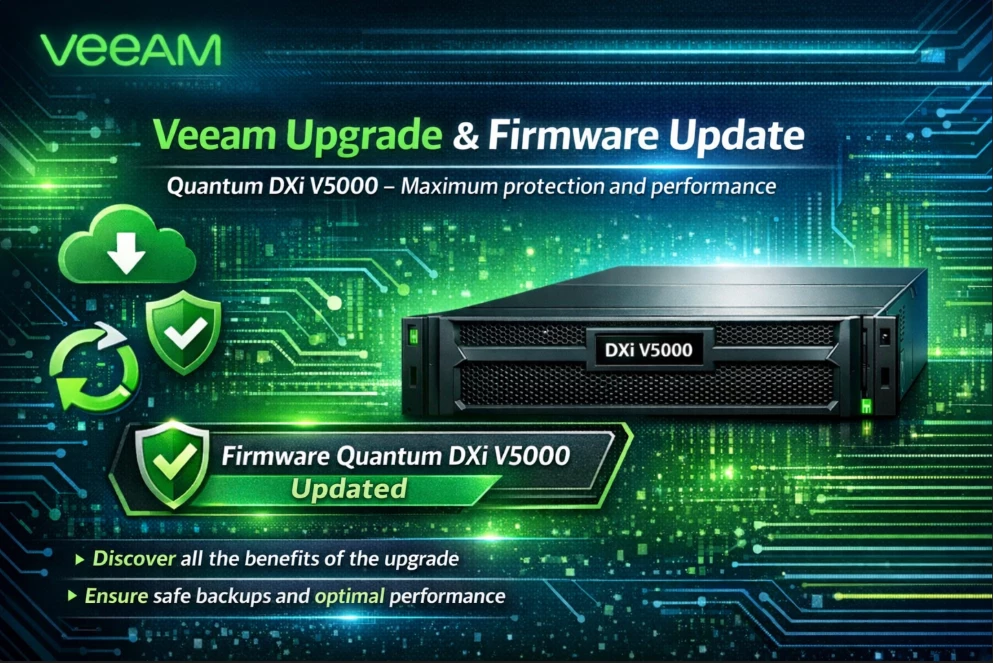
Here you will find links to the official documentation for further information.
Check this Veeam doc
Upgrading to Veeam Backup & Replication 13 on Windows - Veeam Backup & Replication User Guide
Check Prerequisite
Upgrade Checklist - Veeam Backup & Replication User Guide
Download last ISO
Discover the Latest Version of Veeam Solutions
Mount ISO and launch setup
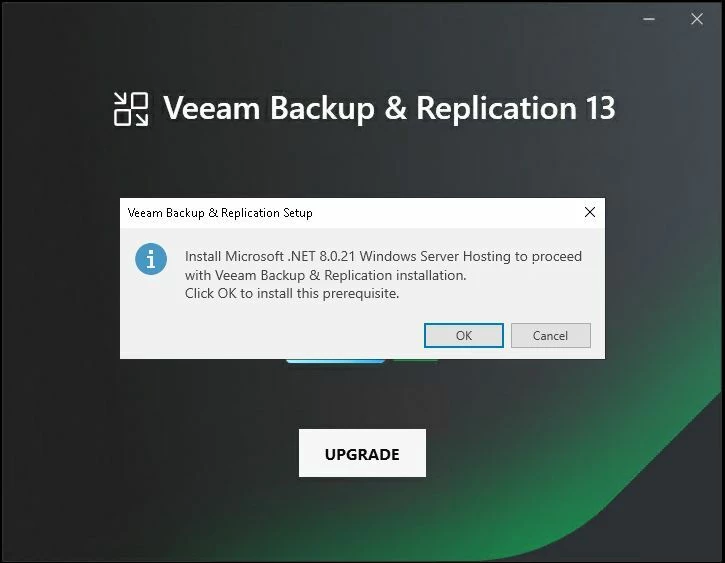
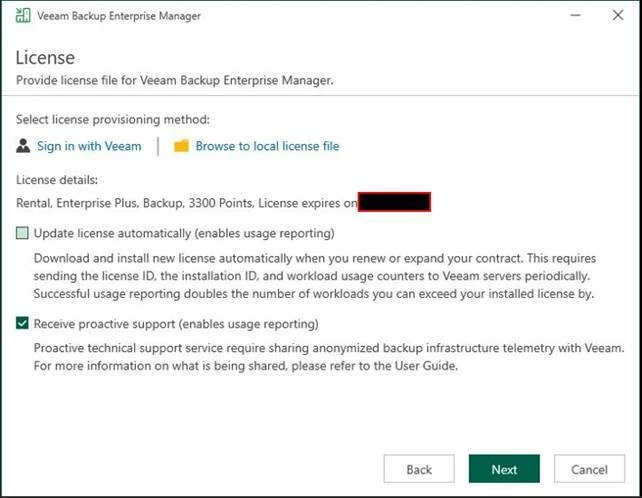
First step is upgrade EM
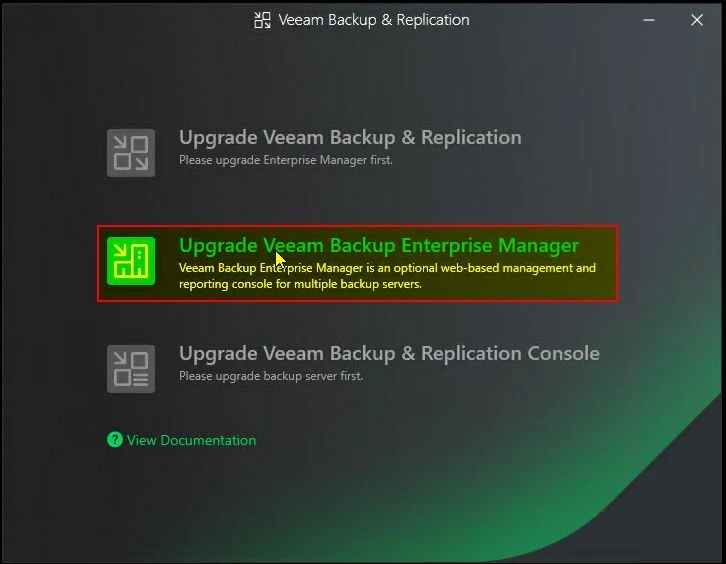
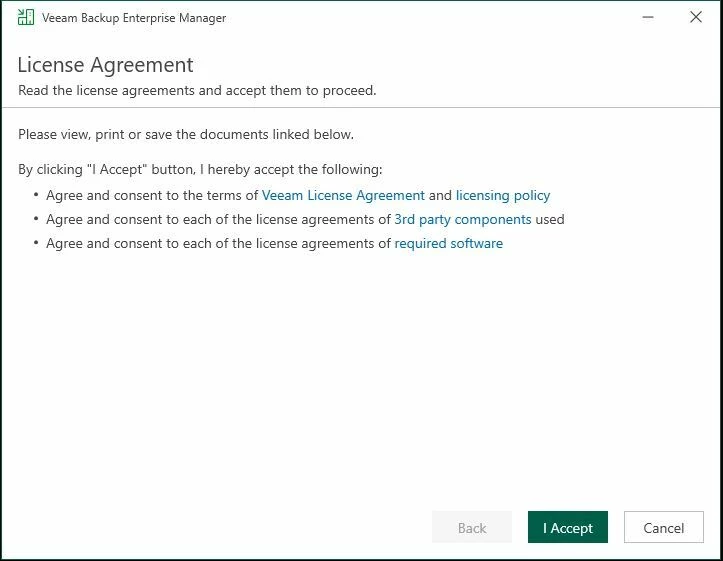
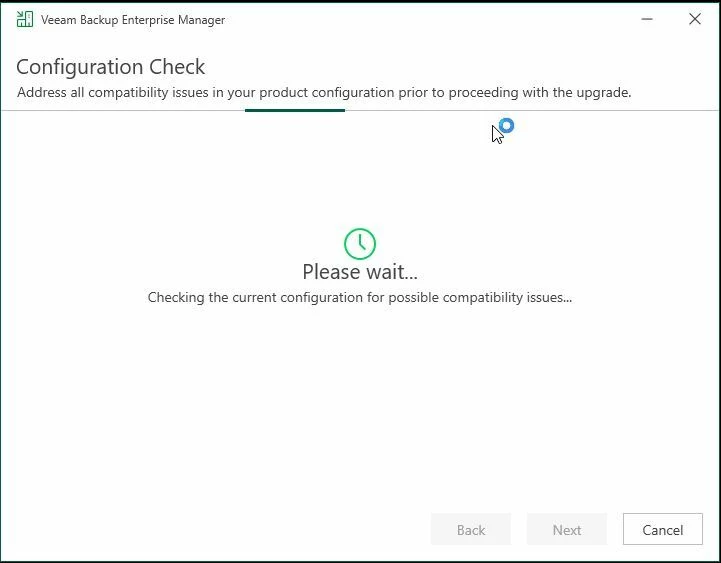
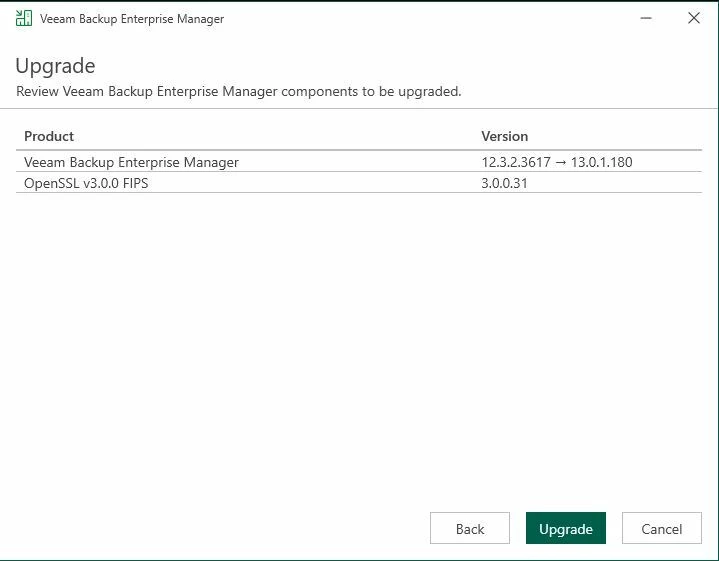
Second step upgrade VBR server

Let us analyse the following warnings returned by the configuration check
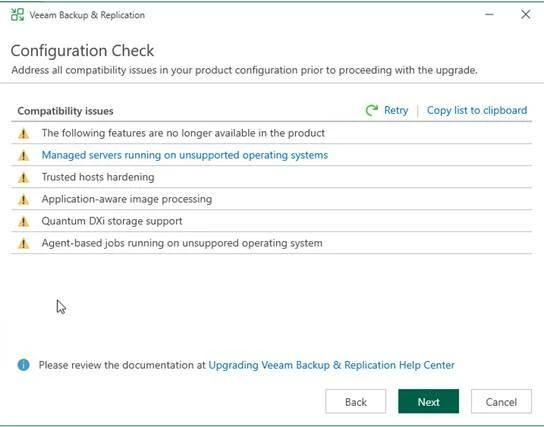
“The following feature are no longer available in the product”
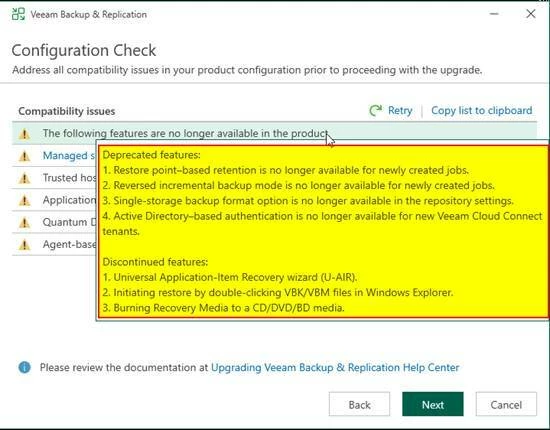
- The following features are no longer available in the product
- Restore point–based retention
- Existing jobs continue to work.
- Fix: for new jobs use Retention by days or GFS.
- Reversed incremental
- Existing jobs remain operational.
- Fix: migrate to Forward Incremental + Synthetic/Active Full.
- Single-storage backup format
- Existing repositories continue to work.
- Fix: no immediate action required; for new repositories use standard v13 format.
- AD-based authentication for Cloud Connect
- Existing tenants continue to work.
- Fix: for new tenants use local users / MFA / provider-managed auth.
- U-AIR
- Feature completely removed.
- Fix: use specific Application Item Recovery wizards (SQL, Exchange, AD).
- Restore via double-click on VBK/VBM
- Removed.
- Fix: always initiate restore from the Veeam Console.
- Burn recovery media to CD/DVD
- Removed.
- Fix: use ISO or USB bootable media.
“Managed servers running on unsupported operatind system”
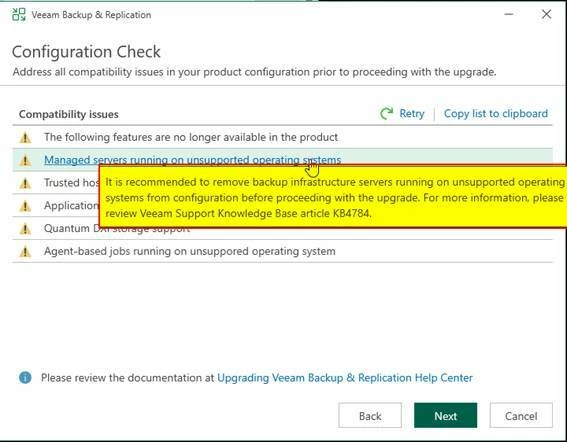
- Managed servers on unsupported operating systems (KB4784)
Status POTENTIALLY CRITICAL, but does not block the upgrade
Actual Risk
- Infrastructure servers (proxy, repo, gateway, mount server) on unsupported OS:
- may not start correctly
- will not receive updates
- may cause job failures
Recommended Fix (BEST PRACTICE) Before the upgrade:
- Identify servers with unsupported OS
- Options:
- Upgrade the OS
- Remove the server from the configuration
- Replace it with a new supported one
If you don't do this, the upgrade will proceed anyway, but you assume the operational risk.
“Trusted hosts hardening”
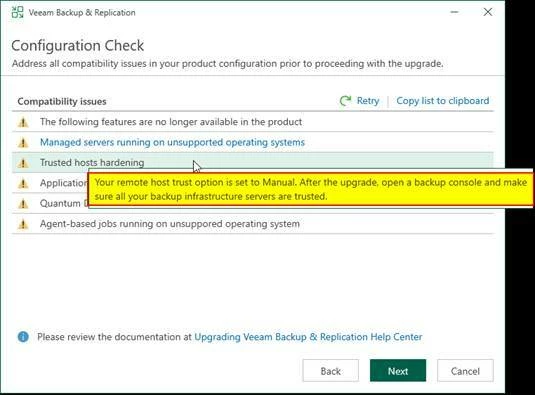
- Trusted hosts hardening
Trusted hosts hardening – Remote host trust = Manual
Status NON-blocking, but a post-upgrade check is mandatory.
Risk After the upgrade:
- Infrastructure servers may appear as “Untrusted.”
- Jobs utilizing those servers will fail.
Fix / Resolution Post-upgrade, follow these steps:
- Open the Veeam Backup & Replication Console.
- Navigate to Backup Infrastructure.
- For each server:
- Verify the Trusted status.
- If necessary → Select Trust host.
Note: No action is required prior to the upgrade, but do not forget to perform these checks once the process is complete.
“Application-aware image processing – Unsupported OS”
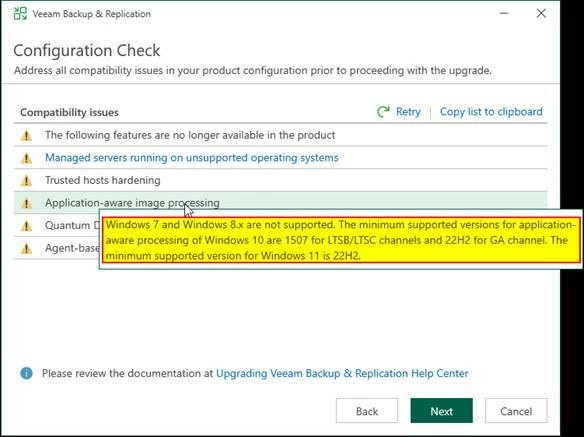
- Application-aware image processing – Unsupported OS
Status NON-blocking, but features will be disabled.
Impact VMs running:
- Windows 7
- Windows 8.x
- Windows 10 < minimum versions
Will NOT have Application-Aware Processing, resulting in:
- No VSS consistency.
- No log truncation.
Fix / Options
- Upgrade the VM operating systems.
- Disable application-aware processing for those specific VMs.
- Accept crash-consistent backups instead.
Note: This does not block the upgrade process, but it directly impacts the quality and reliability of application-level restores.
“Agent-based jobs on unsupported OS”

- Agent-based jobs on unsupported OS
Status NON-blocking
Impact Affected agents:
- Will not be updated.
- Will not receive new features.
- Will continue to function only as long as they remains compatible.
Recommended Fix For legacy systems:
- Convert the agent to Standalone mode.
- Alternatively:
- Upgrade the OS.
- Replace with a supported workload.
Note: No immediate mandatory action is required.
“Upgrade Quantum DXI Firmware”
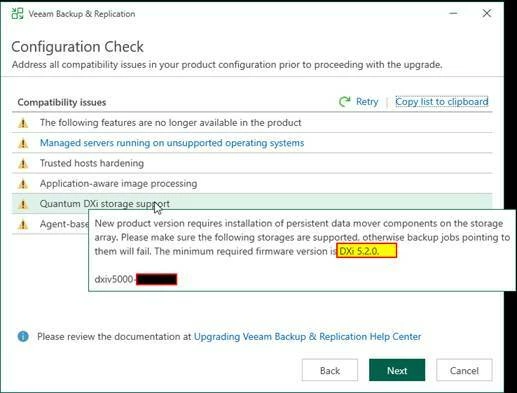
- Quantum DXi storage – Minimum firmware required
Status OPERATIONALLY CRITICAL, but does not block the upgrade process.
Risk After upgrading to v13:
- Jobs pointing to dxiv5000-dedup01 will FAIL immediately if the firmware is version < DXi 5.2.0.
MANDATORY Fix (Before or immediately after upgrade)
- Verify the current firmware version of the Quantum DXi.
- If it is lower than 5.2.0:
- Upgrade the firmware to a supported version.
- OR temporarily move the jobs to a different repository.
Warning: This is the most dangerous issue to ignore, as it will cause an immediate disruption of backup services.
Step by step upgrade firmware Quantum DXiV-5000 Community Edition
Download both version FW
My Version is 4.5.0.3 (16819-66545 Build1
https://www.quantum.com/en/service-support/downloads-and-firmware/dxivseries/
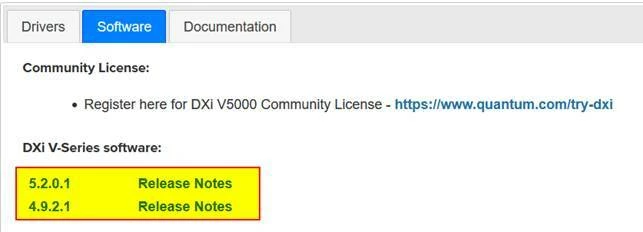
Upload FW 4.9

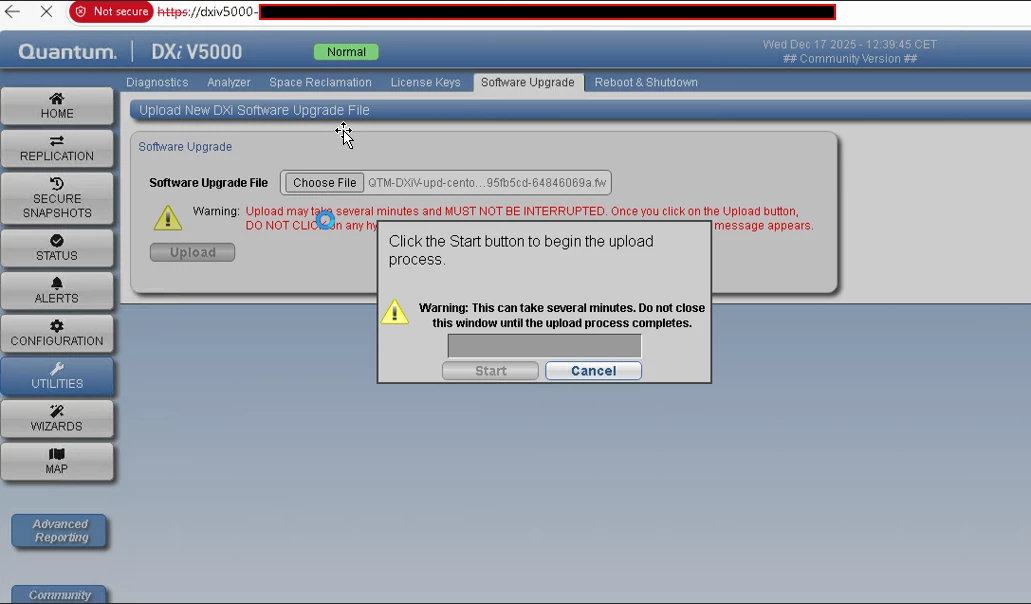

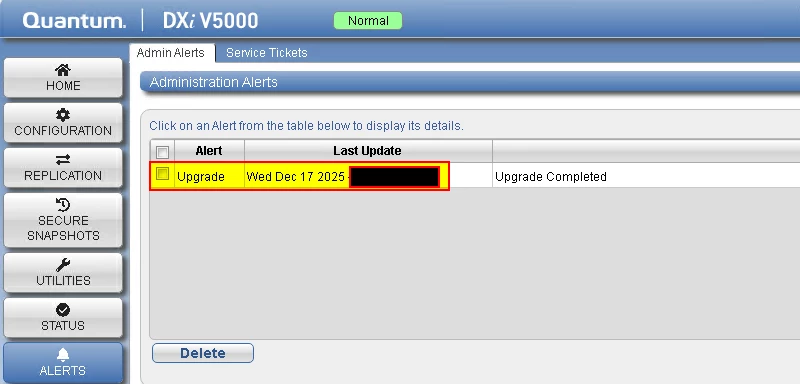
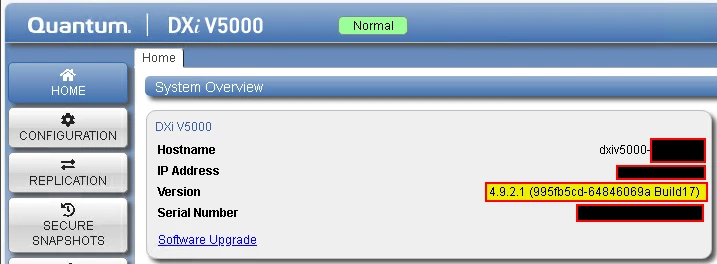
Upgrade at finale release
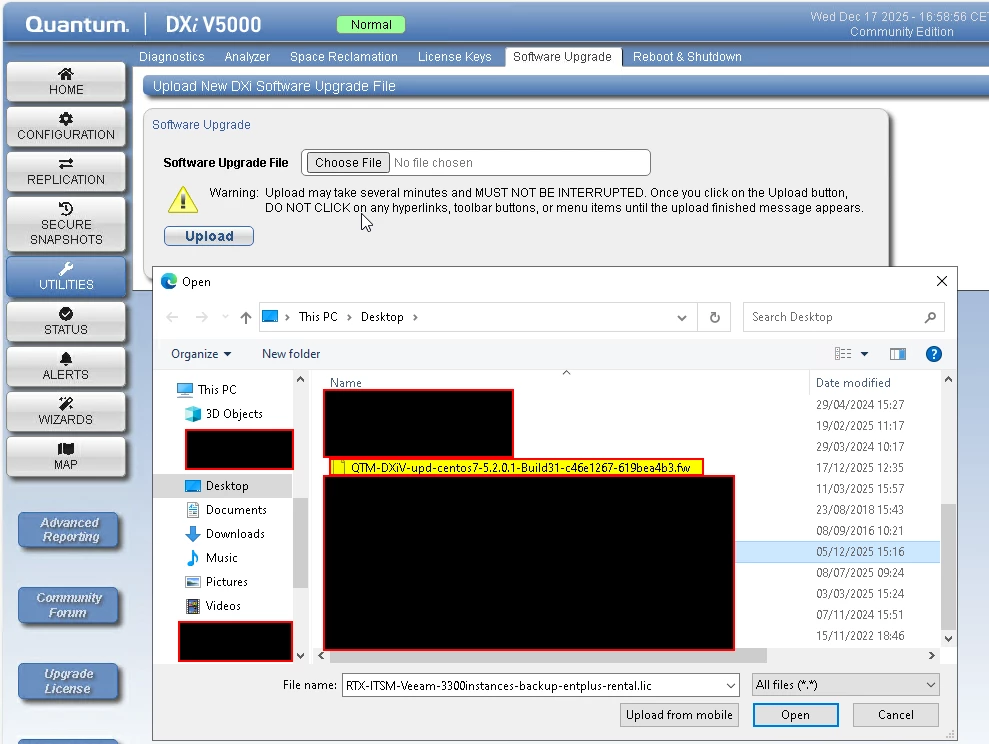
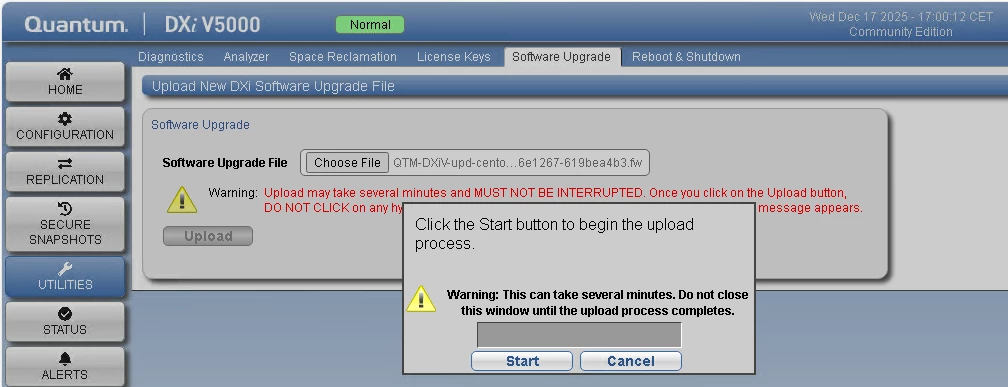

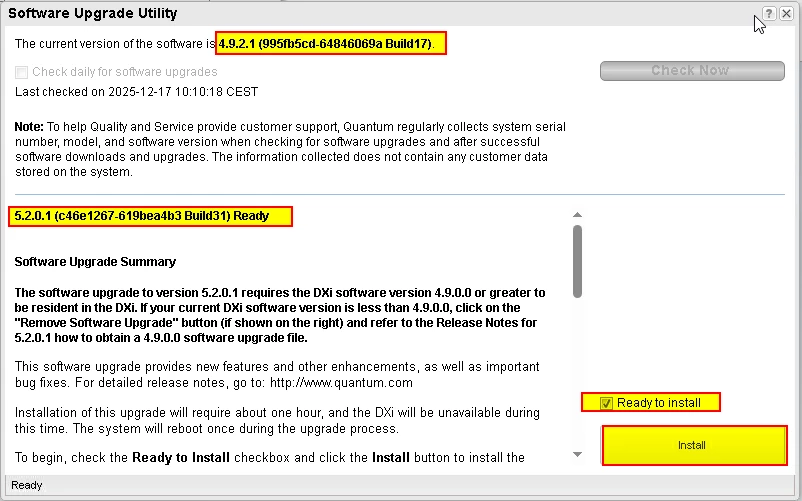
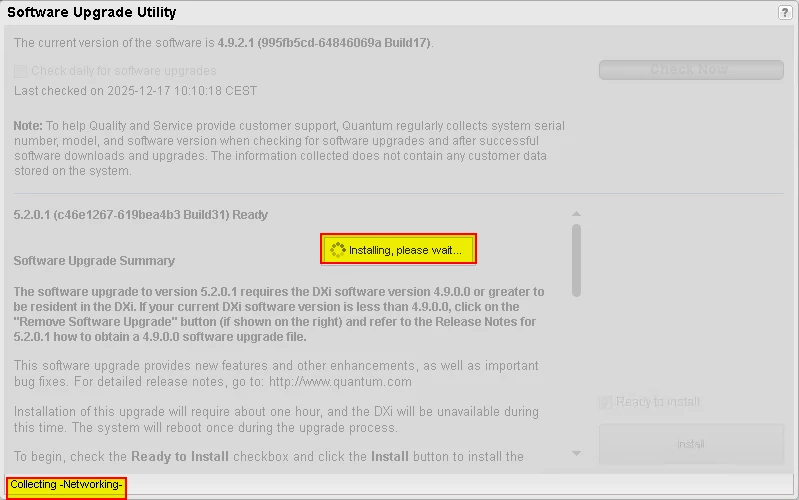
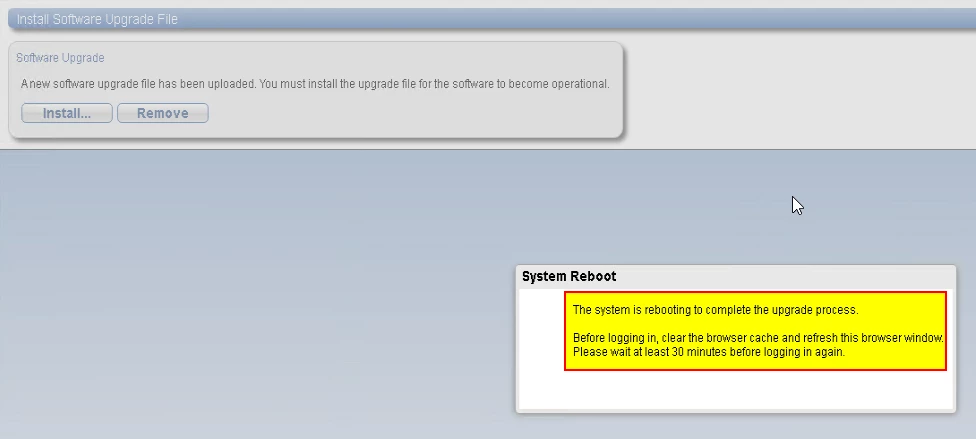
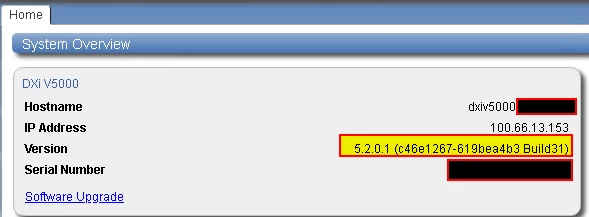
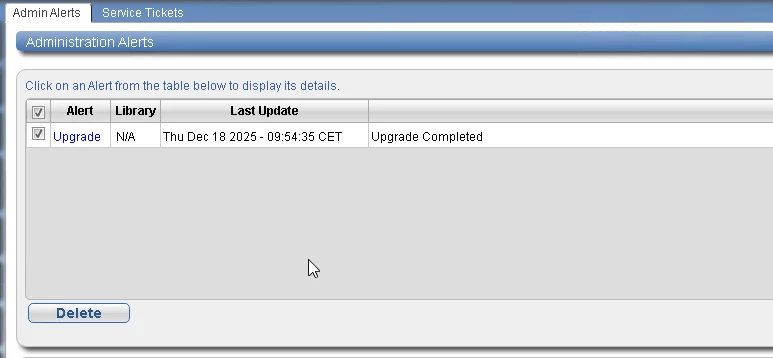
Dxi V500 upgrade firmware is done.
Now procede to upgrade Veea to version 13.
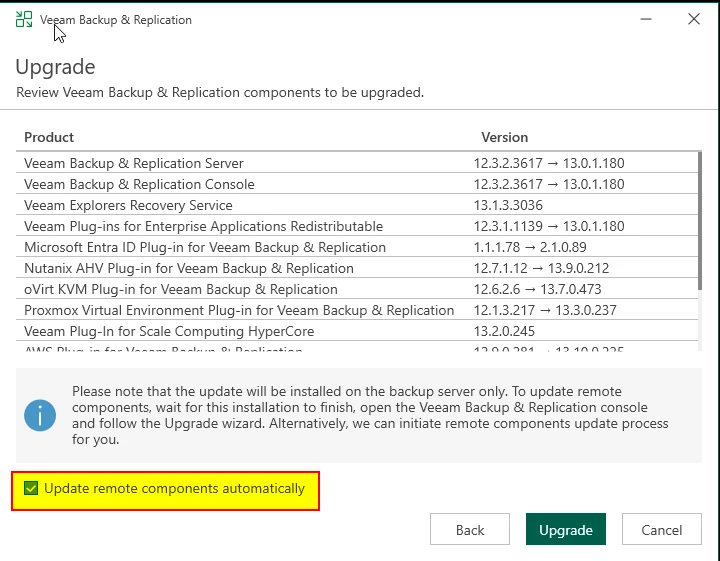
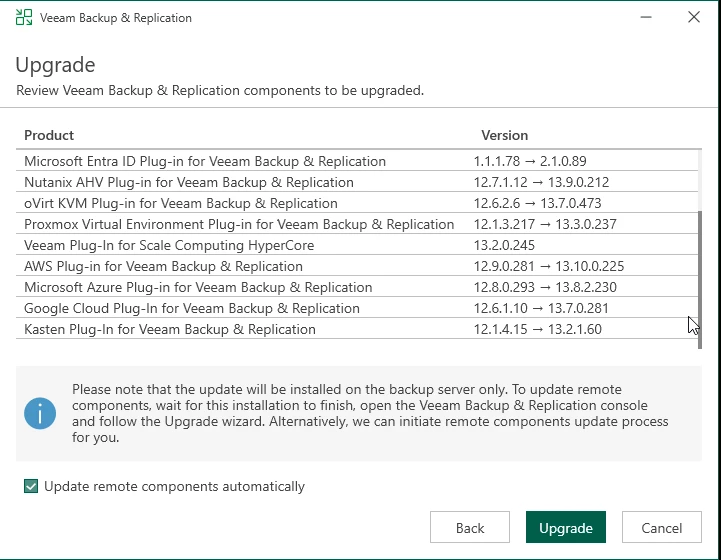
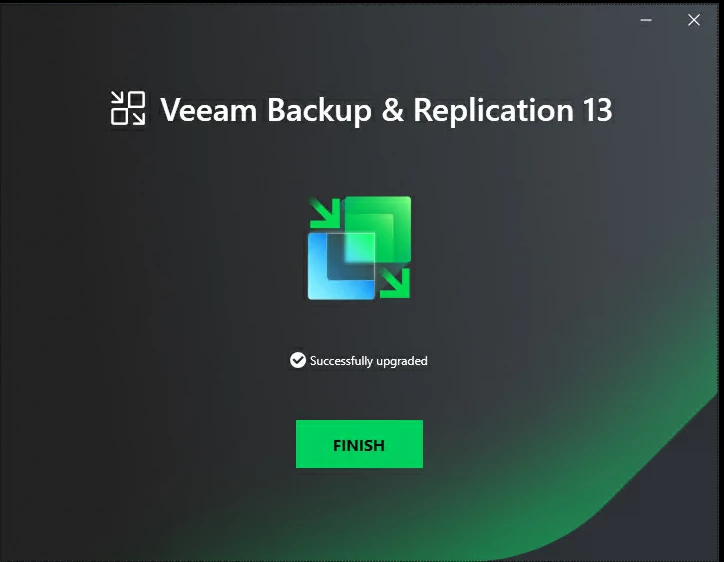
Open new vbr console 13
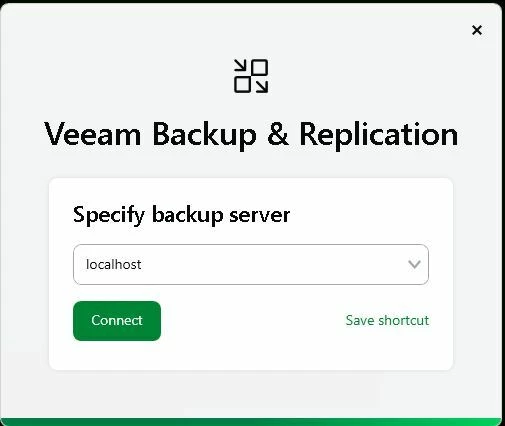
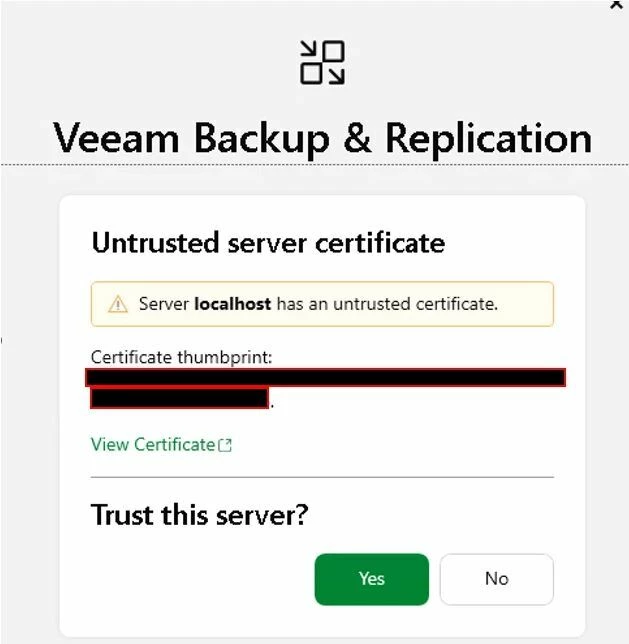
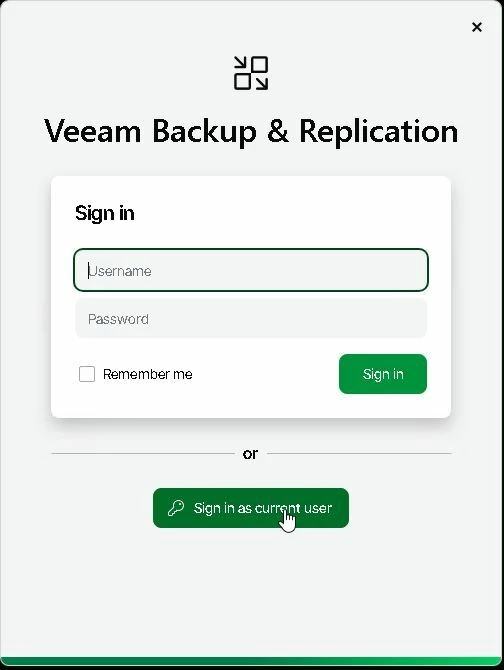
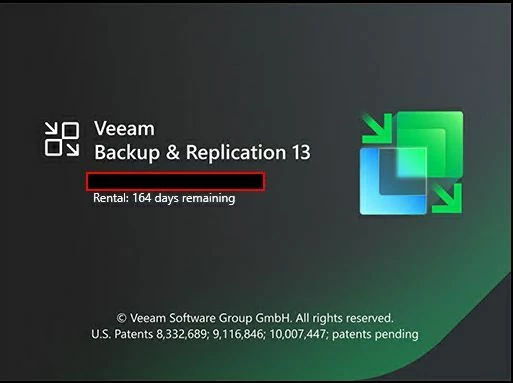
Upgrade components
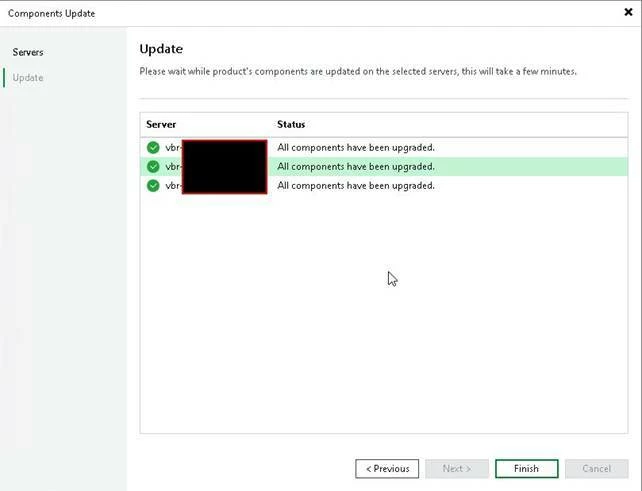
We update the components of the Dxi deduplication appliance.

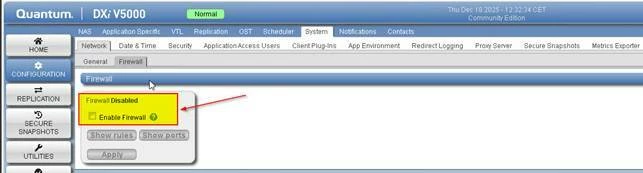
The installation of the new components will fail because port 6160 is not open on the appliance's internal firewall.
Error on port 6160 veeam Installer. Disable temporary firewall on appliance
Disable FW
Retry istallation
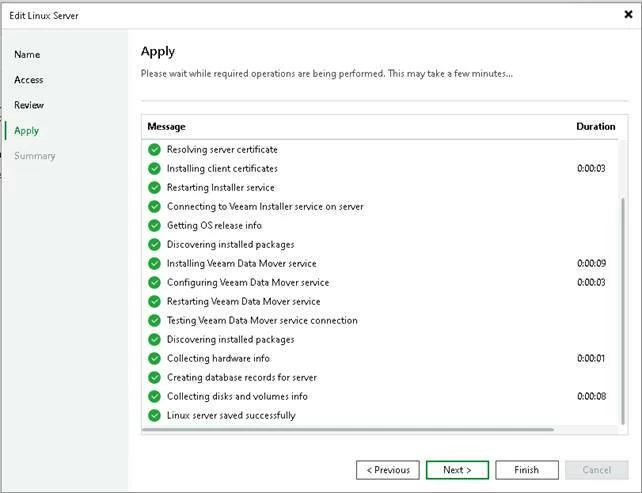
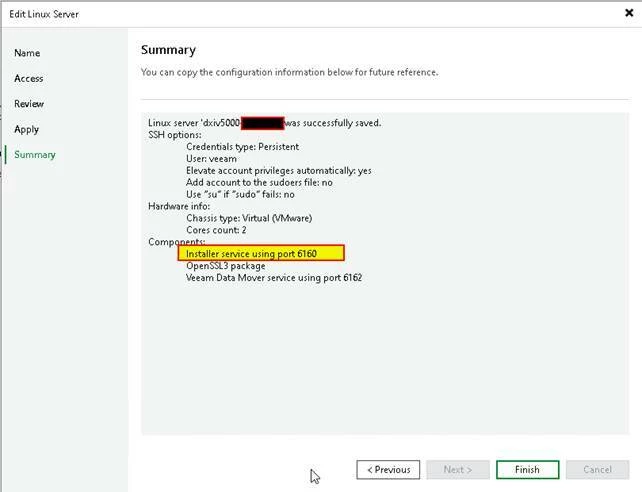
note:
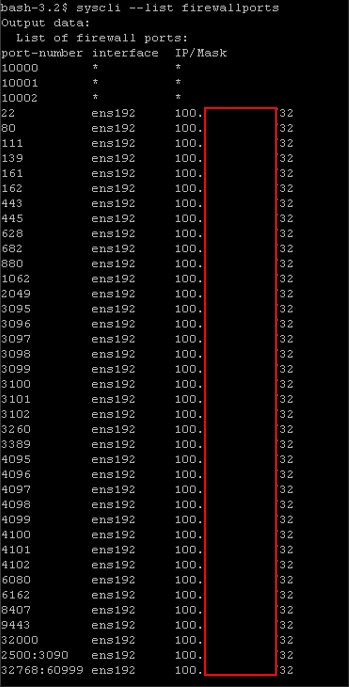
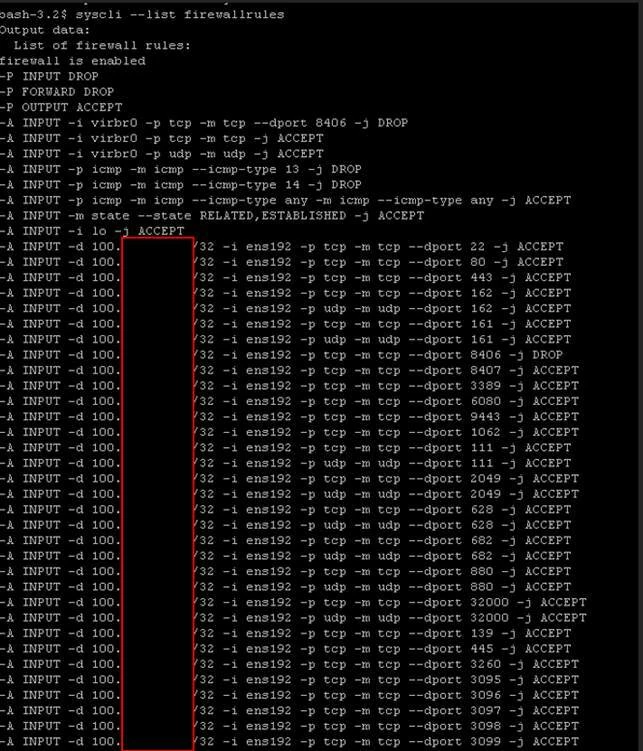
Access the FW appliance via ssh: the rules are read-only; it is not possible to add or remove items.
syscli --get firewallenabled

List furewall ports
syscli --list firewallports
List firewal rules
syscli --list firewallrules
Enable the firewall on the appliance after installing/updating the Veeam module.
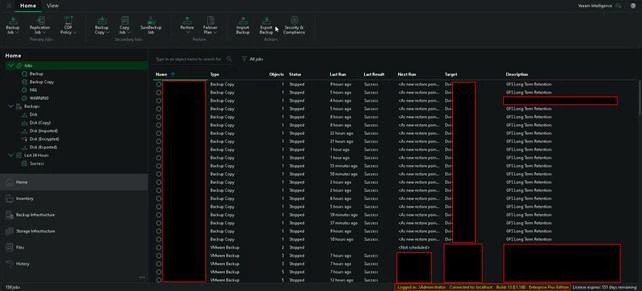
Upgrade completed successfully. Check all previous settings.
Happy New Year to everyone!

