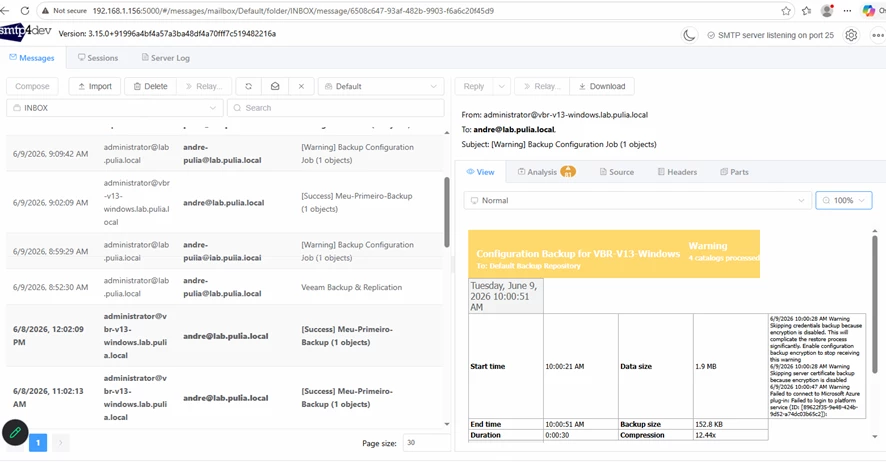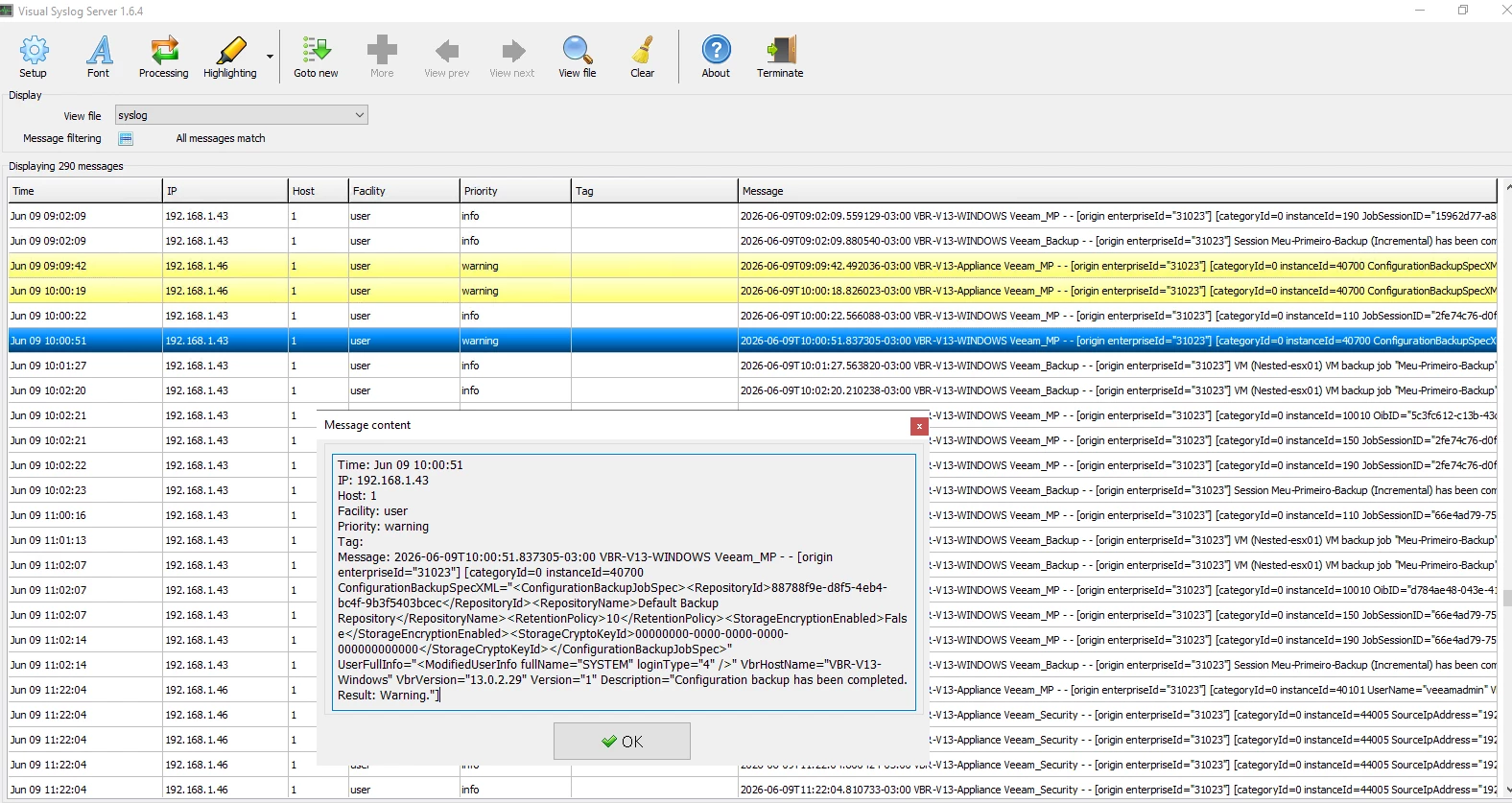

One of the most common things I notice during Veeam deployments, health checks, training that I deliver and customer workshops is that email notifications, Syslog and SNMP integration are often left unconfigured.
The backup jobs work. The repositories are available. The backups complete successfully.
But when I ask about notifications or centralized logging, the answer is frequently:
"We haven't configured that yet."
Why This Matters
Veeam provides native integration with email systems, SNMP and Syslog servers, allowing administrators to receive immediate visibility into backup activities, warnings, and failures.
These integrations are not just operational conveniences, they are important security controls.
When a backup job finishes, Veeam can automatically send a notification email. Likewise, relevant events can be forwarded to a SNMP and Syslog server for centralized monitoring, retention, and correlation with other infrastructure events.
This means:
- Faster detection of backup failures
- Better visibility into infrastructure changes
- Improved audit capabilities
- Integration with SIEM and monitoring platforms
- Reduced dependency on manually checking the Veeam console
The Security Perspective
Many organizations invest heavily in backup infrastructure but overlook the monitoring aspect.
A backup that fails silently can remain unnoticed for days or even weeks.
Similarly, if suspicious activity occurs within the backup environment, having events forwarded to a Syslog platform can significantly improve the chances of early detection.
Security is not only about protecting backups. It's also about knowing when something changes, fails, or behaves unexpectedly.
The Good News: It's Extremely Easy
What surprised me was how simple this configuration actually is.
To demonstrate that, I decided to perform a small experiment.
I configured:
- Email notifications
- Syslog integration
And I counted every click required from the Veeam interface.
The result?
Only 14 clicks for email and Syslog integration.
A Small Configuration with a Big Impact
Email notifications and Syslog forwarding require only a few minutes to configure, but they can dramatically improve operational awareness and security monitoring.
If your Veeam environment is already protecting your data, take a moment to ensure it is also communicating what's happening.
You may be only a few clicks away from gaining much better visibility into your backup infrastructure.
How many clicks did it take in your environment?
My Lab Setup
For this demonstration, I intentionally used two free tools:
- SMTP4Dev for email notifications
- Visual Syslog Server for Syslog event collection
The goal was not to build a production-ready monitoring solution, but simply to demonstrate how quickly Veeam can be integrated with external systems and how events are immediately generated and forwarded.
As soon as a job completes, Veeam can send an email notification and generate a Syslog event. Seeing these events arrive in real time helps illustrate the value of enabling these integrations from day one.
A Quick Note About Production Environments
While receiving the events is important, it is only the first step.
In my example, the Syslog server receives the raw events exactly as they are generated by Veeam. In a production environment, organizations should go further by implementing event processing, filtering, correlation, and alerting mechanisms.
The same principle applies to email notifications. Simply receiving emails is useful, but the real value comes from defining operational processes and automated actions based on those notifications.
In other words, collecting the information is easy. Turning that information into actionable intelligence is where the real operational and security benefits are achieved.
How to configure
Just follow the steps below.
Open the Veeam console
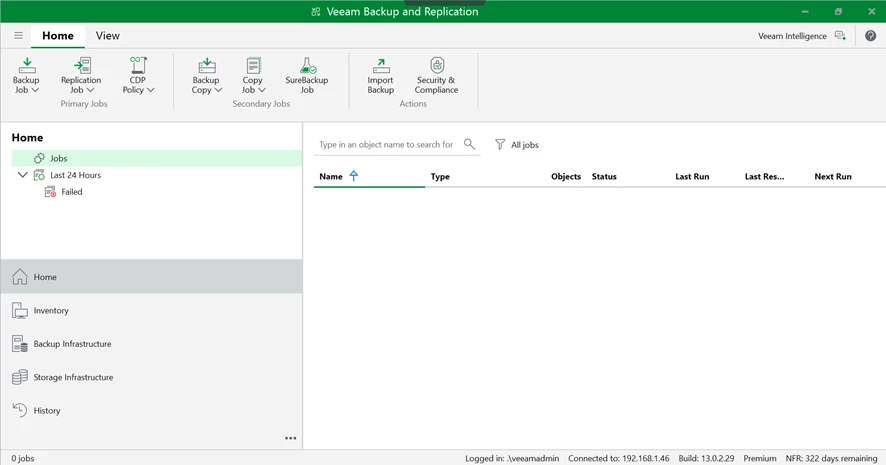
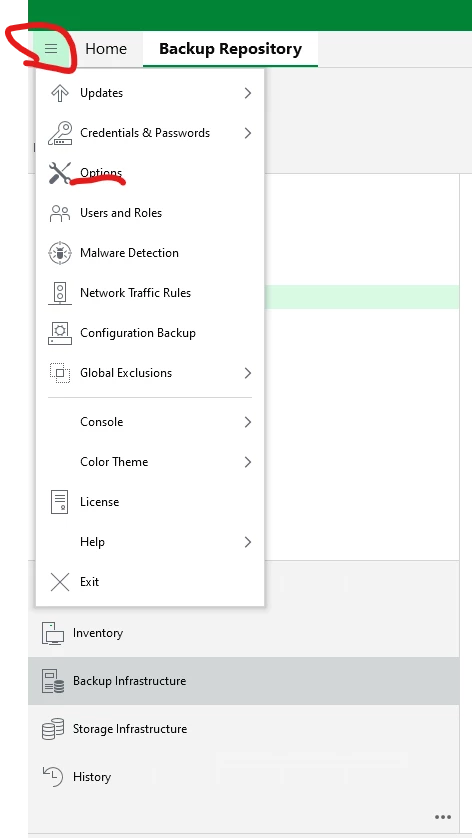
Click on Main Menu ==> options
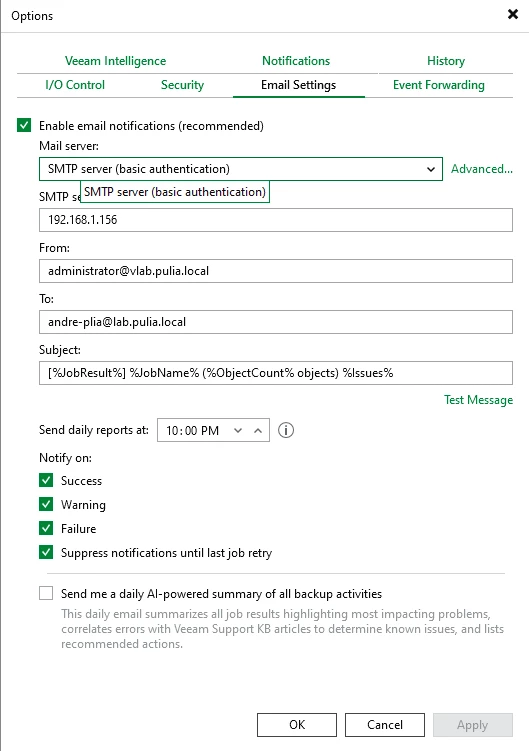
From the options windows, select Email Setting tab and fill the fields with the Mails server authentication, SMTP server, From and To .
The subject is made of variables taht will be resolved as soon as the emails are sent.
You can also select which kind of notification will be sent, pay attention here, if you run 200 jobs a day, you may receive about 200 emails if you leave success, warning, failure selected so, be carefull, selecting the appropriated notification.
From the options windows, select Event Forwarding tab, and fill the syslog server window
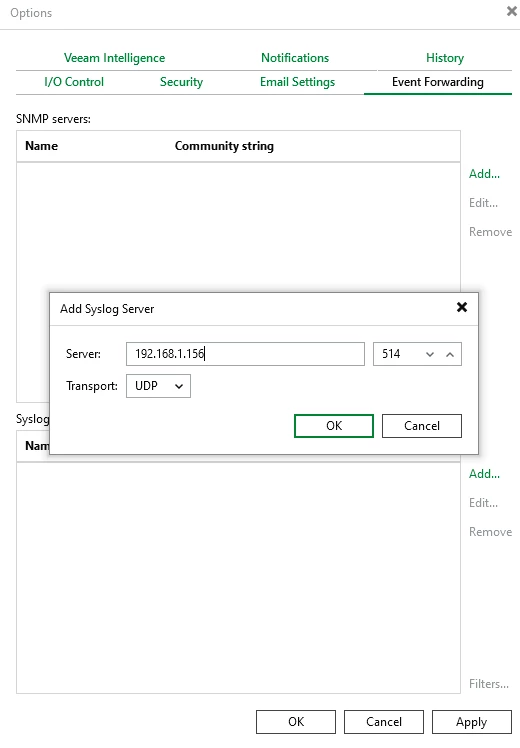
click OK and apply
now, you can see the results, I run a configuration backup, the email was sent to may email box and the event was sent to my syslog server immediately, as you can see down below.