


If you protect Microsoft Entra ID with Veeam Backup & Replication, you can now see exactly what's in every restore point with one command. I've published a free PowerShell script that builds an HTML report of your Entra ID tenant backups and log backups, grouped by tenant.
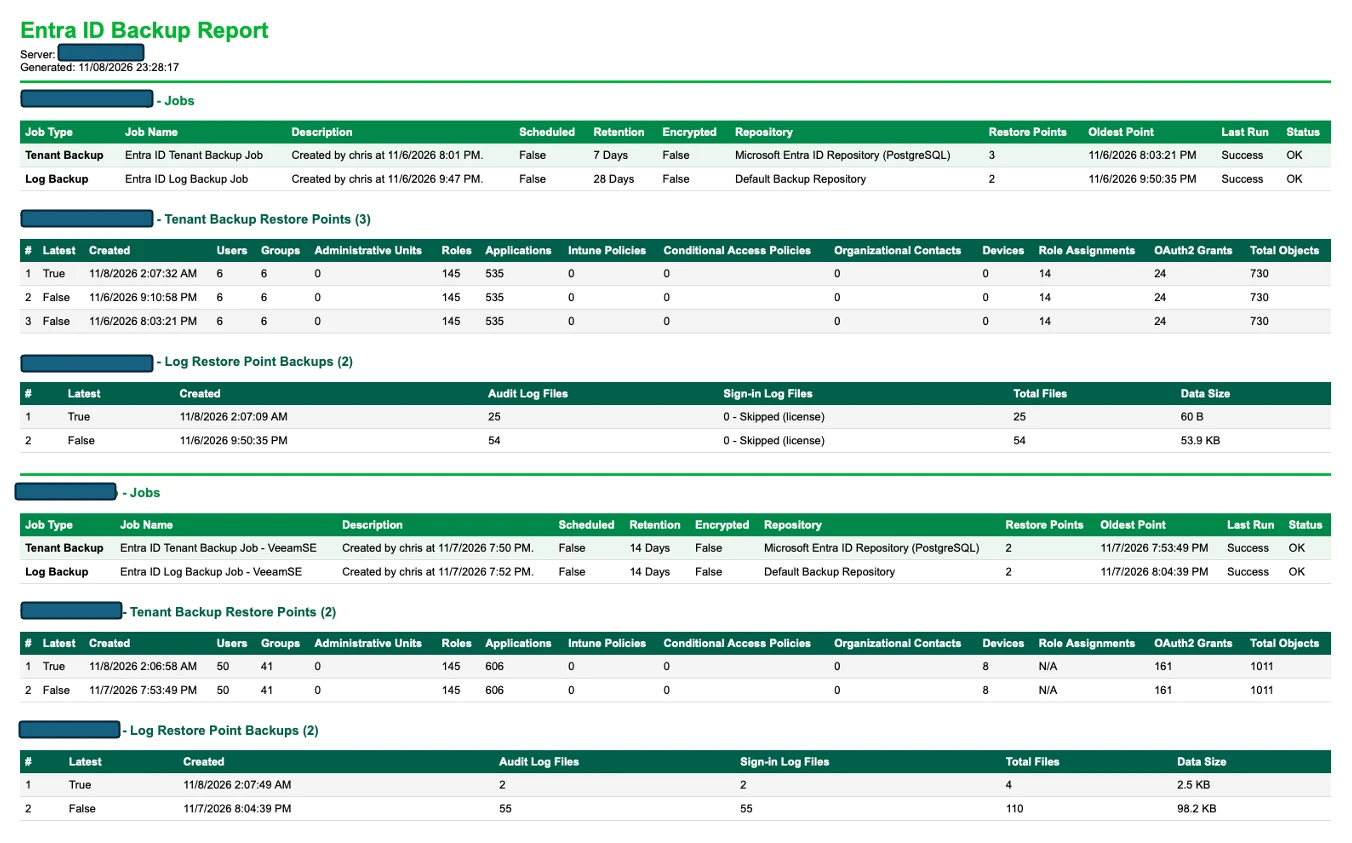
What's in the report
Each tenant gets its own section with three tables.
| Section | What it shows |
|---|---|
| Jobs | Tenant backup and log backup jobs side by side, each labelled by type, with schedule, retention, repository, encryption, restore point count, last run result and status |
| Tenant Backup Restore Points | One row per restore point, with a count of each object type: users, groups, roles, administrative units, applications, Conditional Access policies, devices, role assignments, OAuth2 permission grants and a total |
| Log Restore Point Backups | One row per log backup restore point, with the number of audit and sign-in log files it added, the total, and the data size the job reported |
Jobs are flagged as OK, Stale (no new restore point within 24 hours by default) or No restore points, so problems stand out at a glance.
Why it's useful
- Prove what's protected. Show auditors or leadership exactly which users, groups, policies and permissions are in each restore point, not just that a job ran.
- Spot gaps early. A restore point with fewer objects than the one before it, or a stale job, points to a problem before you need to restore.
- See your log coverage. Find out how many hours of audit and sign-in logs you're keeping, and whether sign-in logs are being skipped because the tenant isn't licensed for them.
- Report across tenants. MSPs and multi-tenant environments get one report with a section per tenant.
- Share it easily. The output is a single HTML file you can open in any browser, email or attach to a ticket.
Requirements
| Requirement | Details |
|---|---|
| Veeam Backup & Replication | v13, Windows-based or the Veeam Software Appliance. VBR 12.1 and later also works with |
| Veeam Backup & Replication console | Installed on the machine running the script. It provides the |
| PowerShell | PowerShell 7 |
| VBR account | A local or domain account with rights to view jobs and run restores. Accounts with MFA or SAML sign-in can't be used from PowerShell, so use a service account |
| Entra ID protection | At least one tenant backup job. Log backup jobs are optional and reported when present |
| Sign-in logs | Backed up only for tenants with an Entra ID P1 or P2 license |
How to run it
The basic syntax:.\VBR_EID_Report.ps1 -Server <server> [-Login] [-ReportType Both|Tenant|Logs] [-HtmlPath <path>]
Some common examples:
# Sign in with a VBR user name and password .\VBR_EID_Report.ps1 -Server vbr01.corp.local -Login -ForceAcceptTlsCertificate
# Sign in as your current Windows user (Windows-based VBR or a domain-joined appliance) .\VBR_EID_Report.ps1 -Server vbr01.corp.local
# Tenant backups only .\VBR_EID_Report.ps1 -Server vbr01.corp.local -Login -ReportType Tenant
# Log backups only, saved to a specific file .\VBR_EID_Report.ps1 -Server vbr01.corp.local -Login -ReportType Logs -HtmlPath C:\Reports\entra-logs.html
Parameter
| Default | What it does | |
|---|---|---|
|
| localhost | VBR server name or IP address |
|
| 443 | Connection port. Use 9392 for VBR 12.x |
|
| off | Prompts for a VBR user name and password. Without it, your Windows identity is used |
|
| off | Accepts the server's TLS certificate, such as the appliance's self-signed one |
|
| Both | Both, Tenant or Logs |
|
| auto | Where to save the report |
|
| 24 | Flags a job as Stale if its newest restore point is older than this |
If you don't set -HtmlPath, the report is saved in the current folder as Entra ID Report - Tenant and Log - <date and time>.html, with Tenant or Log in the name when you run just one type.
Good to know before you run it
- It's read-only, but it isn't invisible. To count objects and log files, the script opens read-only restore and browse sessions. Nothing is restored or changed, but those sessions show up in session history and the audit log. Let the customer know before running it in their environment.
- Log counts are hours, not entries. Veeam stores one log file per type per hour, so 24 audit log files means 24 hours of audit logs.
- Log data size is a job total. Per-file sizes aren't exposed, so the size shown covers both log types for that run.
- Some counts come from session logs. Role assignment and OAuth2 grant counts are read from the job session log. If a session has aged out of history, those columns show N/A for that restore point.
- It's a community script. It isn't an official Veeam product and isn't covered by Veeam Support. Test it in a lab first.
Get the script
The script and full README are on GitHub. The README covers every parameter, how each number is gathered, and a troubleshooting table for the most common connection issues.
Give it a try in your lab and let me know how it goes. Feedback, feature ideas and bug reports are all welcome, either in the comments below or as an issue on GitHub.