

As we all know, they say 40 is the new 20, and Days is the new Restore Points!
Kidding aside, this is a change that most Veeam Backup & Replication v13 environments will likely need to address, especially if you've completed multiple upgrades over the years.
Many administrators used restore points previously. It worked, and for the most part it made sense. Especially if you live on the edge, with SANs bursting at the seams and every day of retention eating into storage capacity. For myself, Predictability of my jobs sizes was always more important than missing a day of the RPO.
Well the golden days are over, compliance wins, and Days is now set. In reality, the day to day growth will be the same and growth should stay similar as the incremental change over the same period of time will be close.
The challenge, and reason for the change is that restore-point retention can become unpredictable if backups are triggered more often than planned. Not that the job size will change, but that your RPO may be missed. A job configured for 25 restore points may provide 25 days of retention. However, if that same job is run multiple times per day, those 25 restore points may only cover a few days. A job configured for 25 days, will have 25 days worth of retention, no matter how many restore points you have.
To better align with RPOs, Veeam v13 now favors Days-based retention. New jobs require Days retention, while existing jobs with Restore Points continue to function, but remain in a legacy configuration.
Because of this, I wanted to get ahead and convert everything to Days in my test environment.
Before making any changes, I wanted to identify which jobs required conversion. During my check, I noticed jobs reporting either Days or Cycles retention types, which wasn't what I expected.
For those that want to use this, I used the PowerShell console built right into the Veeam 13.1 console.
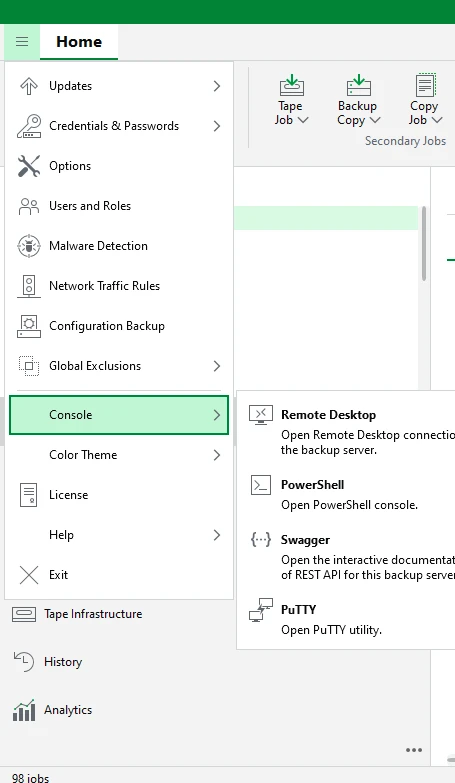
My first test was the following PowerShell command, which allowed me to check the retention configuration of every backup job:
 Get-VBRJob |
>> Where-Object {$_.JobType -eq "Backup"} |
>> ForEach-Object {
>>
>>     $s = $_.GetOptions().BackupStorageOptions
>>
>>     [PSCustomObject]@{
>>         JobName          = $_.Name
>>         RetentionType    = $s.RetentionType
>>         RetainDaysToKeep = $s.RetainDaysToKeep
>>         RetainCycles     = $s.RetainCycles
>>     }
>>
>> } | Sort-Object JobName | Format-Table -AutoSize
For backup copy jobs, you would use the following to verify what is set
Get-VBRBackupCopyJob | ForEach-Object {

    [PSCustomObject]@{
        JobName        = $_.Name
        RetentionType  = $_.RetentionType
        RetentionValue = $_.RetentionNumber
        CopyMode       = $_.Mode
        Repository     = $_.TargetRepository.Name
    }

} | Sort-Object JobName | Format-Table -AutoSize
I wanted an easy way to find all of the jobs still using Restore Points, and modify them. I wanted to confirm each one interactively, while giving me the option of viewing and changing the amount of days that would be kept if it needed adjusting.
Here is a script that will scan all the jobs, and allow you to change only the ones configured with Restore Points as this will eventually be removed in future versions.
$jobs = Get-VBRJob |
    Where-Object {
        $_.JobType -eq "Backup"
    } |
    Sort-Object Name

foreach ($job in $jobs) {

    $opt = $job.GetOptions()
    $storage = $opt.BackupStorageOptions

    if ($storage.RetentionType -eq "Days") {
        continue
    }

    Write-Host ""
    Write-Host "========================================" -ForegroundColor Cyan
    Write-Host "Job: $($job.Name)"
    Write-Host "Current Type   : $($storage.RetentionType)"
    Write-Host "Restore Points : $($storage.RetainCycles)"

    $days = Read-Host "Retention days [$($storage.RetainCycles)]"

    if ([string]::IsNullOrWhiteSpace($days)) {
        $days = $storage.RetainCycles
    }

    if (-not ($days -as [int])) {
        Write-Host "Invalid value. Skipping." -ForegroundColor Yellow
        continue
    }

    $confirm = Read-Host "Convert to $days days? (Y/N)"

    if ($confirm -notmatch '^(Y|YES)$') {
        Write-Host "Skipped." -ForegroundColor Yellow
        continue
    }

    try {

        $storage.RetentionType = "Days"
        $storage.RetainDaysToKeep = [int]$days

        $job.UpdateOptions($opt)

        $verify = $job.GetOptions().BackupStorageOptions

        Write-Host "SUCCESS" -ForegroundColor Green
        Write-Host "Retention Type : $($verify.RetentionType)"
        Write-Host "Days To Keep   : $($verify.RetainDaysToKeep)"
    }
    catch {
        Write-Host "FAILED: $($_.Exception.Message)" -ForegroundColor Red
    }
}
For copy jobs the command is slightly different.
$jobs = Get-VBRBackupCopyJob |
    Sort-Object Name

foreach ($job in $jobs) {

    if ($job.RetentionType -eq "RestoreDays") {
        continue
    }

    Write-Host ""
    Write-Host "========================================" -ForegroundColor Cyan
    Write-Host "Job: $($job.Name)"
    Write-Host "Current Type     : $($job.RetentionType)"
    Write-Host "Retention Number : $($job.RetentionNumber)"

    $days = Read-Host "Retention days [$($job.RetentionNumber)]"

    if ([string]::IsNullOrWhiteSpace($days)) {
        $days = $job.RetentionNumber
    }

    if (-not ($days -as [int])) {
        Write-Host "Invalid value. Skipping." -ForegroundColor Yellow
        continue
    }

    $confirm = Read-Host "Convert to $days days? (Y/N)"

    if ($confirm -notmatch '^(Y|YES)$') {
        Write-Host "Skipped." -ForegroundColor Yellow
        continue
    }

    try {

        Set-VBRBackupCopyJob `
            -Job $job `
            -RetentionType RestoreDays `
            -RetentionNumber ([int]$days)

        $verify = Get-VBRBackupCopyJob -Name $job.Name

        Write-Host "SUCCESS" -ForegroundColor Green
        Write-Host "Retention Type   : $($verify.RetentionType)"
        Write-Host "Retention Number : $($verify.RetentionNumber)"
    }
    catch {
        Write-Host "FAILED: $($_.Exception.Message)" -ForegroundColor Red
    }
}
Most of the jobs had already been changed to Days , but several jobs were still configured using “Cycles” (Restore Points) . This script made it easy to review each job rather than doing it in the GUI, or making a bulk change to all jobs at once.
If you're running Veeam v13 and haven't reviewed your retention, it may be worth checking whether jobs are still configured using the legacy restore-point retention.
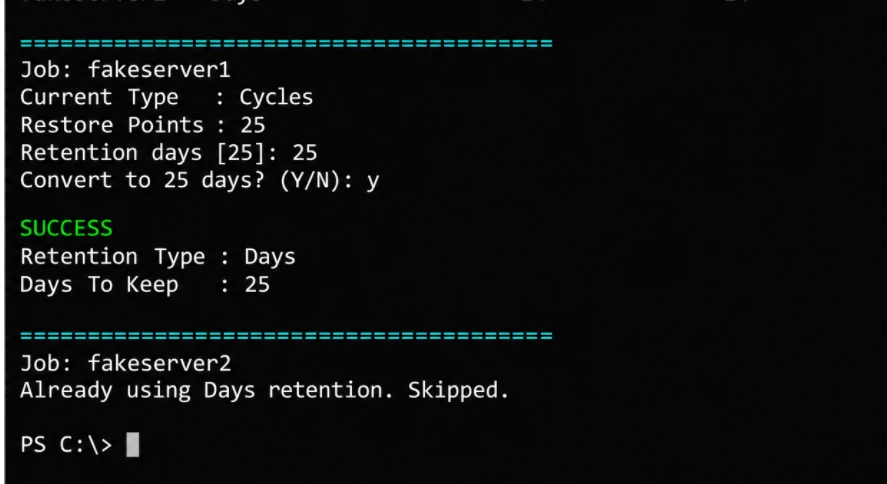
Here is an example of the PowerShell output. It shows the current setting of Days/Restore Point, will only target the ones with the legacy Restore Point setting, and allow you to set how many days, and convert it. You can also say N to skip a specific job. Doing one at a time allowed me to have my console open and verify in the GUI as I went.
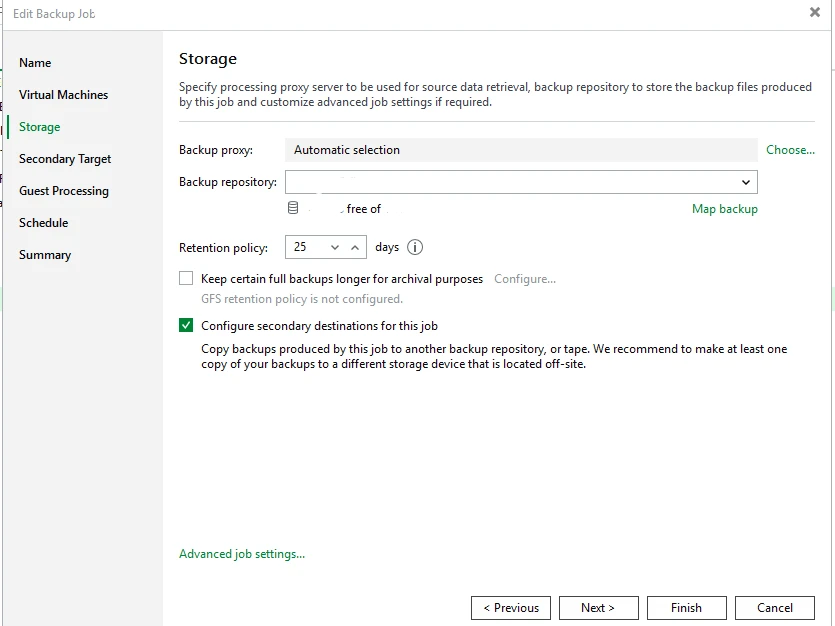
Just a quick warning, once a job is converted from Cycles (Restore Points) to Days, there is currently no option in the GUI to switch it back. You can see below the option of restore points is no longer visible even though this job was just changed from it.