

SAML single sign-on in Veeam Backup & Replication v13 lets your identity provider handle authentication while Veeam keeps control of authorization. Users sign in with their corporate identity, MFA and Conditional Access policies apply upstream, and Veeam stops being one more place that stores passwords.
The setup is simple. The part that trips people up is group mapping, and it comes down to which Microsoft Entra ID license you have.
The mental model
Keep this sequence in mind for both setup and troubleshooting:
- Trust. Veeam trusts Entra ID as the identity provider through exchanged SAML metadata and the signing certificate.
- Assertion. After the user authenticates, Entra ID sends a signed SAML assertion containing claims about that user.
- Identity mapping. Veeam matches a claim (the user's UPN or a group claim) to a user or group in Users & Roles.
- Authorization. Veeam applies the role assigned to that user or group.
Entra ID proves who the user is. Veeam decides what they can do.
Step 1: Build the trust
In Entra ID, create an Enterprise Application with SAML-based sign-on. Feed it the Veeam service provider details (Entity ID and Reply URL) from the Identity Provider tab in Veeam's Users & Roles, then import the Entra ID federation metadata back into Veeam. Check the Veeam Help Center for the exact field mapping in your build.
Step 2: Map users and groups in Veeam
In Users & Roles > Security, add the user or group and assign a role, for example a group named VeeamAdminsGroupwith the Backup Administrator role.
This is where most first attempts look done and aren't. A user who's a member of VeeamAdminsGroup in Entra ID selects Try SSO with another account, authenticates, and gets:
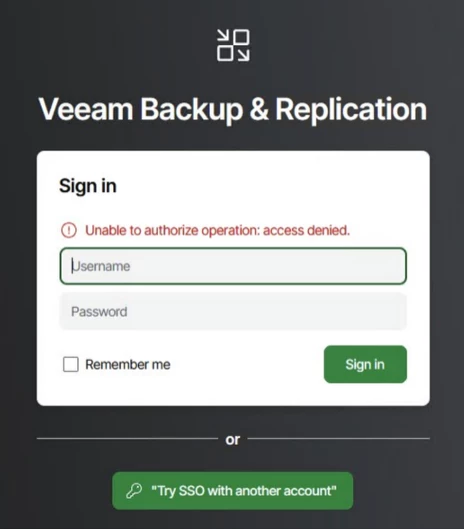
Authentication worked. Authorization didn't. Veeam never received anything telling if the user belongs to that group.
Step 3: Look at what Entra ID actually sent
Don't guess from configuration screens. Capture the assertion:
- Open developer tools in Edge, Chrome, or Firefox (F12) and go to Network.
- Clear existing entries and start the SSO login.
- Find the request named SAML or ACS (Assertion Consumer Service).
- Open Request in the payload view and copy the encoded SAML response value.
- Decode it with a tool such as samltool.io.
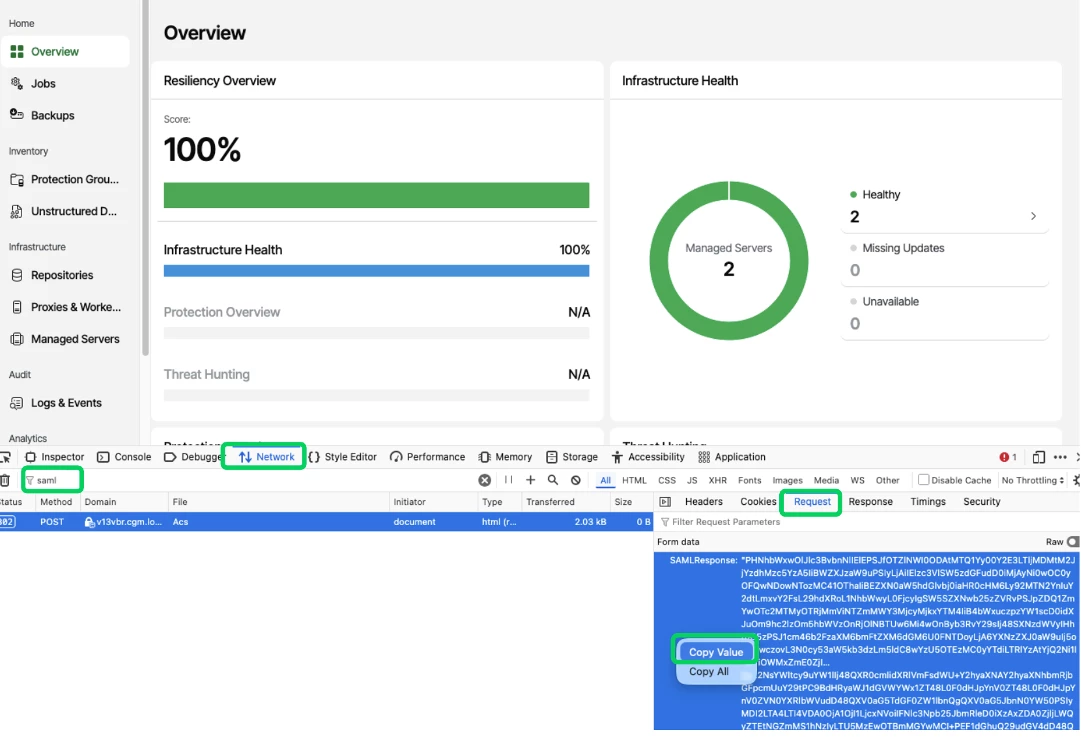
Figure 2 - Filtering the Network tab for the SAML/ACS POST and copying the SAMLResponse value from the request payload.
A decoded assertion is structured XML. The parts that matter:
- Issuer: your Entra tenant's STS endpoint
- Subject / NameID: who the user is
- Audience and Destination: confirms the token was built for your Veeam instance
- NotBefore / NotOnOrAfter: stops old assertions from being replayed
- Signature: confirms it came from the trusted IdP and wasn't altered
- Attribute statements: the claims Veeam will map
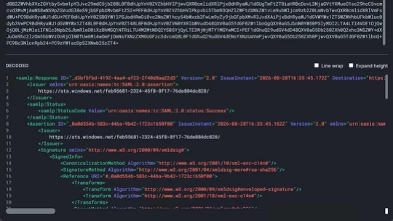
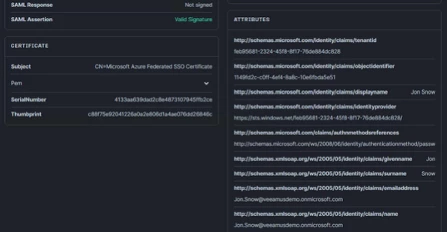
In our lab, the attributes showed the tenant ID, object ID, display name, given name, surname, email, and name. No group membership at all.
A quick caution: a production assertion is a security token. Follow your organization's handling practices and avoid pasting real assertions into untrusted third-party services.
Step 4: Add the group claim
The default Enterprise Application claims are givenname, surname, emailaddress, name, and Unique User Identifier. There's no group claim out of the box.
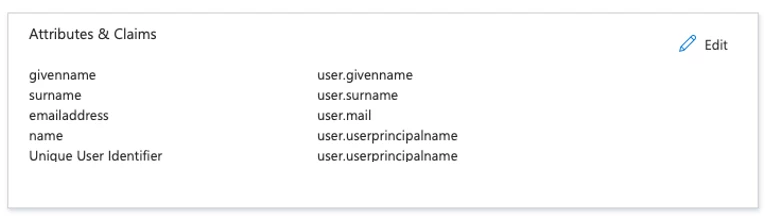
In Attributes & Claims, select Edit, then Add a group claim:
- Choose which groups to return in the claim
- Choose the source attribute
- Under Advanced options, select Customize the name of the group claim and set:
- Name: Group
- Namespace: http://schemas.xmlsoap.org/claims
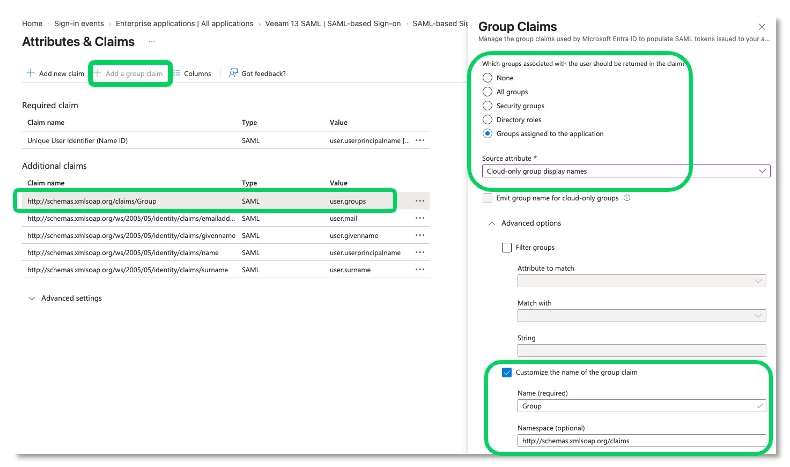
Now you can capture and decode a new assertion and you should now see http://schemas.xmlsoap.org/claims/Group in the attributes.
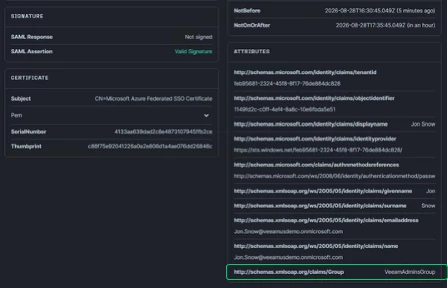
Which group options you can actually pick depends on your license.
The licensing limitation you need to know about
With Entra ID P1 or P2: group names
With P1 or P2 you get the clean configuration:
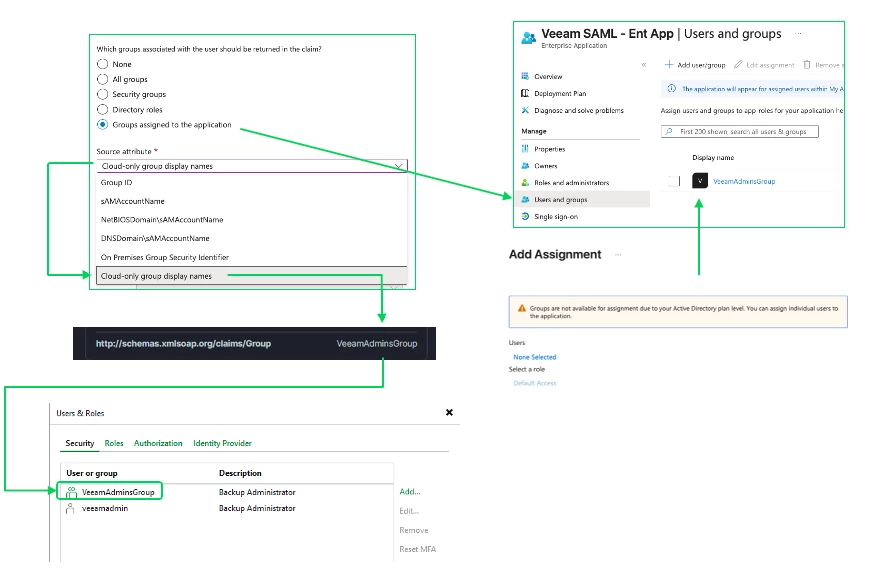
- Groups assigned to the application
- Source attribute: Cloud-only group display names
- Assign VeeamAdminsGroup to the Enterprise Application under Users and groups
The assertion carries the readable group name (VeeamAdminsGroup), which matches the group name in Veeam Users & Roles exactly. Only groups assigned to the app are sent, so the token stays small and scoped.
Without P1 or P2 (Entra ID Free): group IDs only
Two things break.
1. You can't assign groups to the Enterprise Application. Try it and Entra ID tells you groups aren't available for assignment at your plan level. You can only assign individual users.
That has a nasty side effect. If your group claim is still set to Groups assigned to the application, Entra ID sees zero assigned groups and drops the group claim from the assertion entirely. No error, no empty attribute, just nothing. That's the access denied from Step 2, and it's easy to burn an afternoon on it.
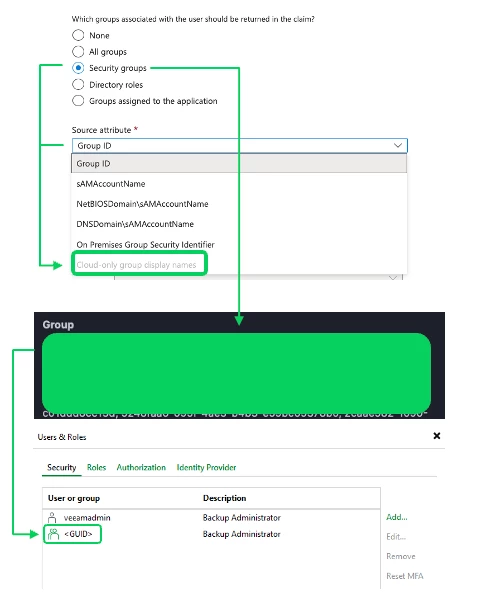
2. Group display names aren't available as a source attribute. Cloud-only group display names is greyed out. Your workable option is:
- Security groups
- Source attribute: Group ID
Now the assertion contains a list of object ID GUIDs for every security group the user belongs to, not names.
What this means for your Veeam config
On a Free tier tenant, you add the group in Veeam Users & Roles using its Entra ID object ID (GUID), not its display name. It works, but plan for the tradeoffs:
|
| P1 / P2 | Entra ID Free |
| Group claim option | Groups assigned to the application | Security groups |
| Source attribute | Cloud-only group display names | Group ID |
| Value in assertion | VeeamAdminsGroup | c9e7c9a8-2f44-... |
| Name in Veeam Users & Roles | Readable group name | GUID |
| Groups sent | Only groups assigned to the app | Every security group the user is in |
| Assign groups to the app | Yes | No, individual users only |
- Auditability drops. A GUID in Users & Roles doesn't tell the next admin which group grants Backup Administrator. Use the description field to record the group's display name.
- Larger tokens. Every security group membership goes into the assertion. Entra ID caps group claims in SAML tokens (150 groups) and replaces them with a link once a user exceeds it, which breaks group mapping for heavily nested users. Test with your most group-heavy admin.
- No app-scoped assignment. You can't use group assignment on the Enterprise Application to gate who can even attempt SSO to Veeam.
- Watch the trap. If you move from P1/P2 to Free, or copy a config built on a P1/P2 tenant, check the group claim setting. Groups assigned to the application on a Free tenant silently removes the claim.
If Veeam SSO is going into production with group-based RBAC, P1 or P2 gives you the cleaner, more auditable setup. Free works, as long as you go in knowing you'll be mapping GUIDs.
Step 5: Sign in
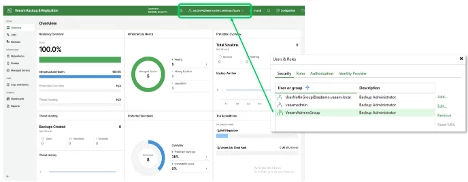
With the group claim in place and the group added in Users & Roles, the user signs in through SSO and lands on the Veeam Backup & Replication overview, signed in as their Entra identity with the role granted by their group.
If something still fails, walk the same sequence: trust, assertion, identity mapping, authorization. The decoded assertion will almost always tell you which step broke.