

A few days ago, I faced a very interesting situation involving VBR, Veeam Agent for IBM AIX, and an IBM FlashSystem storage array.
At first, it made absolutely no sense to me.
I was investigating some backup-related issues when I noticed several volumes with the VeeamAux prefix on an IBM FlashSystem 7600. After checking more closely, I found over 500 temporary volumes associated with Veeam operations.
And the interesting part? Many of these volumes belonged to IBM AIX servers.
My first question was simple: why would Veeam Agent for AIX need to create storage snapshots or clones to perform a file-level backup?
After spending some time investigating the storage configuration, Veeam logs, and official documentation, I started to understand what was happening.
Let me share what I found.
Understanding the Environment
This environment uses VBR 12.3.2 and an IBM FlashSystem 7600, with storage integration configured for VMware vSphere.
The same storage array also provides volumes to several IBM AIX servers running critical applications and databases.
Some of these servers handle very large amounts of data, with database backup sets reaching 10–15 TB or more in some cases.
Recently, the customer migrated part of the AIX infrastructure to a new storage configuration. Since I hadn't made any changes to the Veeam jobs, I initially didn't connect this migration with the issue.
But this detail turned out to be quite important.
Wait, Why Are There So Many Veeam Volumes?
When I accessed the IBM FlashSystem management interface, I noticed several volumes grouped under names similar to:
VeeamAUX_Rescan_28_33_261102130055
Inside these groups, I could see volumes associated with different AIX servers.
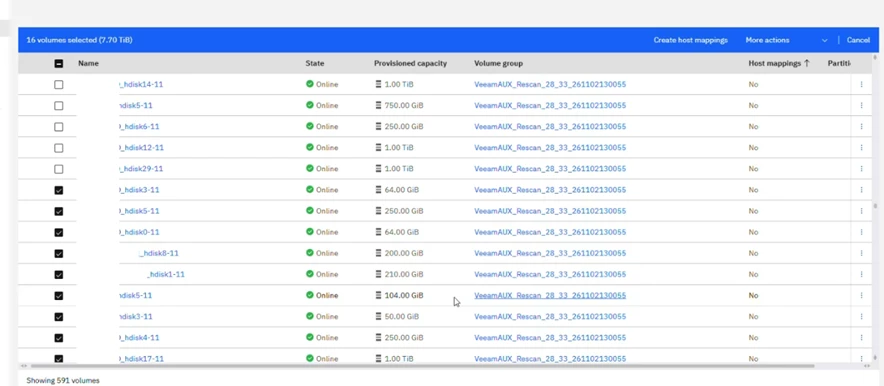
Initially, I thought these were regular storage snapshots created by Veeam Agent for AIX.
However, after checking their properties, I realized they were actually thin-clone volumes.
This is an important difference.
A storage snapshot preserves a point-in-time view of the data. A thin clone, on the other hand, is a host-accessible volume created from a snapshot, without immediately copying every block of the source volume.
Thin clones are space-efficient, but they are not free. They can consume additional storage capacity, and they remain dependent on their source snapshots.
Now imagine having hundreds of these objects associated with volumes containing several terabytes of data.
Even if they don't consume their entire provisioned capacity immediately, an accumulation of clones and their dependencies can become a storage capacity concern.
IBM documentation: IBM — Cloning snapshots (Thin-clone)
And that was exactly what worried me.
The First Clue: Storage Discovery
I went back to the Veeam console and started reviewing the Storage Infrastructure configuration.
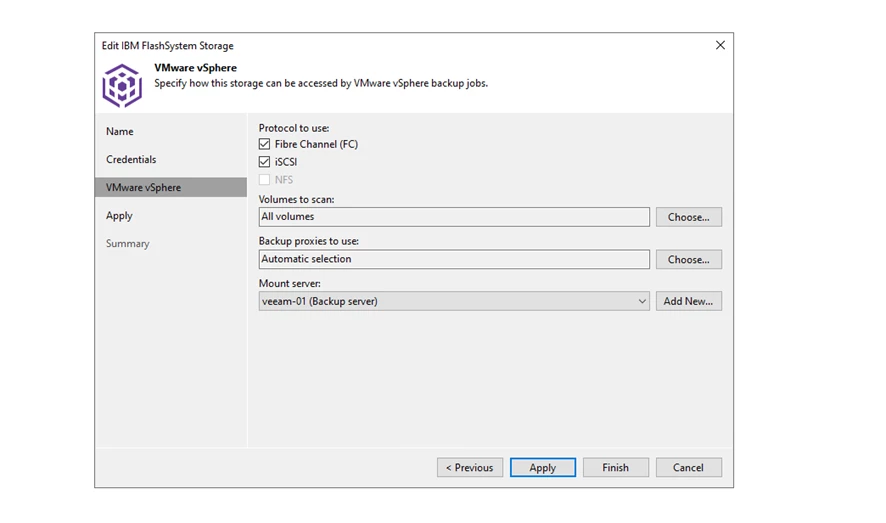
The IBM FlashSystem was registered for VMware vSphere integration, using Fibre Channel and iSCSI.
Then I found something interesting.
Under the storage settings, the volumes to scan option was configured to include all volumes.
Yes, all of them.
Not only the VMware datastores, but also the volumes assigned to the AIX servers.
Looking at the storage inventory in Veeam, I could see AIX volumes with 24 snapshots each, mixed with VMware datastore volumes containing 36 snapshots. That did not mean the Agent had created them; these were snapshots discovered on the storage.
This made me investigate the Storage Discovery process more closely.
According to the Veeam documentation, Storage Discovery collects information about storage systems, their volumes, snapshots, and the infrastructure connected to them.
Veeam also has a background process called Storage Monitor, which checks for changes every 10 minutes.
It looks for changes such as new snapshots, removed snapshots, renamed volumes, and newly added volumes.
If changes are detected, Veeam can automatically initiate a storage rescan.
The AIX volumes had regular storage snapshots, and Veeam was monitoring them because they were included in its discovery scope. This explains the repeated discovery activity, but not every automatic rescan creates temporary clones.
But there was still another question.
Why was Veeam creating clones instead of simply collecting information about the existing snapshots?
How Does Veeam Storage Rescan Work?
This was probably the most interesting part of my investigation.
When reviewing the official Veeam documentation, I found that the Storage Discovery process has different stages.
For VMware integration, two of them are especially important.
vCenter/ESXi Rescan
During this stage, Veeam identifies datastores registered in the VMware environment and matches them with volumes discovered on the storage array.
It also creates or updates information about virtual machines associated with snapshots of relevant volumes.
This is mainly about identifying VMware infrastructure and maintaining its metadata.
VMFS/NFS Rescan
This is where things get more interesting.
During a VMFS/NFS rescan, Veeam may need to access storage snapshots to identify which VMs, if any, are stored inside them.
Depending on the storage capabilities, the process can involve:
- Creating temporary clones of storage snapshots.
- Presenting those clones to a backup proxy.
- Identifying the filesystem.
- Searching for VMware VMX files when a VMFS or NFS filesystem is found.
- Removing the temporary volume mappings.
- Deleting the clones.
The important detail is that Veeam may need to inspect a snapshot before it can tell whether it contains a supported VMware filesystem. If the storage can export the snapshot directly, Veeam does not need to create a separate clone.
One detail is easy to miss: a normal Storage Monitor rescan skips the VMFS/NFS scanning stage. Veeam can perform that deeper scan, for example, during a manual rescan or when it cannot obtain the required VMware information. So the frequent SYSTEM sessions do not prove that a clone was created in every session.
So not every storage rescan creates a clone.
But when the VMFS/NFS scan is performed, temporary clones may be required.
Official documentation: Veeam — Rescan (Storage Discovery) Process
What Did the Logs Show?
After understanding the process, I reviewed the Storage Discovery sessions.
I noticed a large number of storage rescans, many of them initiated automatically by SYSTEM.
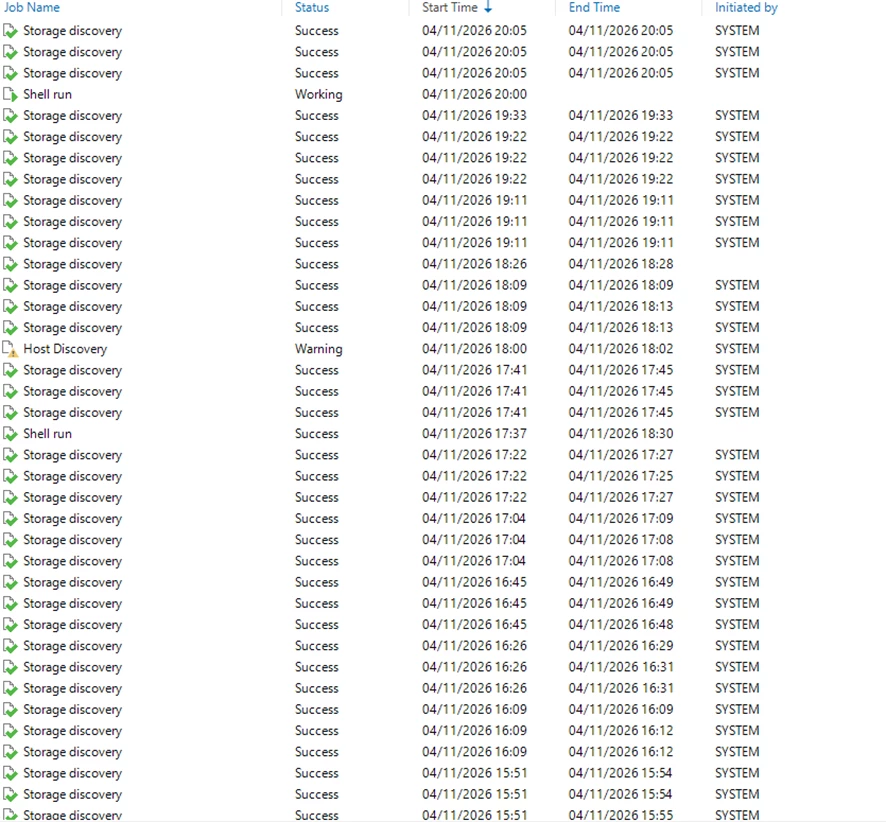
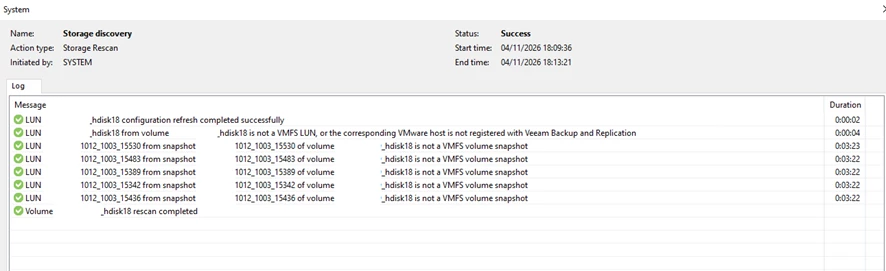
When opening the details of individual sessions, I found messages similar to:
is not a VMFS LUN
LUN SRVCORPRD_hdisk18 from volume SRVCORPRD_hdisk18
And, for the storage snapshots:
LUN SGC_PRD_1012_1003_15530 from snapshot
SGC_PRD_1012_1003_15530 of volume
SRVCORPRD_hdisk18 is not a VMFS volume snapshot
This was a very useful clue.
Veeam was inspecting volumes and snapshots that were not part of the VMware infrastructure.
In other words, Veeam was checking storage objects associated with AIX servers during VMware discovery. These green-check messages are discovery results, not AIX backup job failures.
I also noticed an additional error during one of the storage rescans:
Failed to refresh IBM storage configuration.
Failed to get target info:
Failed to create iSCSI host.
Name: VeeamAUX_RescanHost0
Interestingly, the overall discovery session was still marked as successful.
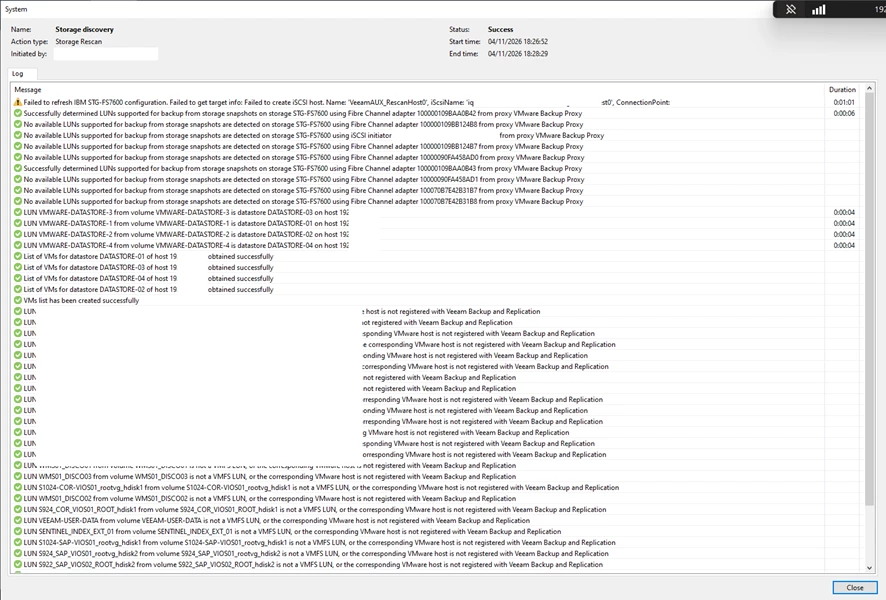
I cannot confirm that this iSCSI host creation error was responsible for leaving the temporary clones behind. Still, it is worth investigating: a VeeamAUX service host is different from a VeeamAUX_Rescan volume group, and the log shows that at least one service-host operation failed.
The creation and removal of these temporary resources should be part of the discovery workflow.
Finding hundreds of them remaining on the storage was certainly not what I expected.
And Then I Found the Disks on the Veeam Server
As if finding more than 500 clones on the FlashSystem wasn't strange enough, I noticed something else.
When I opened Disk Management on the Windows Veeam server, I found several additional disks listed as Unknown, Offline, and Unallocated.
There were disks with capacities such as 120 GB, 250 GB, and 750 GB, matching some of the sizes I had seen on the AIX storage volumes. I did not initialize or bring any of them online.
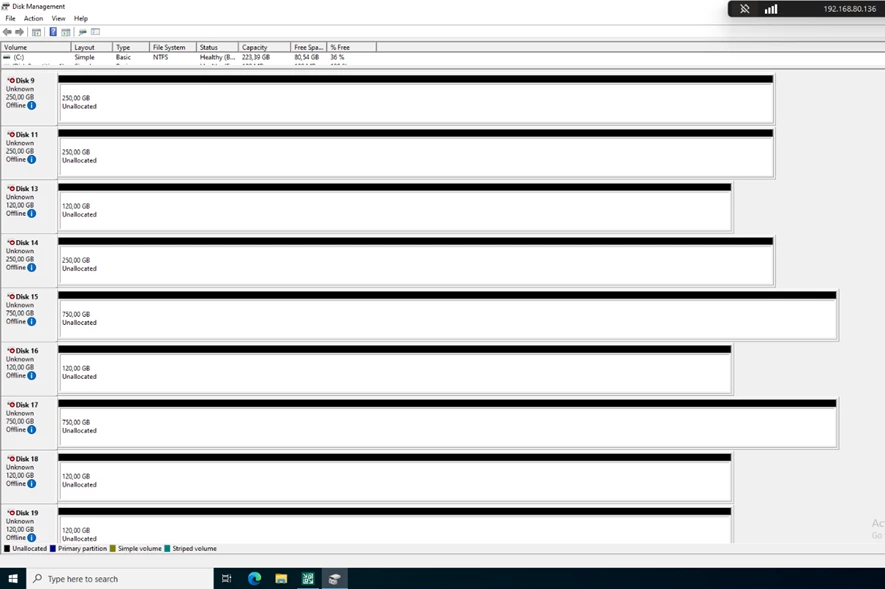
At this point, things became even more confusing.
Why were disks with these sizes even visible on the Windows server running Veeam?
After reviewing the documentation, I understood that during the VMFS/NFS discovery stage, Veeam can temporarily present storage snapshots or clones to a proxy so it can identify the filesystem.
The IBM FlashSystem Plug-In documentation also explains that, with certain storage versions and iSCSI configurations, Veeam creates a service host with the VeeamAUX prefix to access snapshots through a proxy. That service host is not the same thing as the thin-clone volumes.
So the presence of temporary storage disks on a proxy can be related to the discovery process.
But there is an important difference between temporarily presenting a disk and leaving it accessible or registered after the operation has finished.
In my case, I could see several offline disks in Windows while the FlashSystem also contained many remaining VeeamAUX thin-clone volumes.
Some of the clones I checked had no active host mappings in the storage interface. I therefore cannot prove that each offline Windows disk was still mapped to one of those clones; some entries may have remained visible to Windows after the storage mapping changed.
Still, the situation raised another concern: the discovery process was interacting with storage volumes that were not even part of the VMware infrastructure.
According to Veeam’s documented VMFS/NFS discovery workflow, the temporary clones should be removed from the proxy and deleted after the scan. The number of remaining objects was not explained by the normal workflow.
Clearly, I needed to understand why so many objects were still present.
Official documentation: Veeam KB4650 — IBM FlashSystem Plug-In
What About Veeam Agent for IBM AIX?
This is where my initial confusion came from.
Veeam Agent for IBM AIX performs file-level backups. It reads the selected files and directories from the operating system and sends the data to the configured backup destination.
It does not require IBM FlashSystem snapshots for those file-level backups, and the Agent does not support JFS2 snapshots.
So why were AIX volumes involved in all this?
Because the storage integration configured in VBR was discovering volumes independently of the Agent backup jobs.
The AIX servers were using volumes from the same FlashSystem registered in Veeam Storage Infrastructure.
As those volumes were included in the rescan scope, their snapshots were also visible to Veeam.
When a deeper VMFS/NFS scan was performed, Veeam could attempt to inspect snapshots belonging to AIX volumes, even though they were not VMware datastores.
The Agent was not necessarily doing anything wrong. These were two separate Veeam operations interacting with the same storage environment.
Before and After: Limiting the Rescan Scope
Once I understood what was happening, I decided to change the storage rescan scope.
The idea was simple: if this integration is being used for VMware, why should Veeam keep discovering all those unrelated AIX volumes?
I accessed:
Storage Infrastructure > IBM FlashSystem > Properties > VMware vSphere > Volumes to scan
Before the Change
The discovery scope included all volumes, including those belonging to the AIX servers.
Before the change, Veeam listed many AIX volumes with 24 snapshots each alongside the VMware datastore volumes. This was the broad discovery scope I wanted to reduce.
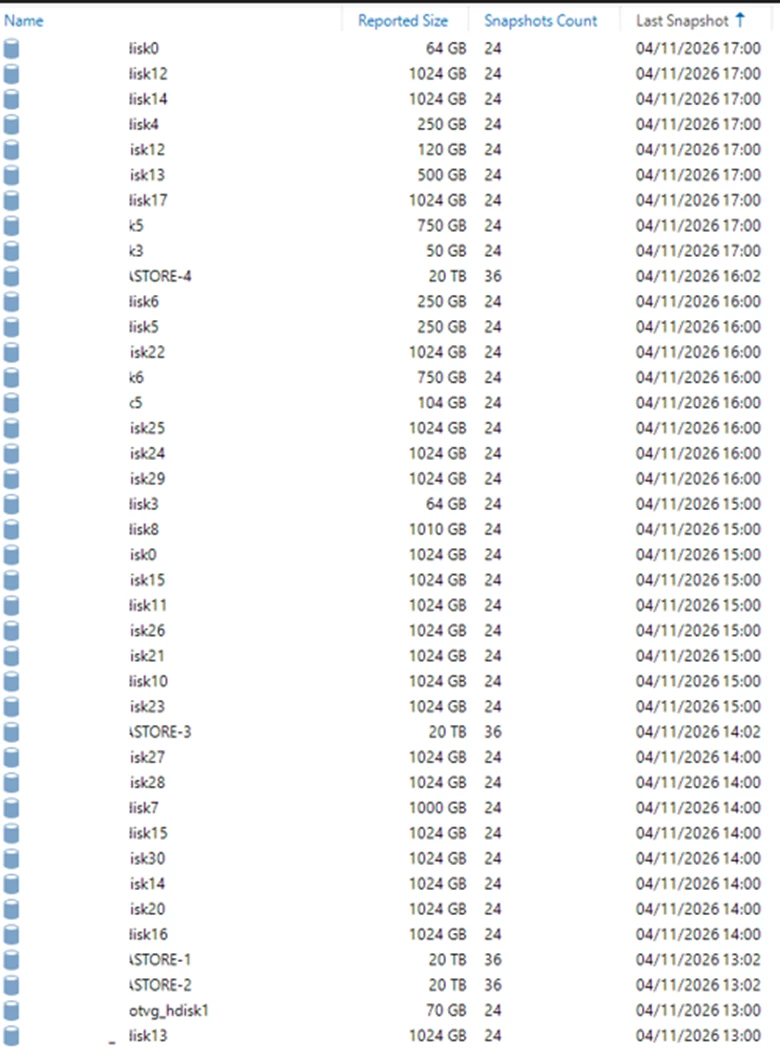
The Storage Discovery history also contained numerous rescan sessions related to those volumes.
And on the IBM FlashSystem, I had already found more than 500 temporary Veeam-related clone volumes.
After the Change
I configured the storage integration to exclude the AIX volumes while keeping the VMware datastore volumes required by Veeam.
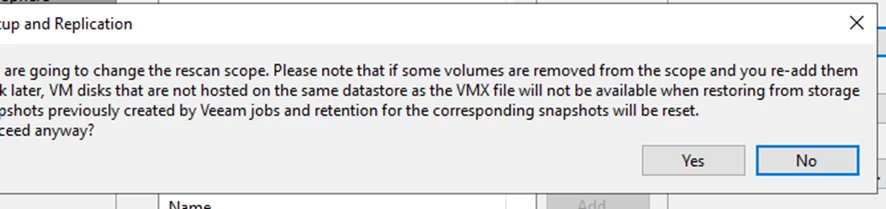
During this process, Veeam displayed a warning that removing volumes from the scope can affect the availability of older snapshots for restore and reset retention for snapshots previously created by Veeam jobs. This is why I kept the required VMware datastores in scope.
This is an important point.
Changing the discovery scope is not something I would recommend doing without understanding which volumes are used by Veeam storage integration.
In my case, the intention was specifically to remove the unrelated AIX volumes from discovery while preserving the VMware environment.
After applying the exclusions, repeated discovery activity involving those AIX volumes appeared to stop during my initial observation. The inventory view also looked different.
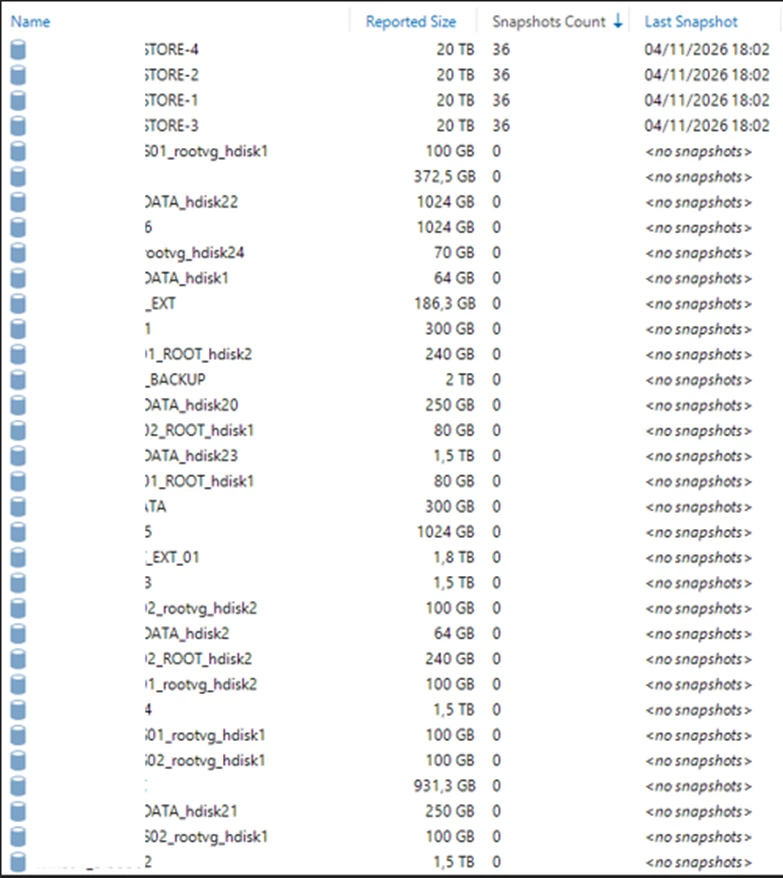
In the after-change screenshot, the VMware datastores still show their snapshots, while several other volumes are listed with zero snapshots. Some volume entries are still visible, so this screenshot is not proof that every old object or mapping has been removed.
Limiting the rescan scope does not automatically delete previously created thin clones from the FlashSystem or clear old disk entries from Windows. Those require separate verification and, if needed, a carefully planned cleanup.
Those are separate cleanup and host-discovery concerns.
For that reason, I still consider the accumulation of temporary clones an issue that deserves further investigation.
Why This Matters
This situation reminded me that storage integration requires attention beyond the backup jobs themselves.
In this environment, I hadn't changed Veeam versions, backup schedules, or job configurations.
The significant change had been on the storage and AIX infrastructure side.
Because the FlashSystem was already registered for VMware integration, its broad discovery scope also covered AIX volumes introduced or changed during the infrastructure migration. That is the most likely reason those AIX snapshots appeared in the Veeam discovery sessions.
What I observed was hundreds of VeeamAUX thin clones, repeated storage rescans, and additional offline disks visible on the Windows Veeam server. Together, these raised concerns about discovery scope, cleanup, and storage capacity.
The provisioned capacity of a clone does not represent its actual physical consumption.
Still, the combination of large AIX backup sets, frequent storage snapshots, thin-clone dependencies, and remaining temporary objects deserves attention. I did not measure the exact physical space used by those clones.
A few things I would recommend checking in similar environments:
- Review which volumes are included in the Veeam storage rescan scope.
- Separate VMware datastore volumes from unrelated application or operating system volumes.
- Check Storage Discovery sessions for repeated rescans and filesystem identification messages.
- Review temporary veeamAux objects, their mappings, dependencies, and actual physical capacity consumption.
- Check whether temporary disks remain visible on backup proxies after discovery operations.
- Validate the cleanup process before removing any storage objects manually.
- Review storage discovery settings after major infrastructure migrations.
Final Thoughts
What I enjoyed most about this investigation was how something that initially made no sense became much clearer once I understood the interaction between Veeam and the IBM FlashSystem.
I started by questioning why Veeam Agent for AIX was apparently creating storage snapshots.
But the real investigation led me to the VMware storage integration, its discovery process, the creation of temporary clones, and how those clones can be presented to a proxy for filesystem identification.
And finding those disks listed in Windows made the investigation even more interesting.
The issue was not simply about AIX backups. It was about how a shared storage environment was being discovered by Veeam.
There is still one part I want to investigate further: why so many temporary clones remained instead of being deleted after their discovery operations. The screenshots and logs show the symptom, not the exact cleanup failure.
For now, limiting the rescan scope appears to have stopped the repeated discovery activity involving AIX snapshots. I will continue to validate that result and check the cleanup of existing objects separately.
It was a good reminder of how important it is to review integrations whenever the underlying infrastructure changes.
Sometimes a small configuration detail can create a much bigger problem than we expect.
And that's one of the things I enjoy most about working with backup and storage technologies: there is always something new to learn.^^