

I set up a brand new Object First OOTBI appliance and had it taking real backups in under an hour. That includes the TUI configuration, web UI setup, adding it to Veeam Backup and Replication as a direct to object repository, and running an actual full backup job. This thing is fast to stand up.
OOTBI stands for Out of the Box Immutability. It is S3 compatible object storage with native immutability built in from the start. You do not bolt anything on. You do not license immutability separately. It is there when you turn it on (yea!).
The TUI
When the appliance boots for the first time it drops you into the TUI. Text user interface. Old school looking but it is clean, linear, and does not waste your time at all.
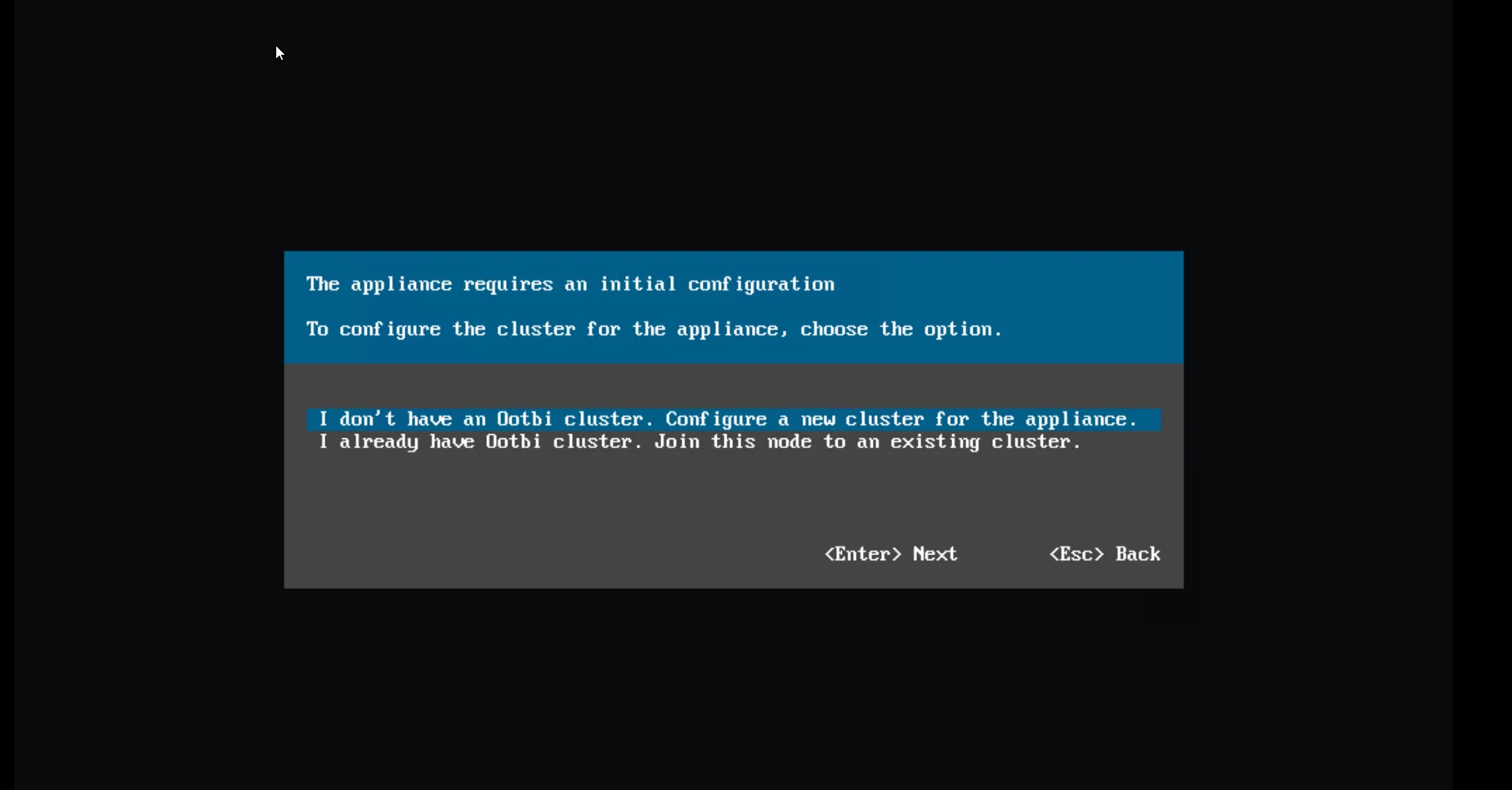
The first screen asks whether you are creating a new cluster or joining an existing one. For a fresh deployment select "I don't have an Ootbi cluster. Configure a new cluster for the appliance."
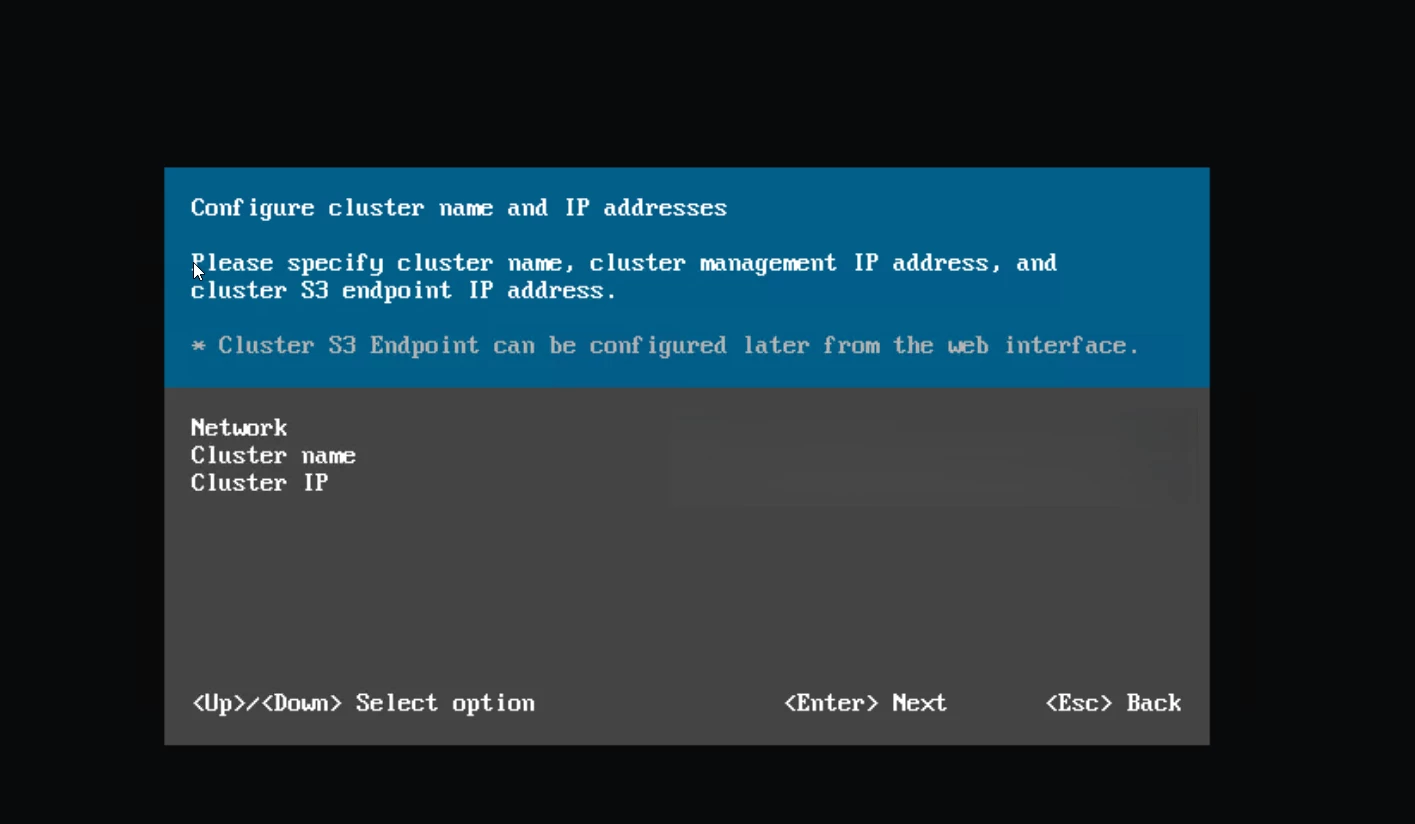
Next you configure your network. Both data interfaces must be on the same subnet and netmask. You set the cluster name and the cluster IP on the following screen. The cluster IP becomes your single point of access for both the S3 endpoint on port 443 and the web management UI on port 8443. One IP. Two services.
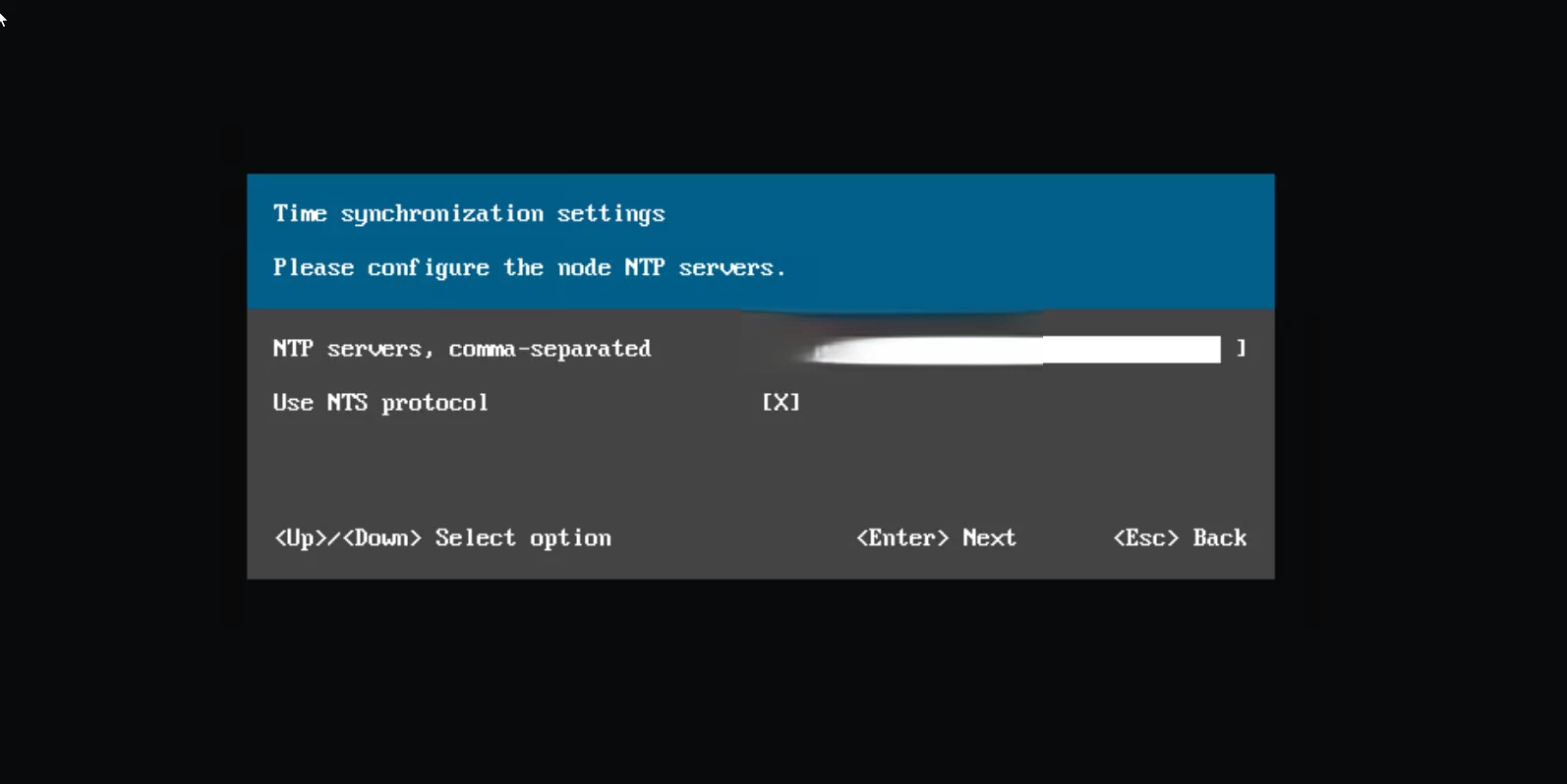
Then NTP. Configure your time servers and enable NTS (Network Time Security) if your environment supports it. I enabled it.
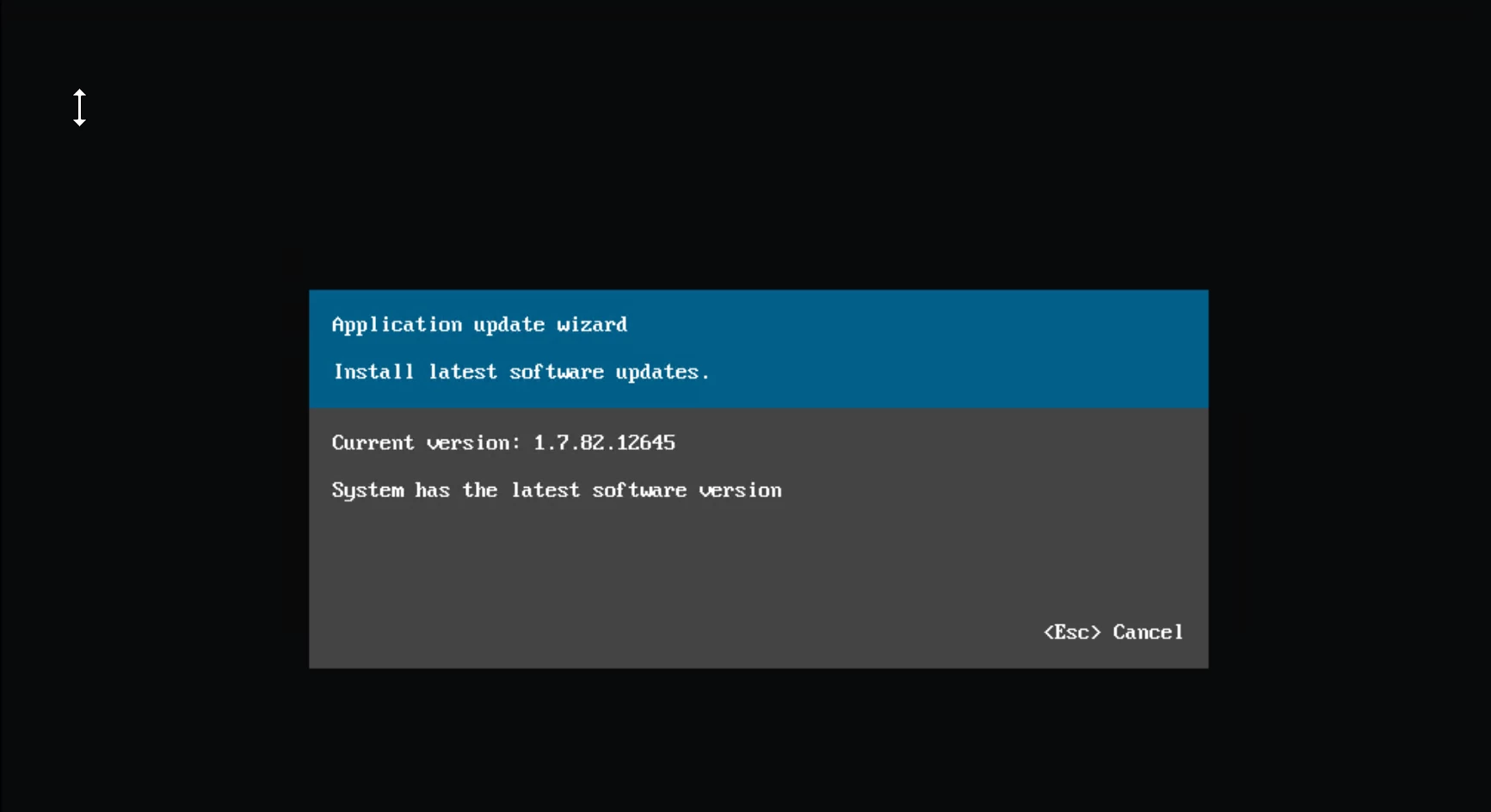
The appliance checks for software updates. Port 443 needs to be open outbound for this. My appliance was running version 1.7.82.12645 and confirmed it was already current. No patching needed out of the gate.
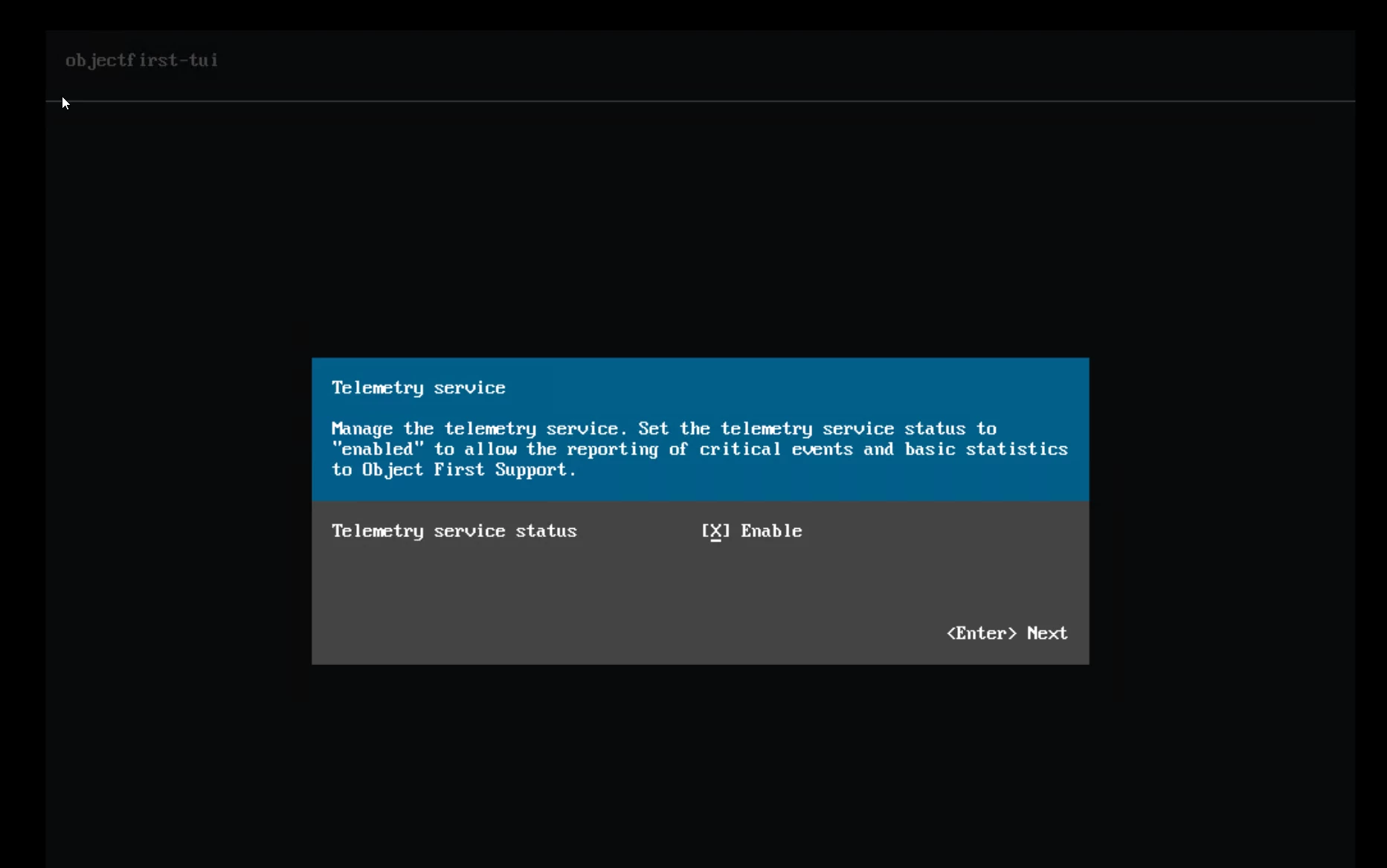
Telemetry is next. Object First recommends enabling it so their support team gets visibility into critical events and basic statistics. I turned it on.
You also set the administrator password during TUI setup. The password must meet complexity requirements including minimum length, mixed case, digits, and symbols.
That is it for the TUI. The whole thing took maybe 10 minutes. It gives you your S3 endpoint URL and web UI URL and you are done. I have spent longer waiting for a firmware upgrade to finish on other platforms than I spent configuring this entire appliance.
Web UI Configuration
Open a browser. Navigate to the cluster IP on port 8443. Default username is "objectfirst" and the password is what you set in the TUI.
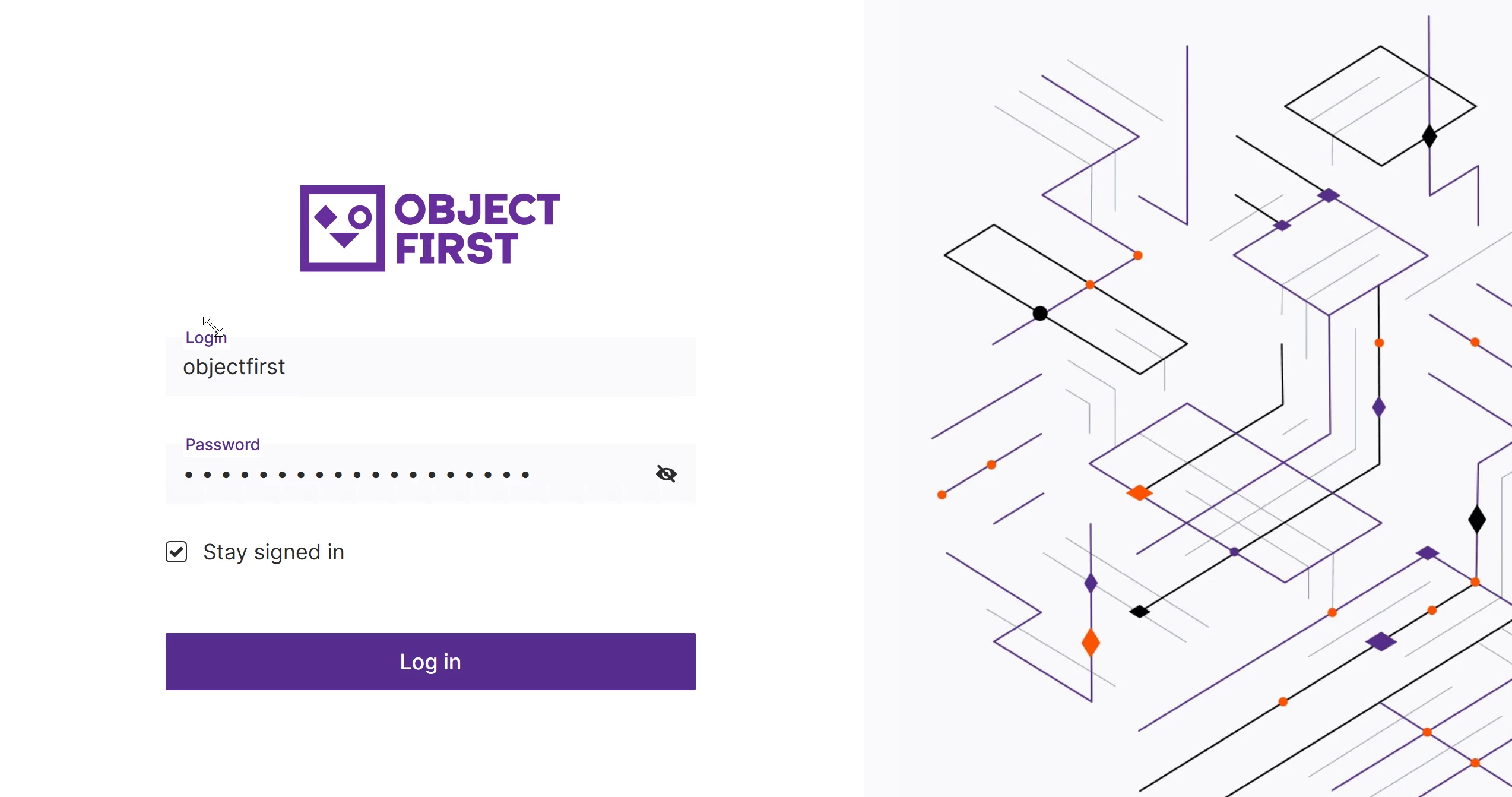
First task is creating an S3 access key. The UI prompts you on first login. Save the access key ID and the secret key immediately. The secret key is only displayed once. Lose it and you are creating a new one.
Next you create a bucket. The naming rules are displayed right in the dialog. Names must be between 3 and 63 characters. Lowercase letters, numbers, dots, and hyphens only. Must begin and end with a letter or number. No adjacent periods. No reserved prefixes or suffixes. (Note..) Without versioning enabled on the bucket you cannot turn on immutability in the VBR later.
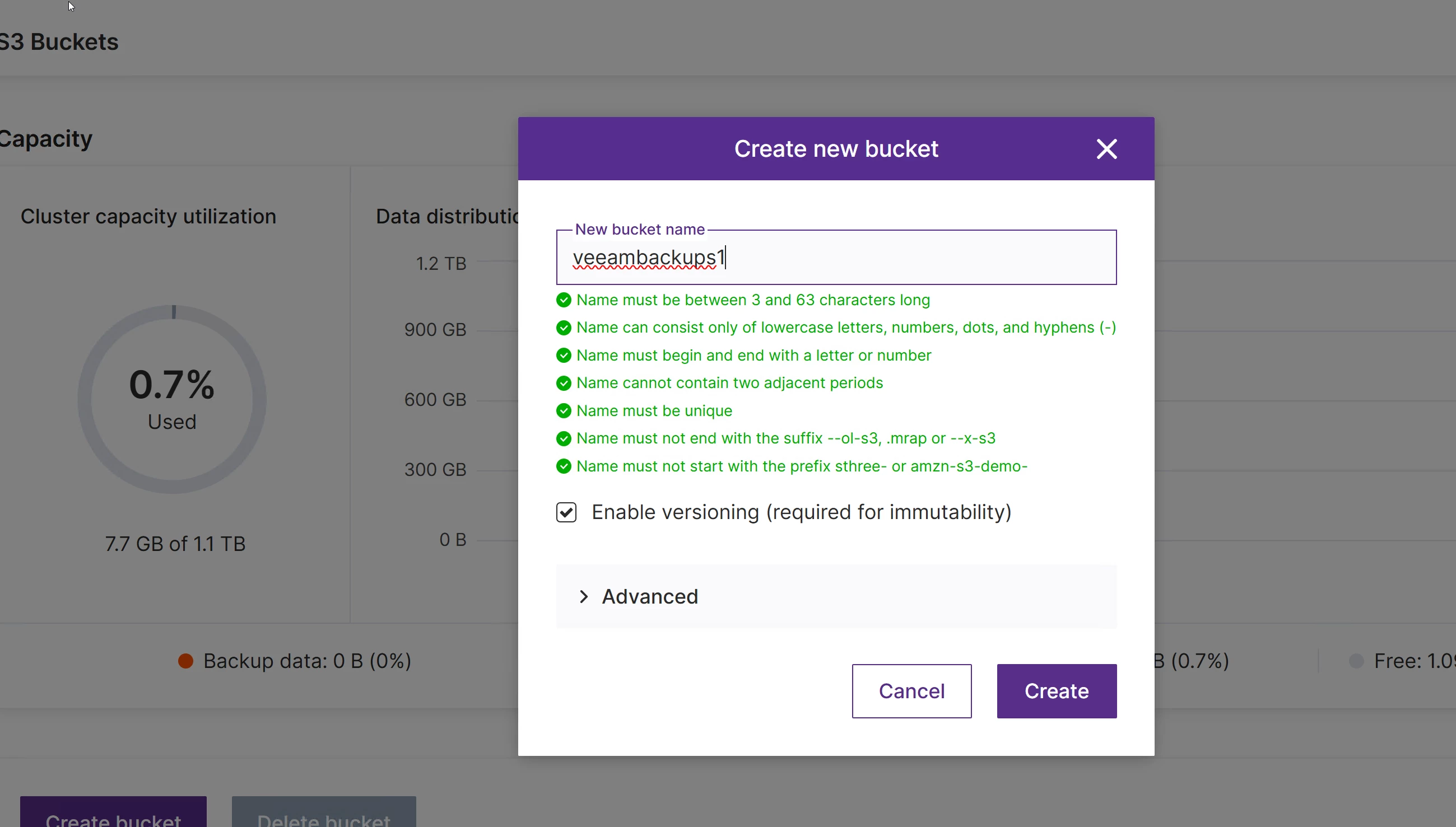
I named mine "veeambackups1" and hit create. Done. Green check. Bucket ready.
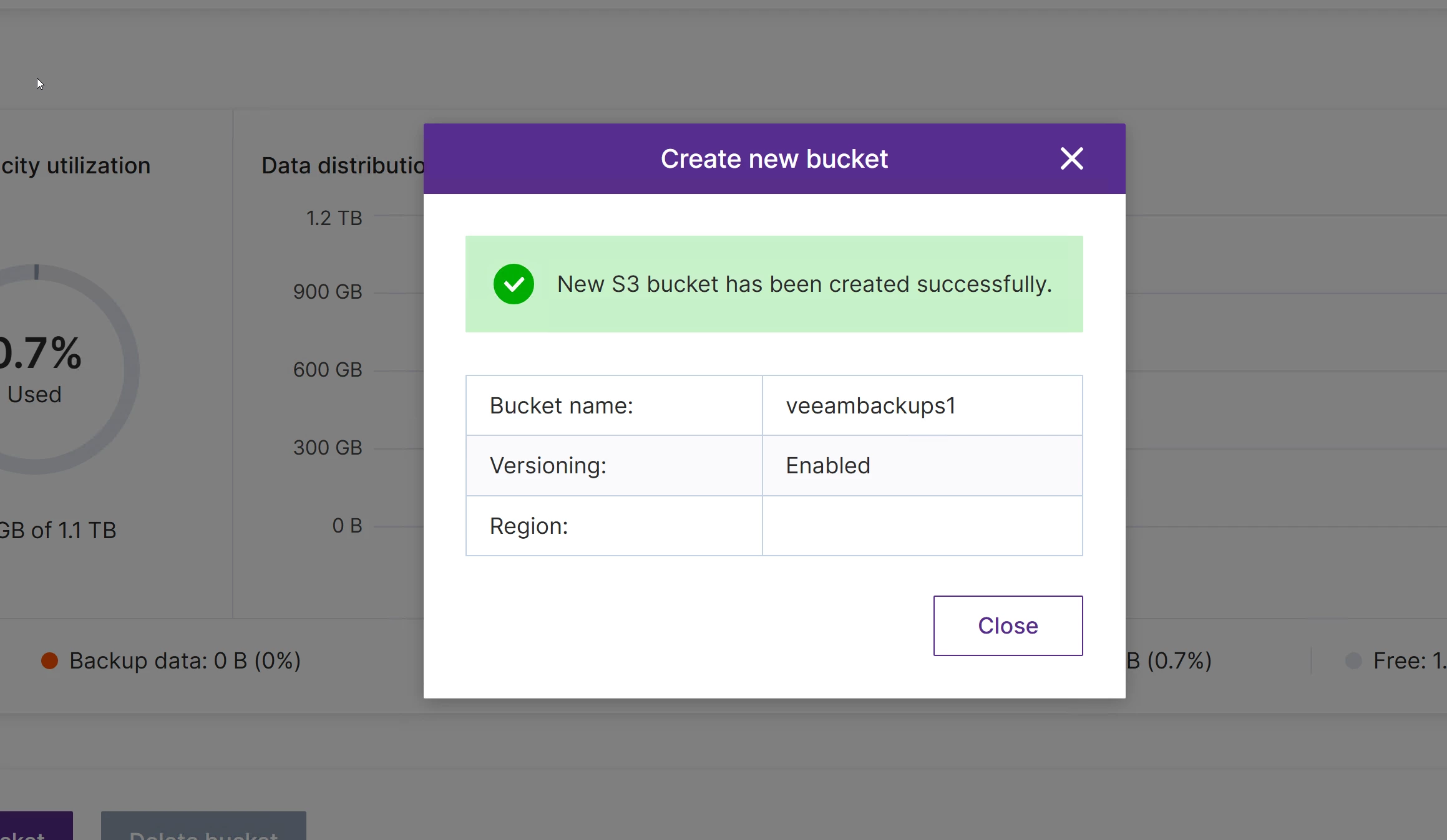
That is the entire OOTBI side of the deployment. Cluster configured. S3 key created. Bucket with versioning enabled. Under 15 minutes.
Adding the Repository in Veeam Backup and Replication
Open the VBR console. Backup Infrastructure. Backup Repositories. Add new. Object Storage. S3 Compatible.
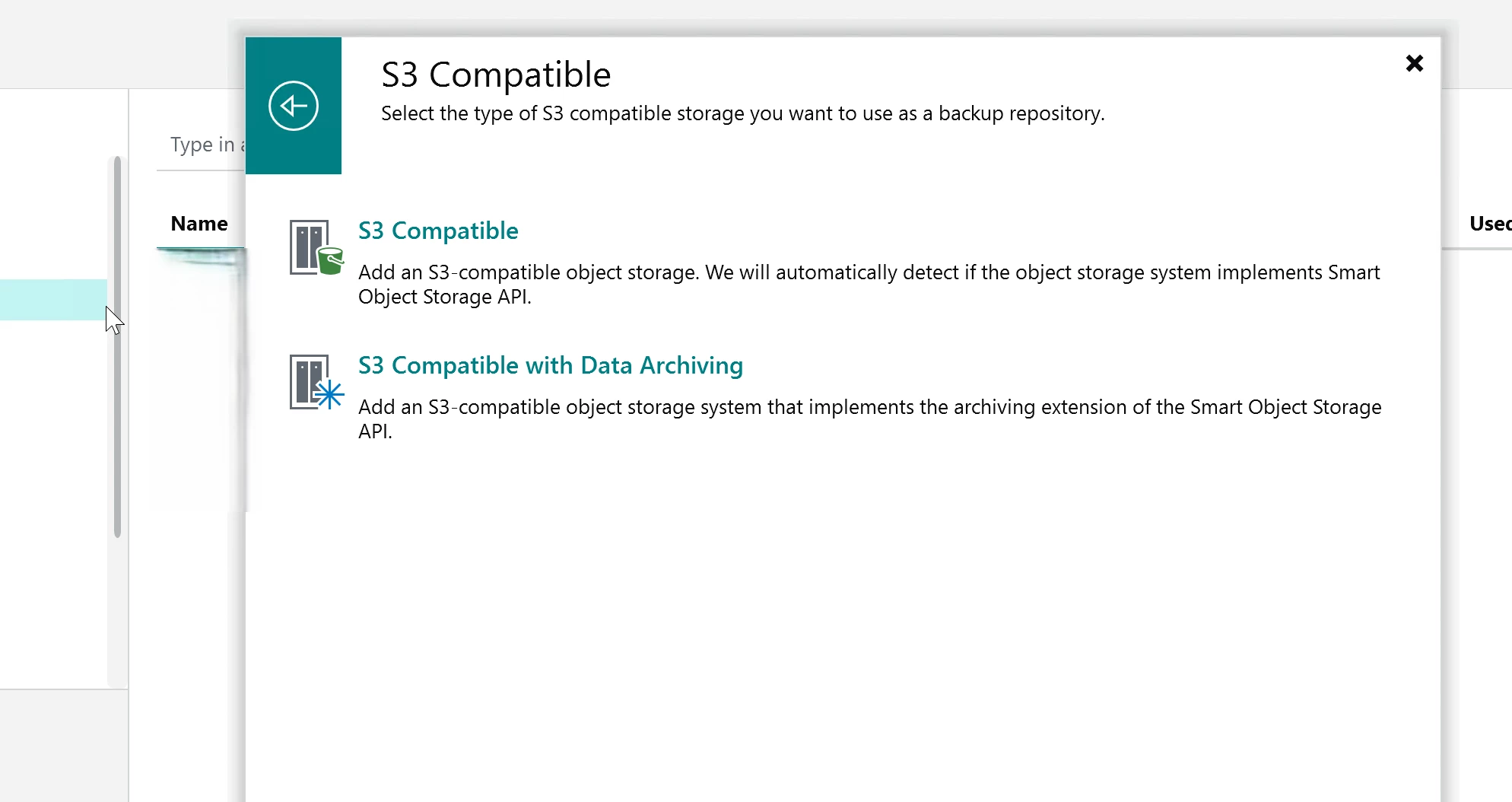
On the Account step you enter the service point (your cluster IP or DNS name over HTTPS on port 443), the region, and the credentials from the S3 key you saved earlier. VBR will warn you about the self signed certificate. Accept it and move on.
On the Bucket step you select your bucket and create a folder inside it. Then you configure two settings that matter. Set a storage consumption limit if you want to cap usage on this repository. And check "Make backups immutable" to lock backup data for the entire duration of the retention policy. Nobody can delete or modify that data while it is within the retention window. Not an admin. Not ransomware.
Finish the wizard. When the repository appears in VBR it shows the type as "S3 integrated." That confirms SOSAPI is active. SOSAPI is Veeam's Smart Object Storage API. It provides optimized backup and restore performance on supported S3 targets. OOTBI fully supports it.
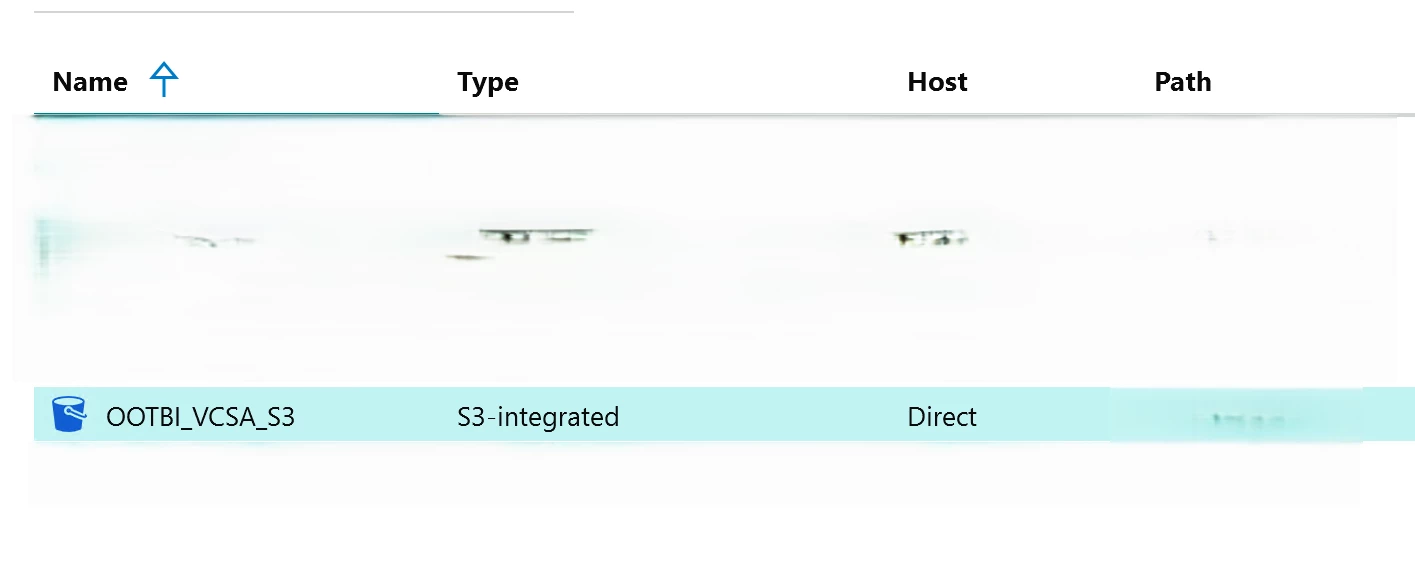
From the time I opened the VBR console to the time the repository was ready to accept data was maybe another 10 minutes.
Running a Backup
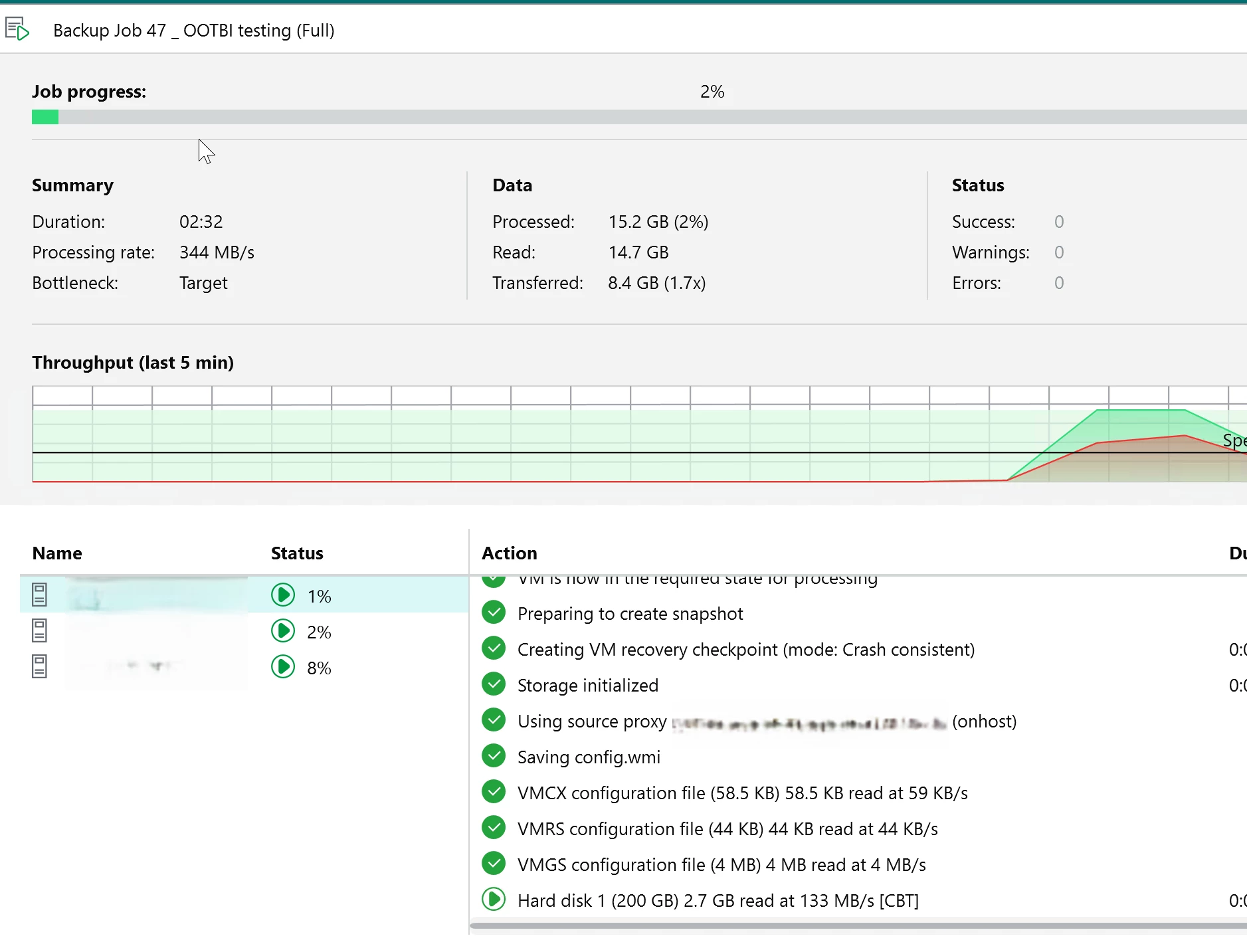
I created a backup job targeting three VMs and pointed it directly at the OOTBI repository. No SOBR. No performance tier in front of it. No staging. Direct to object.
The full backup kicked off and showed a processing rate of 344 MB/s with a 1.7x compression ratio on the transferred data (Usually faster, connection bound in this instance). The VBR reported the bottleneck as Target which is expected on a first full /w limited connection bandwidth. That is real data moving to a brand new appliance in under an hour :)
Honest Take
I have deployed a lot of storage over the years. SAN arrays that take a full day. NAS heads that need three rounds of firmware before they are stable. Dedup appliances where you spend more time tuning than backing up.
OOTBI took less than an hour from first boot to confirmed backup data on disk. The TUI is straightforward. The web UI stays out of your way. The VBR integration is the same S3 compatible workflow you already know if you have worked with Veeam and object storage before. There was nothing new to learn here and that is the best compliment I can give a storage product.
Before You Start
Get your network right first. Both data interfaces on the same subnet and netmask. DNS resolving. NTP configured. Port 443 open outbound for updates and telemetry. Port 8443 for web management.
Save the S3 secret key the moment it appears. You get one chance. If you lose it you can create a new key. There is no way to retrieve it after the fact.
Enable versioning on the bucket at creation time. No versioning means no immutability in VBR.