


Migrating between sites is rarely straightforward, especially when you don't have access to the virtual infrastructure to create a replication job between sites. In this post I'll walk through a real-world migration from another provider to our own Virtual Private Cloud on VMware vCloud Director. This will not be a build guide, but more of a high level overview of how it was accomplished and some of my findings, positive and negative.
Project Background
Our customer had expressed a desire to offboard from their previous service provider and onto our platform. They did not want to approach the provider before migrating, and suspected that the provider would not cooperate with setting up replication jobs to another service provider.
They asked us to come up with a solution that had a low Recovery Point Objective to minimize interruption to public facing services.
Key Constraints:
- The customer did not have access to the virtualization layer and were unable to configure a Veeam replication job, or provide backup files to restore from.
- They had the option to export OVF files, however during testing they found that transfer speeds were incredibly slow, since the first step in exporting the OVF from vCenter appeared to download it to a server in the states. (Our customer is in Australia)
Choosing the best Veeam tool for the job
Veeam has several methods by which a migration can be completed using backup and DR tools. They can be broken into 3 options:
- Backup and Restore
- Possible with VM-level and Agent-based backups
- Can run a full backup and subsequent incremental backups closer to the cutover date
- If a VM, the VM can be shut down before final replication, avoiding a crash consistent recovery
- Replication
- Only possible with hypervisor-level access
- Can run incremental replications before the cutover date
- Can be failed over in a "Planned Failover", which will cleanly shutdown the source VM, do a final replication pass, and power on the target VM, avoiding a crash consistent recovery.
- Continuous Data Protection (CDP)
- Possible with VM-level and Agent-based Replication (Universal CDP)
- Universal CDP is only supported for Windows-based operating systems.
- Can be configured with much lower RPO than backups or replications
- Possible with VM-level and Agent-based Replication (Universal CDP)
Considering our constraint of not having access to the hypervisor, we were left to choose between backup/restore and Universal CDP. Since the customer expressed the importance of a low RPO, we chose to use Universal CDP.
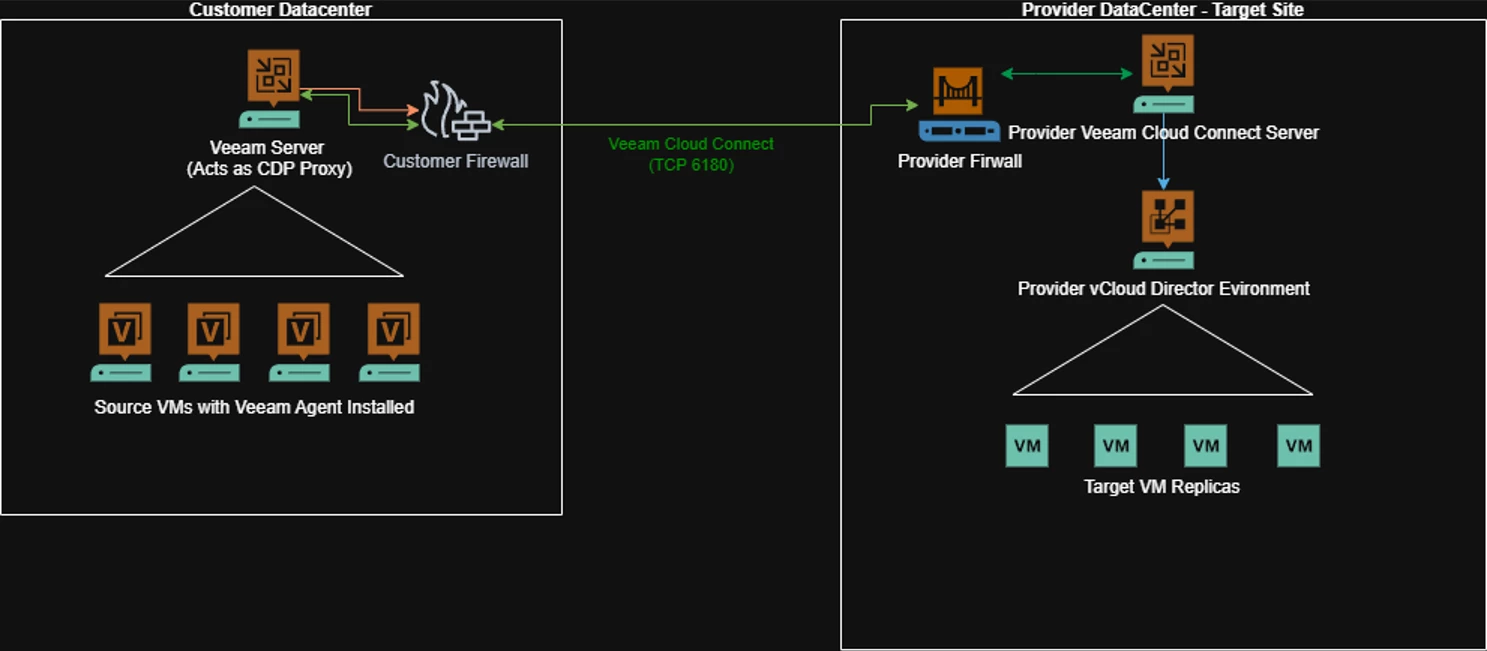
Since we are a service provider, we used Cloud Connect on our side, which enabled us to have all traffic flow through a single port.
Design and Key Components
On the customer side, Veeam CDP Agents are deployed to machines in a protection group from a Veeam Backup and Replication (VBR) server installed at the customer site. These agents can then be added to a CDP Policy within the VBR server, and the agents use the VBR server as a CDP Proxy.
On the Service Provider side, the connection is received by Cloud Connect Gateways, routed through to the target CDP proxies, and ultimately written to ESXi hosts via VMware I/O Filters. Veeam coordinates the import of these VMs into vCloud Director.
Various Issues and Troubleshooting.
This project saw its fair share of issues, which I will share below.
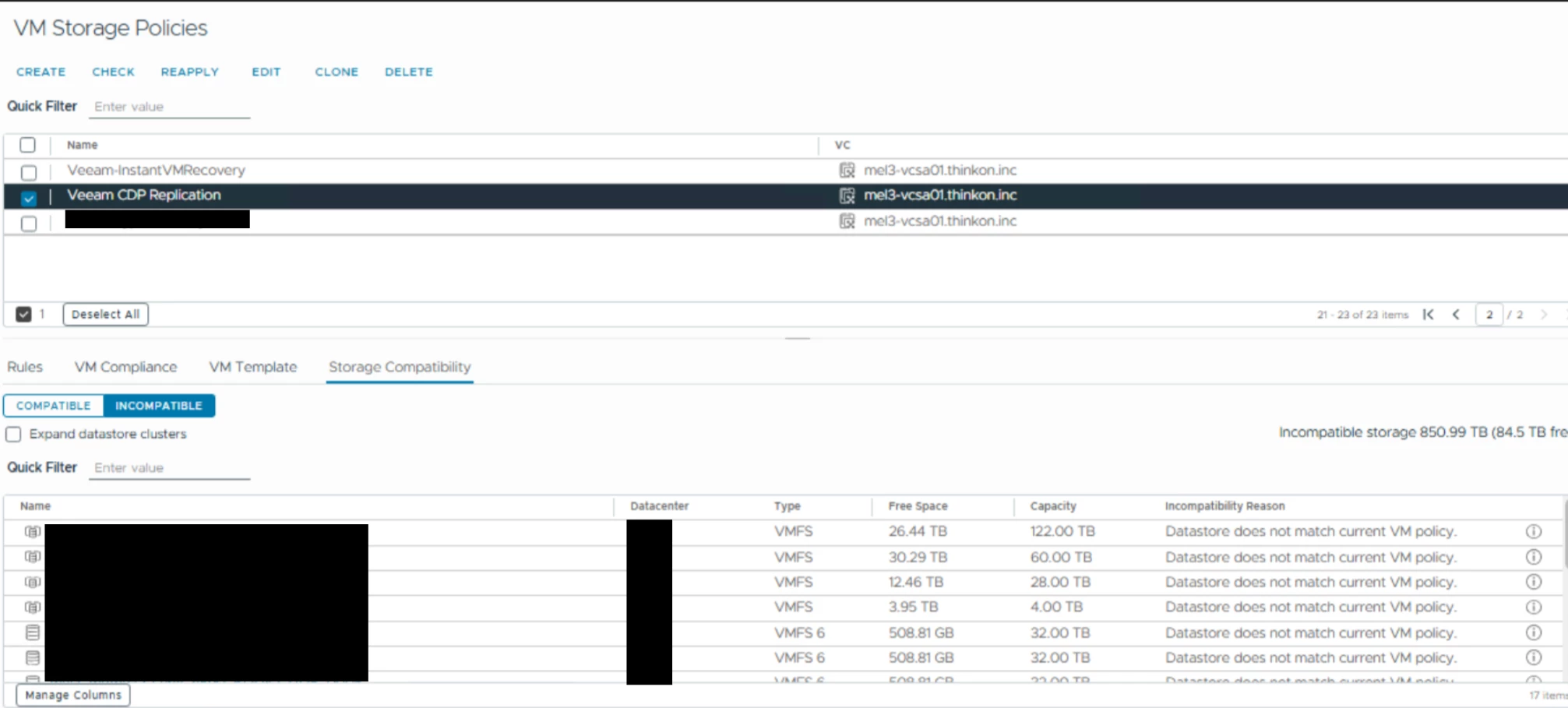
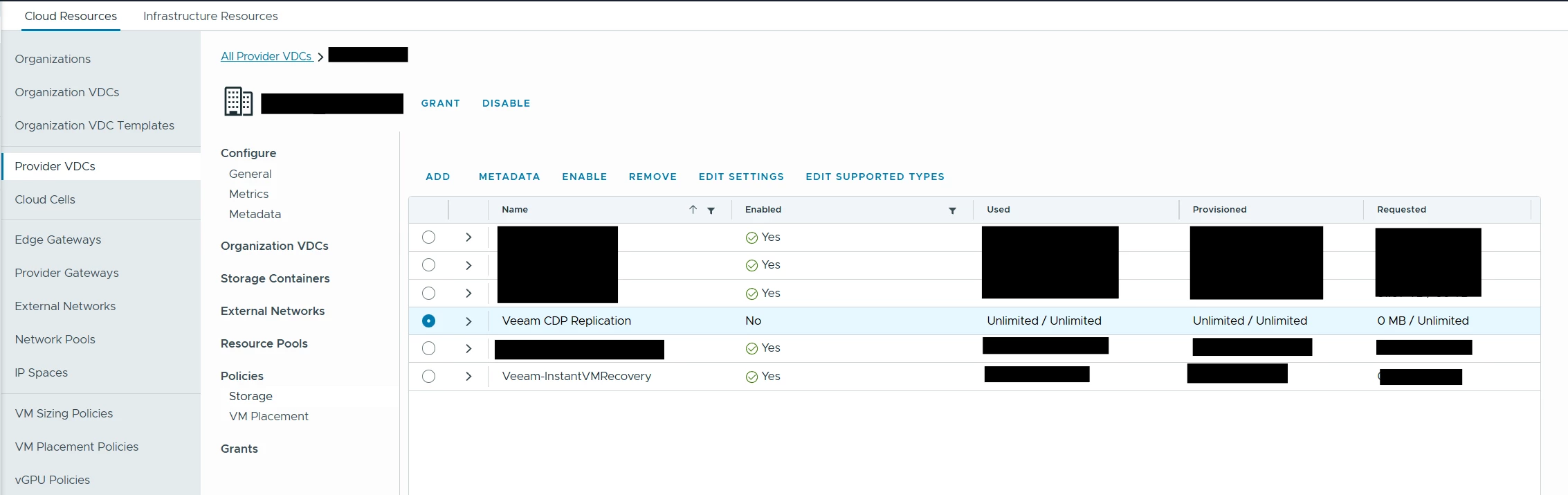
Unable to Select a Storage Policy for the CDP Replica
Symptoms:
No storage policy appeared when configuring the target replica.
Root Cause:
Some ESXi hosts connected to the datastore did not have Veeam I/O filters installed, making the datastore incompatible.
Resolution:
- Installed I/O filters on all relevant hosts
- Ensured datastore alignment across all clusters
- Added policy to Provider VDC and tenant VDC
VM Replica Names Showed as IP Addresses
Symptoms:
In vCloud Director, all customer replica VM names showed as IP addressed instead of their hostnames.
Root Cause:
Source machines were added to the CDP policy using IP addresses instead of FQDNs.
Resolution:
Re-add machines to the protection group using FQDN instead of IP.
CDP Permanent Failover Reboots Target VM
Symptoms:
During permanent failover Veeam needs to reboot the target VM. This may have something to do with it changing the VM's disk from the -interim.vmdk to a normal disk.
Root Cause:
The reboot is most likely related to Veeam converting the virtual disk from a -interim.vmdk format to a regular vmdk format.
Resolution:
Account for this reboot in the migration/DR planning and work with the customer to organize a downtime window.
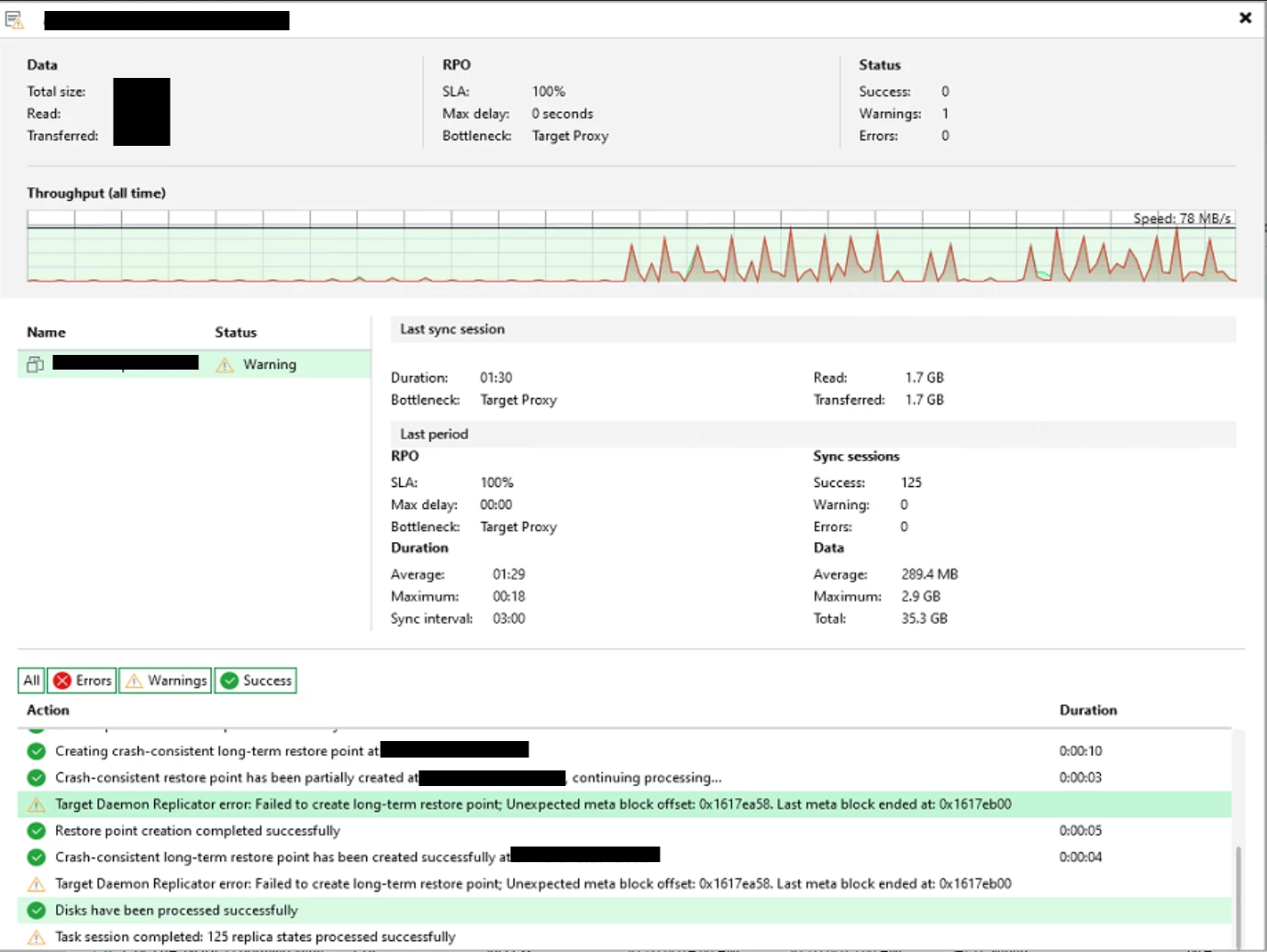
CDP Warning Blocking Failover (Long-Term Restore Point Error)
Symptoms:
- The replica job showed the following warning every time a "long term restore point" was created by the policy:
Warning : Target Daemon Replicator error: Failed to create long-term restore point; Unexpected meta block offset: 0x1617ea58. Last meta block ended at: 0x1617eb00 - When attempting to fail over to the target replica, it was not successful
Root Cause:
No definitive root cause was identified. We suspect that there was some kind of metadata inconsistency between the source and target virtual disks.
Resolution:
- Temporary workaround:
- Delete the replica, recreate and resync
- Long-term outcome:
- Even with a new replica, the issue reoccurred after a few hours, making this unreliable for the customer's cutover window
- Switched to using Agent Based Backups and Restore using Cloud Connect for the affected VM
Restored VM Unable to Import into vCloud Director
Symptoms:
The restored VM failed to import into vCloud Director.
Root Cause:
The VM disk size was not a whole number and had too many decimal points (e.g., 1.98525TB), which was incompatible with vCloud Director import requirements.
Resolution:
Adjust disk size in vCenter to a whole number (e.g., 2TB) and retry the import process.
Inconsistent Veeam Database Information After Failover
Symptoms:
After completing all permanent failovers, some of the replica VMs still showed on the Veeam Cloud Connect server as in failover state.
Root Cause:
Inconsistent or stale entries existed in the Veeam Cloud Connect Database.
Resolution:
- Engaged Veeam support
- Executed a SQL query provided by support to run a stored procedure to remove the stale entries.
Conclusion and Final Thoughts
While this migrating approach for this customer using Universal CDP seemed sound, it ultimately had too many issues to call it seamless.
It shows the importance of fully testing the solution before using it in production or for a one-time migration, and more importantly having a secondary method available to you.
Based on this experience, next time I have a requirement to migrate systems without access to the underlying hypervisor, I will likely stick to Agent-based Backup and Restore via Cloud Connect.

