
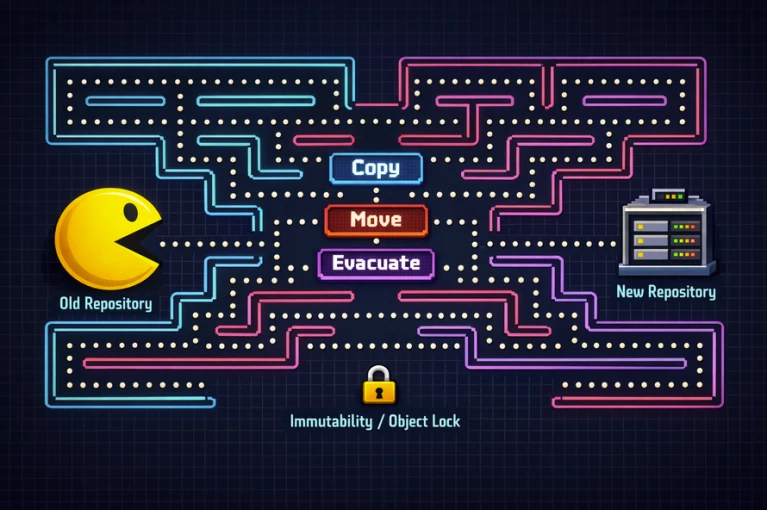
So you’ve got a new storage system, Congratulation.
Your old repository is on life support and needs to be replaced?
Your backup data must move to a new location or infrastructure?
Someone made a configuration mistake and now the data needs to be migrated, fixed, and possibly migrated back again?
Well, welcome to the migration maze. I’ll be your tour guide. Please keep your hands inside the vehicle at all times.

Veeam backup data is not a loose collection of files that you can simply copy over casually. It is a rather sensitive construct consisting of backup chains (full/incremental), metadata, retention logic, synthetic fulls, and possibly immutability/object lock — and it is of course out of question, that during the migration, RPO/RTO still need to be met.
In this deep dive, we take a look at the most practical and supported ways to get Veeam backup data from one backup repository or SOBR extent to the other— along with pros/cons, limitations, and recommendations for large data volumes.
“Mission Briefing”: These are your prerequisites
Your backup solution is Veeam Backup & Replication v12 / v13 and your backups are stored on standalone backup repositories and/or SOBR extents (SOBR = Scale-Out Backup Repository)
- Backup Administrator rights in the VBR console
- A current configuration backup (Menu → Configuration Backup)
- One or more maintenance windows
- Storage/SAN team within reach
The most important guiding principle of this article:
You can not simply walk to Mor…. uh…. no, different topic
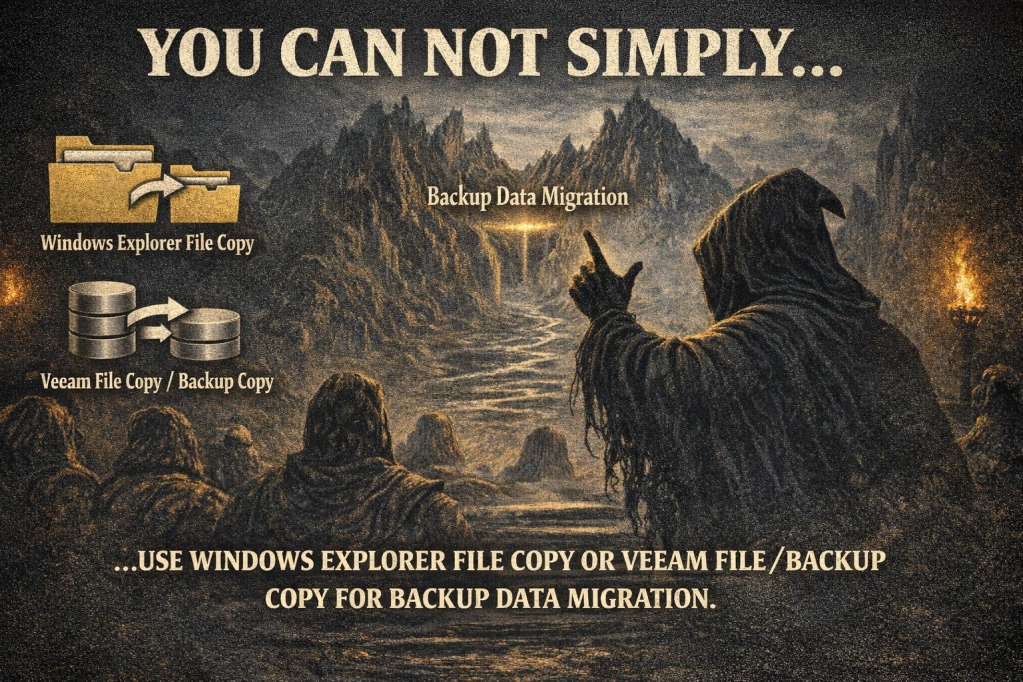
You cannot simply use a Windows Explorer file copy, or a Veeam “File Copy” or “Backup Copy Job” as a backup data migration. These methods are not intended for that.
Of course, you can copy files with it. You can also eat soup with a screwdriver. Both work — well, somehow — but not in the way you want the outcome to look.

Backup migration means: keep chains consistent, ensure restore capability, integrate Veeam metadata cleanly, and depending on the repository type: respect immutability, and do the whole thing as fast as possible, without errors and worries, and with easy reintegration of the data including detection of the full and incremental backups on the target side.
The four ways through the migration labyrinth
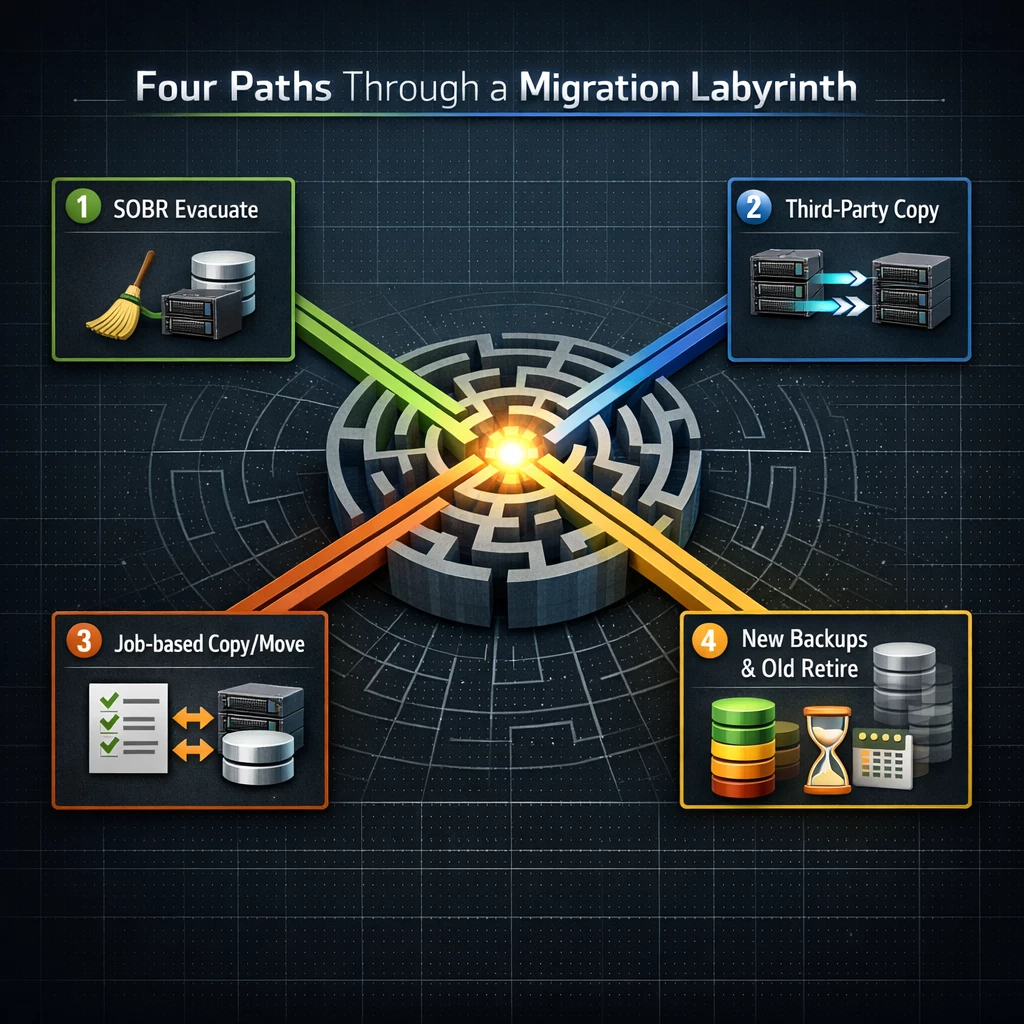
- SOBR Extent Evacuate
“I want to remove/replace an extent from the SOBR and Veeam should take care of migration. How long it takes doesn’t really matter to me and restores/backups from that extent are not relevant.” - Third-Party Data Copy (SAN/SnapMirror/Storage Tools/Robocopy)
“The amount of data is so large that we’d rather copy it with storage methods and with good performance.” In addition, there is no restriction on data types and restores are still possible during the migration. - Job-based migration (Copy/Move per job)
“I migrate manually by myself, selectively per job, I need logs/transparency, and doing this with multiple small maintenance windows.” - New Backups & Old Retire
“I start completely fresh with the backup dataset and let the old restore points expire via retention.”
Method 1: SOBR Extent Evacuate (when an extent has to go)
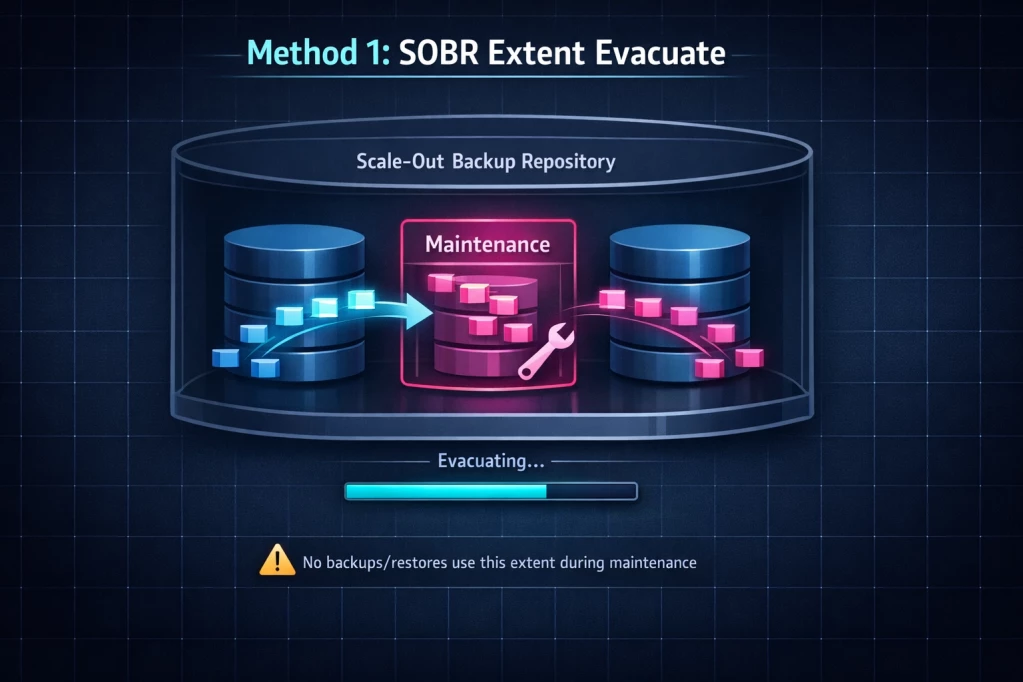
You have a Scale-Out Backup Repository (SOBR) and want to “migrate” a single extent (storage migration, end-of-life hardware, or redesign). You don’t want to go into the details and you want Veeam to take care of everything. It also doesn’t matter how long this migration takes you still have got some weeks/month time.
The extent is put into maintenance mode and can no longer be actively used (that means it is no longer possible to store additional backups on the extent, nor to perform restores from that dataset). When evacuation is started, Veeam begins copying all data from this extent to the remaining SOBR extents.
Official documentation:
https://helpcenter.veeam.com/docs/vbr/userguide/sobr_evacuate.html
Step-by-step (VBR Console)
- Backup Infrastructure → Scale-Out Repositories
- Right-click extent → Set to Maintenance
IMPORTANT: From now on, backups/restores from this extent aren’t possible - Right-click extent → Evacuate
- Veeam starts copying/redistributing
- Monitoring: History → Jobs (Evacuate Tasks)
- When finished: Right-click old extent → Remove from SOBR
Pros:
- Immutability is migrated including versioning and lock retention
- Easy to start, Veeam does the rest
- Very good to use for small extents
Cons:
- Long migration runtime for large extents
- No backup and no restore possible on the extent during the process
- No way to estimate the runtime or track the time status
- No possibility to intervene or control details
- Monitoring is difficult
Limits & practical tips
- Size actually does matter
With very large extents, this process can take a very long time and become more prone to issues (retries/timeouts/rescans/listing load). From practical experience, I would recommend a maximum extent size of about 50 TB for on-prem object storage and a maximum of about 200–300 TB for disk extents.
Veeam itself does not really care about the size, but API listing and rescan commands do. Also, the larger an extent becomes, the longer these actions take, especially the migration itself – depending on the selected storage technology and architecture. Smaller extents keep you more flexible and allow migrations within a predictable and short timeframe.
Large extents can cause performance issues and errors in this process (file/object listing/deletion/handling can takes a very long time).
A data migration will come, perhaps only every 5–7 years but it will come (new storage solution, etc.). You may end up needing a painfully large maintenance window of days/weeks or even month.
I know “unlimited storage” is often advertised and it sounds sexy. But nothing is unlimited and everything has its price. It really doesn’t mean it should be designed that way. You should always keep an exit strategy and migration in mind, as well as performance.
In my personal opinion, the rule is: “Just because something is technically possible doesn’t mean you should do it that way.” - Immutability/Object Lock
If the SOBR extent is immutable, the migration is executed while considering these rules and the data is migrated including versioning and Object Lock retention time. Of course, the data on the source cannot be deleted during the process if it is still locked; it can only be marked as “delete”. - No comfortable pause/resume
You can stop and start the task again, but this is an emergency setting that should ideally not be used. - Monitoring
Monitoring is kept simple and shows everything in a single window without extensive search and filtering functions. The larger the repository or extent, the more confusing it becomes. - Duration and time status
There is no way to estimate and track the duration of the job. The job runs and it is finished when it is finished. There is also basically no “cancel and roll everything back”.
Method 2: Third-Party Data Copy (SAN/Storage Tools) – when it gets really large
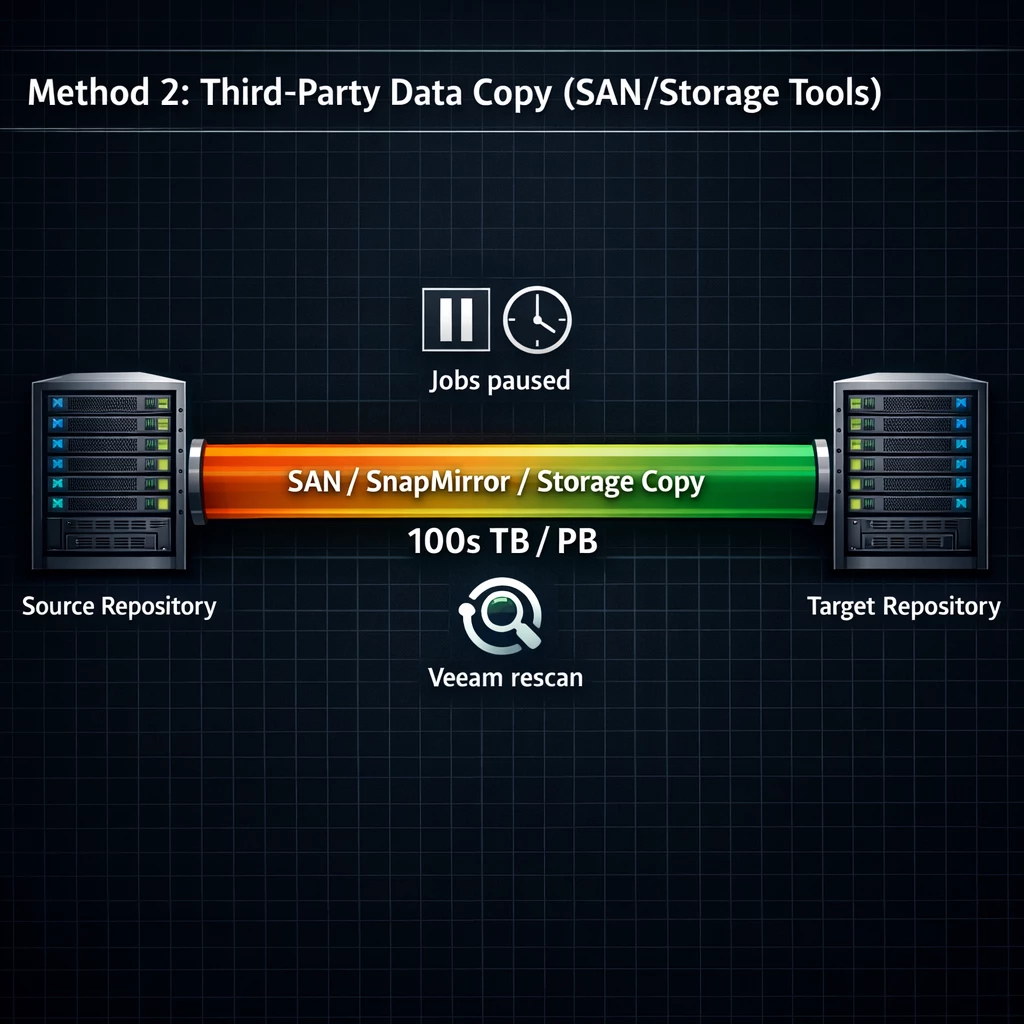
If we are not longer talking about “a few dozen TB”, but about hundreds of TB up to multiple PB, then you typically do not want Veeam to handle the entire copy work file-based via one main task.
Instead, storage-native options may be more interesting, for example: NetApp SnapMirror, array replication, block-level copy, or smaller migration jobs and tools that you can control, monitor and manage individually, such as rsync, LVM pvmove, Robocopy (yes, Robocopy is like a reliable wrench: not pretty, but always there), etc.
The core idea
- Stop jobs so the source repository “stands still”
- Storage or tool takes care of the data migration
- Depending on storage technology and migration method, it may even be completely transparent to Veeam
- Afterwards, Veeam is pointed to the new storage and scans in the data including metadata
Step-by-step
- All jobs that write to the source repository/extent must be stopped and disabled
(The backup data is not allowed to change during migration. Otherwise, you are copying a changing dataset without coordination—this is like photographing a waterfall while rotating the camera.) - Copy on the storage side
- In VBR: add a new repository (or new SOBR extent) and point it to the new storage
- Rescan the new target after the data migration is completed
- Adjust jobs: set the target to the new repo/extent (don’t forget to enable mapping so veeam knows to use the data that already exists there)
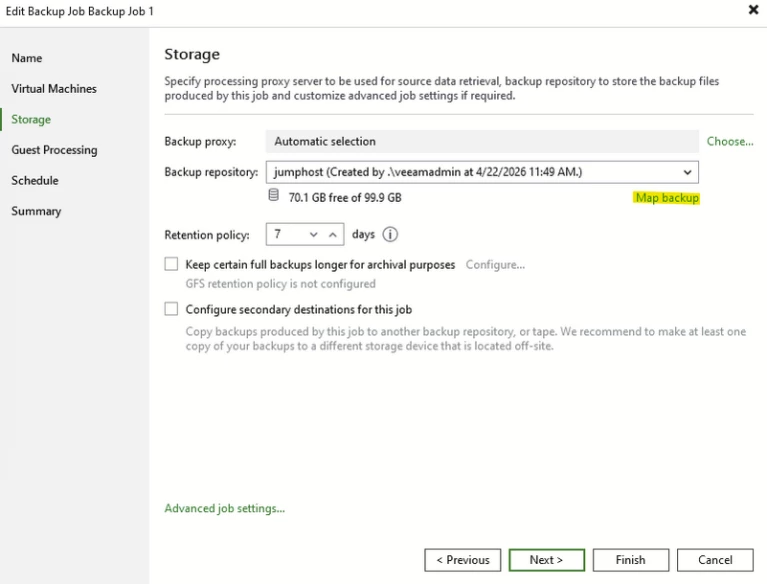
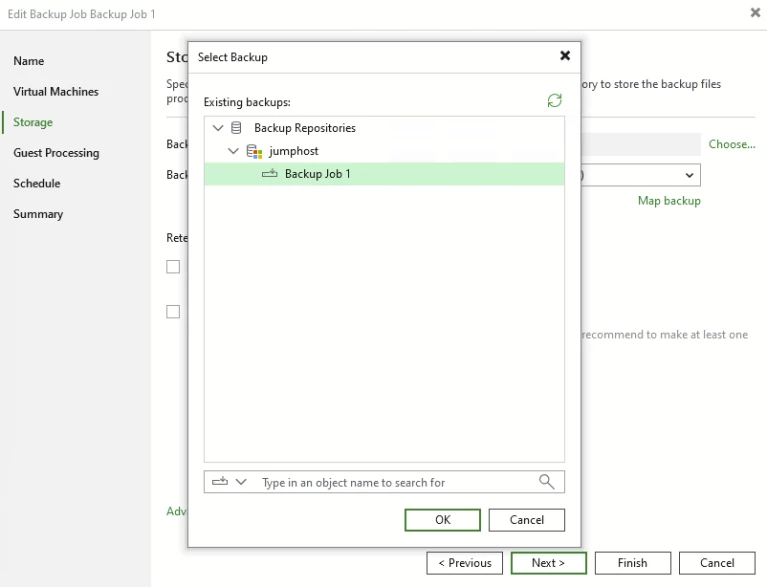
6. Re-enable jobs and perform a test run
IMPORTANT for standalone unmanaged plugins: wizard configuration must be performed again.
7. If everything runs stable and works, remove the old repository/extent from Veeam and decommission the storage.
Pros:
- Very good for large data volumes (repositories and extents)
- Storage migration may be more performant and may offer additional copy optimizations
- Storage handles the migration
- Restores are possible during migration
Cons:
- Depending on the tool/technology, you get fewer file-accurate migration logs than with Veeam-native moves
- Requires coordination: storage, network, change window
- Pilot is mandatory: test small first, then production
- Be careful with object storage that uses Object Lock retention and/or versioning. There are many limitations, and it’s not easy to migrate the data correctly 1:1 (the object ID changes as well). So if you’re not 100% sure it will work, it’s better not to do it. (POC is mandatory!).
Also it is not possible to migrate Date from Object <—-> Disk, Veeam is handling Object Storage differently.
Method 3: Job-based Copy/Move migration (precise, but not possible with all backup data)
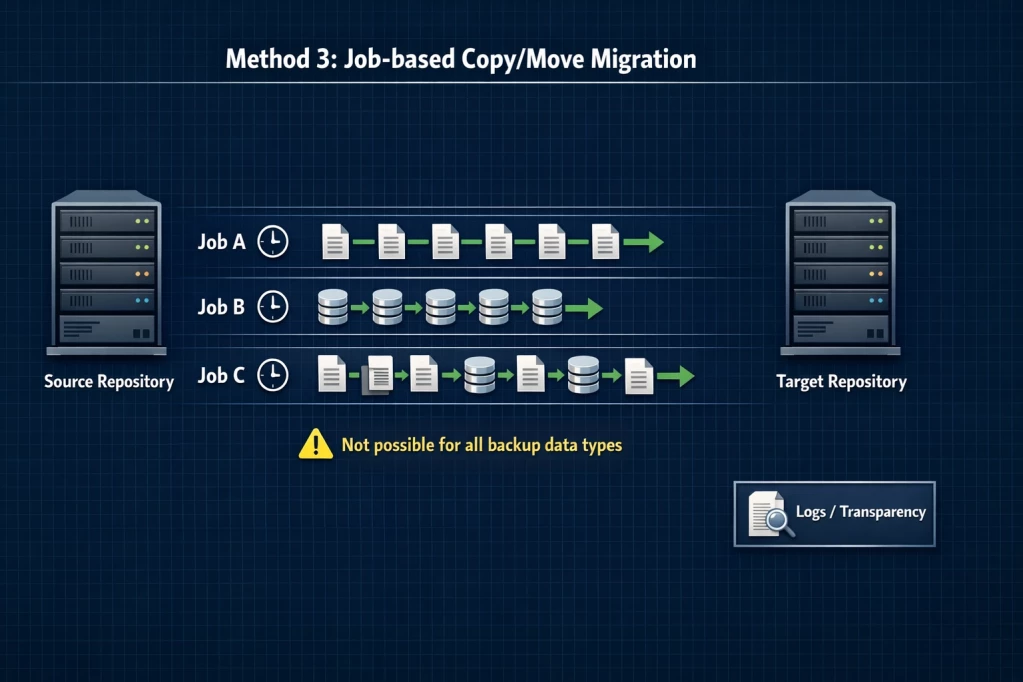
If you want to migrate only specific jobs, or if you want to do the migration in smaller portions to reduce risk/impact.
Copy vs Move (critical)
- Copy: data is copied to the new target, source remains → fallback data exists + restore remains possible
Recommended in most environments if space is available. - Move: data is removed from the source during migration → saves space, but no fallback + restore is not possible during the migration.
Workflow (per job)
- Disable the job
- Edit job → set target repository/extent to the new target
- Choose Copy (or Move) (recommendation: Copy)
- After migration: rescan/check the new repo (chain integrity)
- Re-enable the job
Limitations (that you should verify beforehand)
This method is not possible for all backup data.
The following Veeam backup data cannot be migrated with this method:
- SOBR extents
- Veeam Cloud Connect repositories
- VMware Cloud Director VMs
- Veeam Agent backups
- Veeam Plug-in Enterprise Applications
- Unstructured Data backups
Pros
- Migration in portions per job
- Smaller migration windows because it is per job and not per repository or extent
- Restore of old backup data (if Copy is chosen) is possible during the migration
- More detailed logs in Veeam for clearer monitoring
- Not one long maintenance window but multiple smaller ones
Cons
- No traffic throttling possible
- Some workloads cannot be migrated this way (see above)
- Multiple maintenance windows must be planned and managed, and generally much more has to be planned, managed, and monitored
- Moving of data can look stun for a few hours/days before it is finished.
Method 4: New Backups & Old Retire (the Zen method)
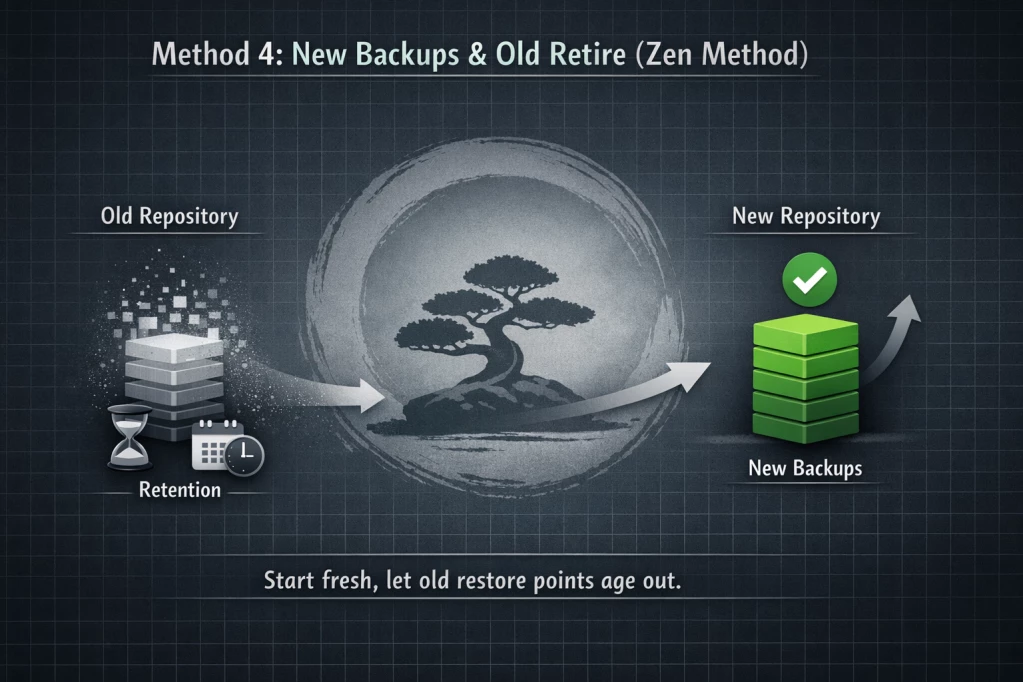
No migration, but completely new backups, and the old backups are allowed to expire based on customer requirements or retention policy.
This is the path that causes the fewest problems, but it can take significantly longer (because of retention) and it also means the old environment must continue running for a much longer period of time and therefore consumes resources. In general, this approach is often used with completely new infrastructure, redesigns, and also migrations from an old backup solution to a new one.
Important, you need:
- Enough storage capacity for the transition period
- Retention can include years, so it can be that you need to keep and maintain the old hardware-solution for a very long time or you need to copy this backup data to the new solution.
Workflow
- Create new jobs or switch existing jobs to the new target without data migration
- New backups run on the new storage from now on
- Old backups + repository remain online until restore requirements (retention) have expired
- Remove old repository
Pros:
- Very safe, very audit-friendly
- No data migration and no dependencies, therefore possible with the complete backup
- New backups & restores and old restores are immediately usable
- At the same time, you can adjust the backup architecture and configuration to the latest best practices and requirements
Cons:
- First full backup and two environments at the same time require significantly more space (double)
- All backup jobs and settings must be set up again
- Two worlds exist in parallel, perhaps for a long long time
- Higher costs due to the old backup environment that continues to be used
Immutability / Object Lock: the boss enemy in the final level

When immutability comes into play (Linux Hardened Repo, S3 Object Lock), the following applies:
You are not only migrating data—you are migrating data that cannot be deleted, and with that data you are migrating the retention log and multiple versions of the objects.
What that means in practice:
- “Move” can be conceptually slowed down by immutability (because “delete” does not work immediately).
- SOBR Evacuate works, but the behavior is influenced by immutability.
- Storage-near copies can work, but you must ensure that the data is migrated correctly and compatibly including the correct retention and all versions of an object (Be careful – Test + POC is absolutely necessary).
If immutability is used: plan more conservatively, test earlier, and expect longer timelines.
General notes on storage & performance
1) „1 LUN = 1 Queue“
A single LUN as a monolithic target for everything can quickly become a bottleneck because I/O cannot be parallelized well.
For large environments, the question “how many parallel streams / jobs / proxies” is always also a question of storage architecture.
2) Migration Window
Preferably not during peak hours, and if applicable try throttling or pause/resume, or a completely different isolated data copy path than production data.
3) Monitoring
- In VBR: Job History, Evacuate Tasks, Warnings
- On storage: Throughput, Latency, Queue Depth, Copy/Mirror Status
- In general: Logs from used tools, storage, VBR
Best practices & recommendations
- Please always test with test data first during a migration
One job, one small extent as a test run. Document it, test worst case, collect data and learn from the tests, monitor and document migration speed, and only then touch production data. - Configuration backup before every major change.
That is your “save point”, like in any good computer game—and please do not delete old backup data until after migration and testing of the backups, not before! - For very large datasets:
Prioritize third-party copy (storage offload) or small job-based copy migrations. - Copy instead of Move if you do not absolutely need to save space.
Copy costs more storage space, but reduces stress (yes, really). - Document steps and status in the change/migration log.
Not because documentation is fun — I know it usually is not. But you probably do not want to do forensic work about what was copied where and whether it was done. Or worse: imagine you have to explain why data is missing.
Quick Decision Guide (if you only have 30 seconds)
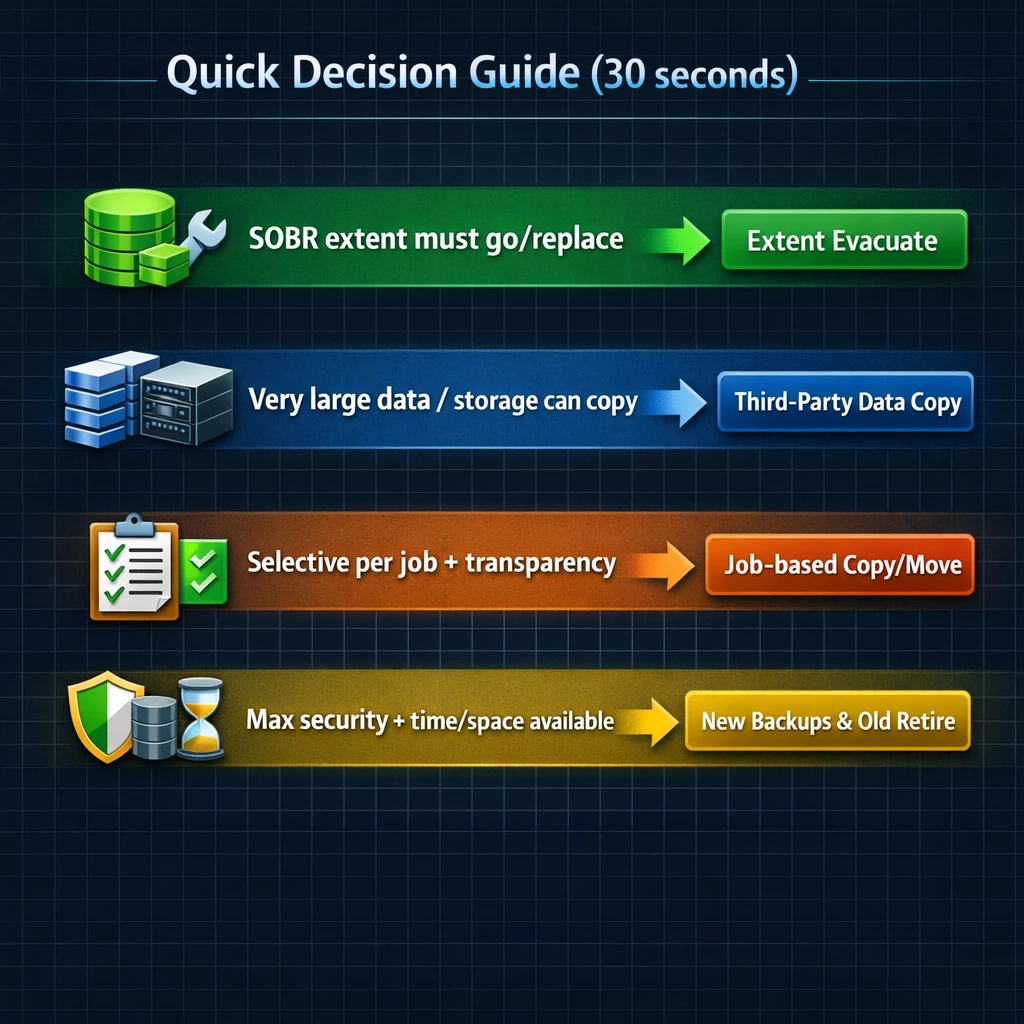
- Extent needs to be removed/replaced → Extent Evacuate
- A lot of data / storage can copy → Third-Party Data Copy
- Migrate selectively per job + more transparency → Job-based Copy
- Maximum safety + time/space available → New Backups & Old Retire
- It Doesn’t matter which scenario – ALWAYS test it with an example of every Job Type, Data Type
Additional helpful links
- Veeam Help Center – Evacuating Backups from Extents
https://helpcenter.veeam.com/docs/vbr/userguide/sobr_evacuate.html - Veeam Help Center – SOBR Placement / Extent Modes
https://helpcenter.veeam.com/docs/vbr/userguide/backup_repository_sobr_placement.html - Veeam KB4636 – Alternative Method for Migrating Backups to Hardened Repository
https://www.veeam.com/kb4636
In general, it also makes sense to separately analyze and review your storage backup architecture based on your requirements for security, performance, growth, migration, and flexibility. It can also be useful to consider a completely new backup architecture (for example LVM architecture with SAN LUNs, Veeam Hardened Repository, offsite copy, Veeam Vault, …).
However, that would be a topic for another blog article.