

In response to
Copy Fail (CVE-2026-31431) is big | Veeam Community Resource Hub
CVE-2026-31431, dubbed "Copy Fail," is a local privilege escalation (LPE) vulnerability in the Linux kernel. It stems from a logical error in the cryptographic subsystem (algif_aead / AF_ALG) introduced in 2017.
An unprivileged local user (or a container) can write 4 controlled bytes into the page cache, achieving root access with 100% reliability.
All Linux servers (bare metal, VMs, and containers) with a vulnerable kernel are affected:
- RHEL / Alma / Rocky
- Ubuntu / Debian
- SUSE
- Amazon Linux
- Arch / Fedora
- Oracle
- Containerized environments (Docker, containerd, podman)
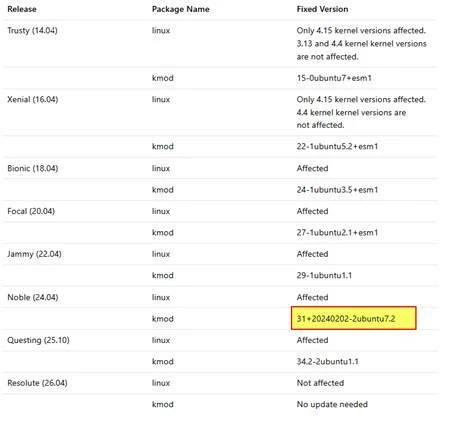
Example on Ubuntu: I will proceed with updating all Veeam Hardened Repositories over the coming days.

Displays the version of the Linux kernel currently running.
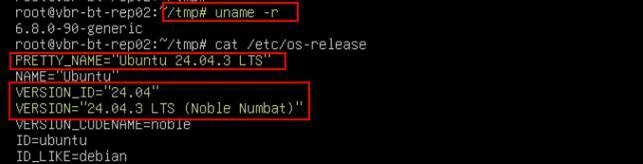
Check kmod and
This command queries the DPKG package database and shows whether the kmod package is installed, along with its version, architecture, and description.
dpkg→ Debian package manager (low-level tool)-l→ list information about installed packageskmod→ the package being queried

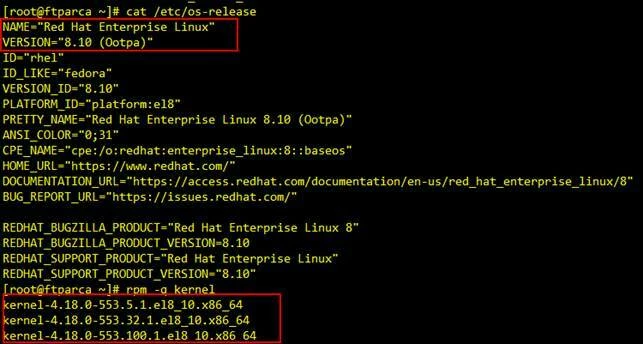
- Check Vulnerability for RHELCVE-2026-31431 - Red Hat Customer Portal
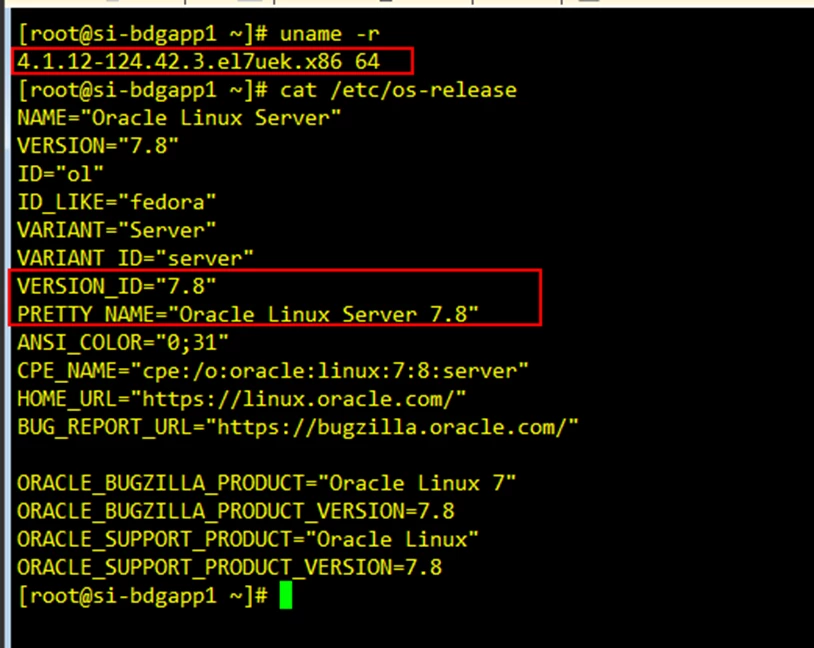
- Check Vulnerability for Oracle Linux linux.oracle.com | CVE-2026-31431
Perform a hot napshot and/or cold snapshot
Mitigation / Remediation
Solution:
- Upgrade the kernel according to the distribution’s guidelines
- Mandatory reboot
Temporary workaround (if the upgrade cannot be applied immediately):
- Disable the vulnerable
algif_aeadmodule (AF_ALG) - Remove the module if it is already loaded
Method 1: The Standard Way (Safe & Recommended)
Ubuntu 22.04 uses the Hardware Enablement (HWE) stack by default in point releases like .5. This means you get newer kernels automatically through regular system updates.
- Update your package list:
sudo apt update - Upgrade your system:
sudo apt full-upgradeor
-
sudo apt update && sudo apt full-upgrade -y - Reboot to apply the new kernel: sudo reboot
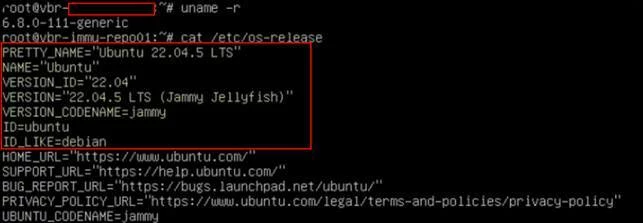
The "Big" Upgrade (Ubuntu 24.04 LTS)
Since you are on 22.04.5, the most stable way to get a newer permanent kernel path is to upgrade the entire OS to Ubuntu 24.04 LTS. This will officially move your system to the 6.8+ and eventually 6.11+ official support tracks.
To check if the upgrade is ready for your specific machine, run:
sudo do-release-upgrade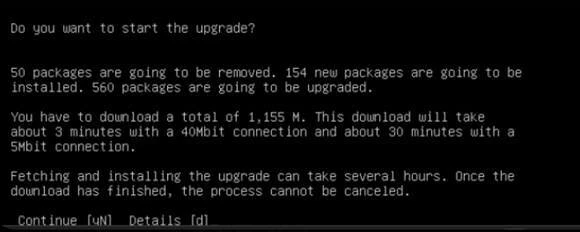
Press Y
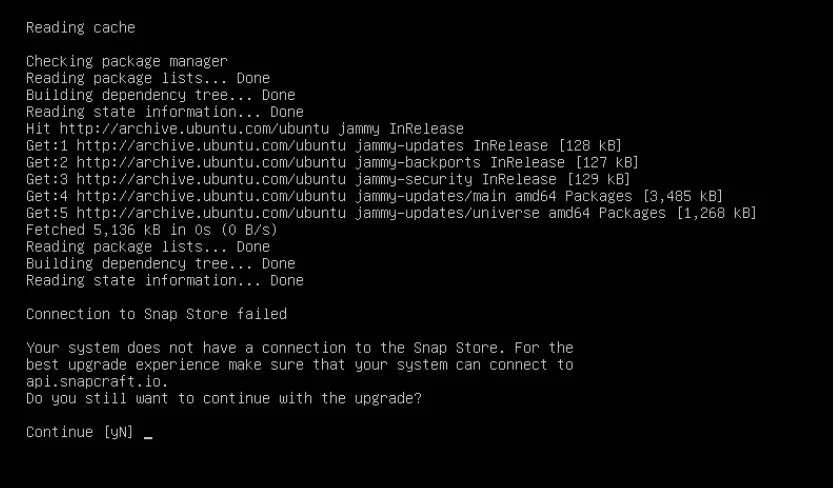
Press Y
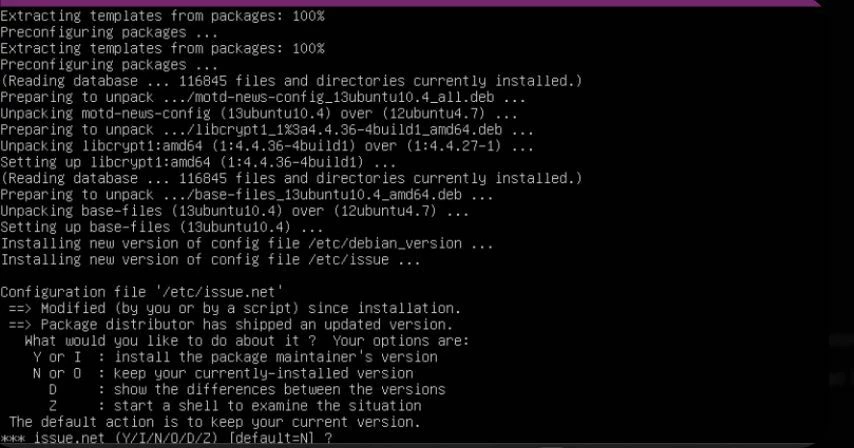
We are in the middle of the upgrade to Ubuntu 24.04. At this stage, the system is asking what to do with some configuration files that have been modified (in this case, /etc/issue.net, the file that displays the banner before login).
What should you choose?
For a server of this type, the safest and most common choice is:
- Press N (or simply ENTER): this will keep your currently installed version of the file (“keep your currently-installed version”). This is the best choice if you customized the server banner or if you do not want to change the login messages.
Press Y
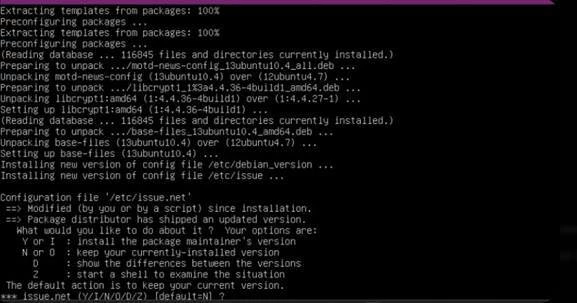
This file (/etc/security/limits.conf) is very important for a backup server (Veeam / VBR). It contains the rules that define resource limits (such as the maximum number of simultaneously open files).
What should you choose?
Press N (or ENTER).
Why?
- Veeam / VBR: If this is a Hardened Repository, the Veeam installation or the hardening script has almost certainly modified this file to optimize backup performance and security.
Press Y
This is one of the most critical questions for a Veeam Hardened Repository.
The files in /etc/pam.d/ manage authentication (login). If this server was configured according to Veeam best practices for immutability, strict restrictions have been applied regarding who can log in and how.
What should you choose?
Select <No> (as already highlighted in red) and press ENTER.
Why?
- Veeam security: If you choose Yes, you will overwrite Veeam’s security customizations with the standard Ubuntu configuration. This could weaken the repository’s level of hardening or change the behavior of the local accounts used for backups.

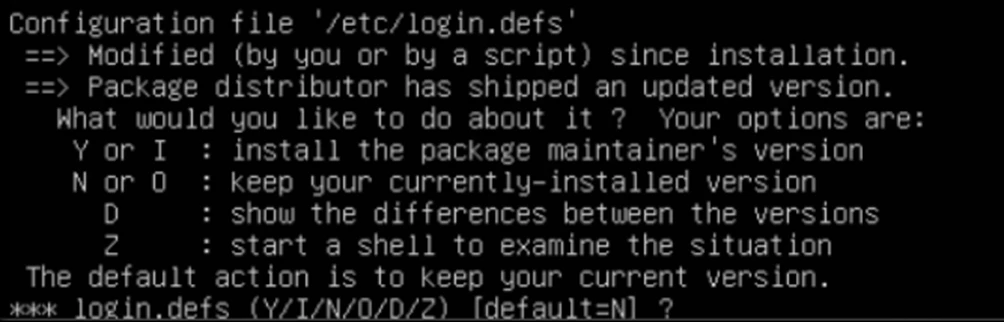
We are still following the same approach as in the previous steps. The file /etc/login.defs contains system-wide settings for password policies, user ID ranges, and account expiration.
What should you choose?
Press N (or simply ENTER).
Why?
In a Veeam Hardened Repository, this file is almost always modified to increase security (for example, to enforce a minimum password age or stricter password complexity policies).
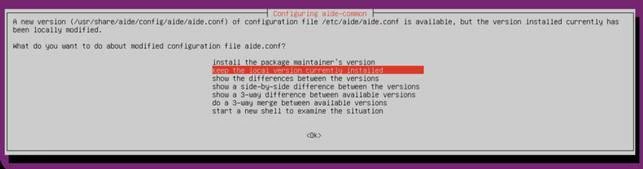
This file is related to AIDE (Advanced Intrusion Detection Environment), a fundamental tool for file integrity monitoring. If this is a Veeam Hardened Repository, AIDE is specifically configured to send alerts if someone attempts to tamper with backup or system files.
What should you choose?
Make sure “keep the local version currently installed” is selected (as shown in the screenshot) and press ENTER on <Ok>.
Why?
- Custom Configuration: The AIDE configuration on an immutable repository is highly specific. Overwriting it with the package’s “standard” configuration could stop monitoring the correct directories or generate thousands of false positives.
- Integrity: By keeping your local version, you ensure that the integrity monitoring system continues to operate exactly as configured during the server hardening process.
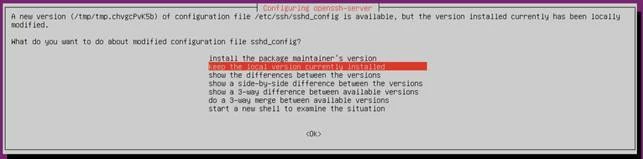
This is an extremely critical point for your server’s security. The file /etc/ssh/sshd_config controls remote access via SSH.
What should you choose?
Make sure “keep the local version currently installed” is selected and press ENTER on <Ok>.
Why is this essential?
In a Veeam Hardened Repository, SSH access is often restricted or configured with very strict security parameters (such as disabling root login, allowing key-based authentication only, or using custom ports).
- If you choose the “maintainer’s version” (the new one), you may restore Ubuntu’s default settings, potentially opening security vulnerabilities or, worse, locking yourself out of the server if your current access method is no longer supported by the standard configuration.
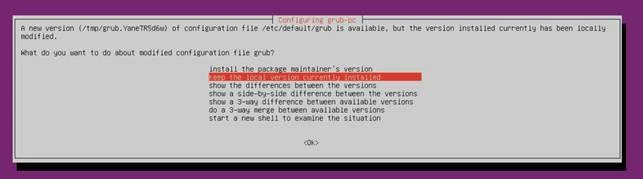
This is the GRUB configuration, which is the software that manages the server boot process and the loading of the kernel (the very component you wanted to upgrade).
What should you choose?
Select “keep the local version currently installed” (as currently shown in red) and press ENTER on <Ok>.
Why?
- Kernel parameters: The file
/etc/default/gruboften contains specific parameters required for your hardware to boot correctly or for security settings (such as disabling unnecessary protocols). - Guaranteed boot: By keeping your local version, you ensure that the server still knows where to “find” the disks it needs to boot. If you chose the new version, you could lose customizations made during the original server installation.
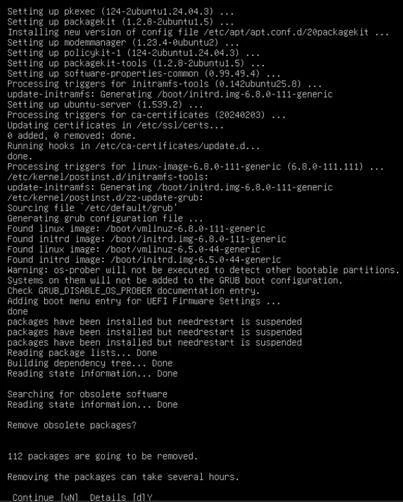
We have reached the final cleanup phase. The system has successfully updated the boot files (you can see that it generated the new files for kernel 6.8.0-111-generic).
What to do now:
Press y (Yes) and then ENTER.
What is happening:
- Remove obsolete packages?
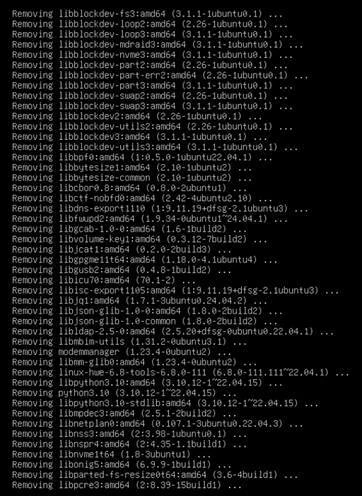
The system has identified 112 packages that belonged to the old Ubuntu version (22.04) and are no longer needed in the new one (24.04). - Removing them is essential to keep the server clean and secure, and to avoid conflicts between old and new libraries in the future.
- Even though the message says it “may take several hours,” for 112 packages on a server of this type it usually takes only a few minutes.
Press Y
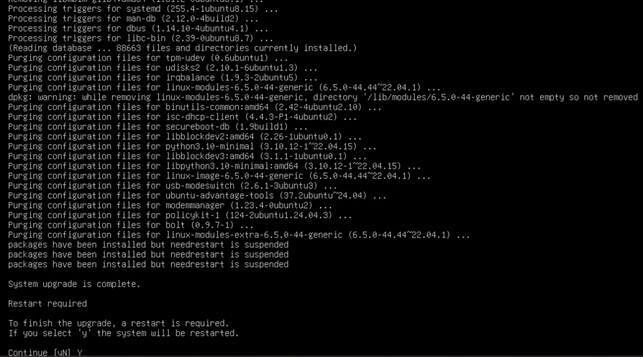
The message “System upgrade is complete” confirms that the entire process has finished successfully. You have just upgraded your server from Ubuntu 22.04 to Ubuntu 24.04 LTS, applying all the latest kernel security patches in the process.
What to do next:
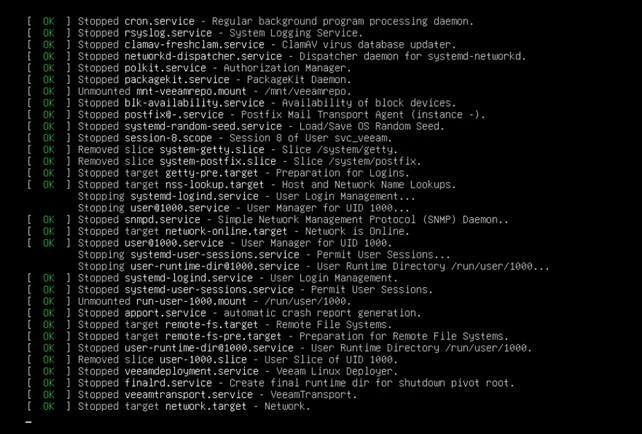
- Type y and press ENTER to reboot the server.
- Wait a few minutes for the server to come back online.
- Log in and verify the final result using this command:
uname -r(you should see the new patched kernel)
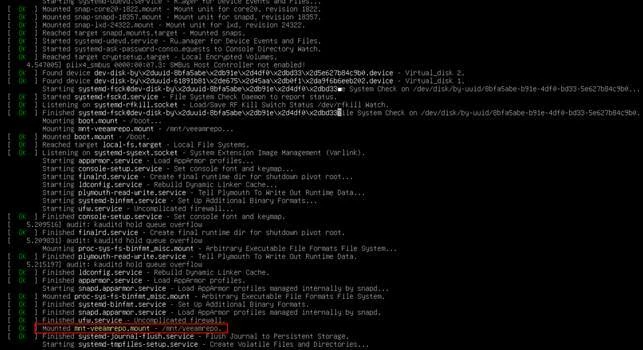
Why did the kernel remain the same?
The 6.8.0-111 kernel is the stable, flagship kernel used both at the end of the Ubuntu 22.04 lifecycle and at the beginning (and current point releases) of Ubuntu 24.04.
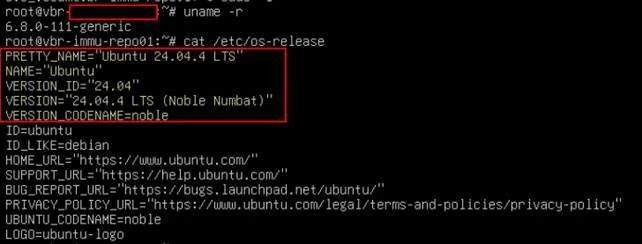
How to verify that everything is fully up to date
To be 100% sure that there are no additional pending kernel updates (now that you are on 24.04), run these final commands:
sudo apt update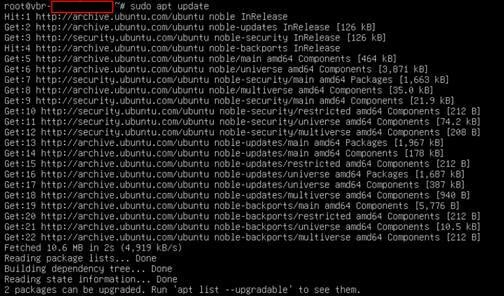
sudo apt list –upgradableThere are two security updates still pending specifically for your new release (noble-security). One of them concerns dpkg, which is the core of the package management system.

apt upgrade -y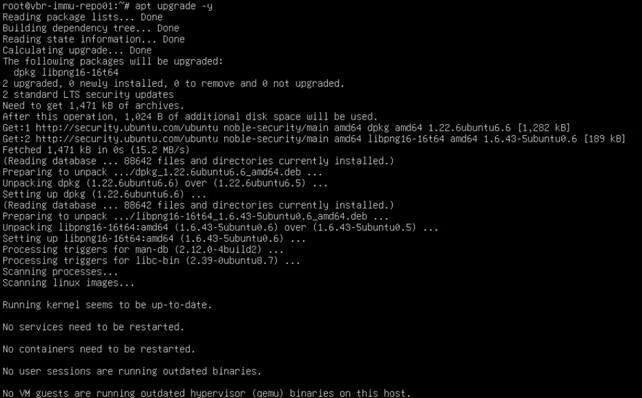

dpkg -l kmod
fixed
Run a rescan of your VHR and proceed with the backup for verification.
Enjoy