

Backups without notifications are like monitoring without alerting: you can live with it—until the day you can’t.
Veeam Backup & Replication (VBR) and Veeam Backup Enterprise Manager (VEM) can send automated emails, for example when an event is triggered, like:
- Job success/warning/failure
- Infrastructure warnings
- Licensing/support notifications
The goal: you find out about problems as soon as they happen.
(And yes: “no news” are also news—but only if you’re sure your email delivery is actually working.)
Veeam Doku: E-Mail-Settings & Notifications (VBR v13)
https://helpcenter.veeam.com/docs/vbr/userguide/pve_email_settings.html?ver=13
VEM Doku: Email-Settings & Notification (v13)
https://helpcenter.veeam.com/docs/vbr/em/notifications_ms365.html?ver=13
“Can’t I just enter an SMTP server + username/password and be done with it?”
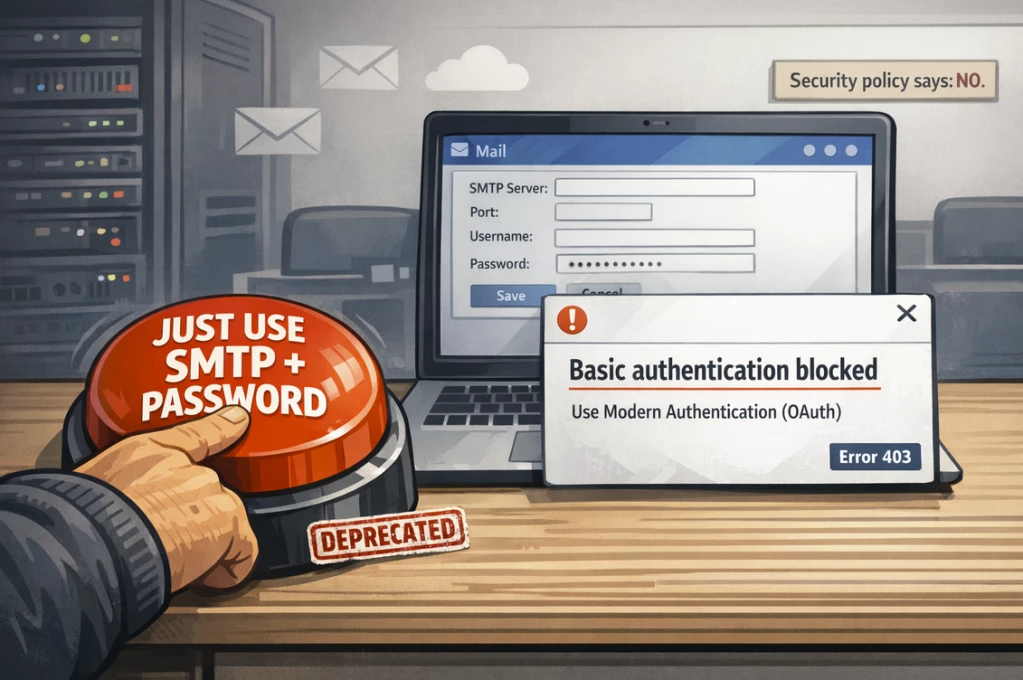
For several years, that was actually the only way—and of course it can still work today. This classic approach is called SMTP server (basic authentication).
Veeam still supports it as an option, but: many email providers and cloud services have heavily restricted or disabled Basic Auth because it’s not ideal from a security perspective.
Why Basic Auth is considered insecure (and why Microsoft turned it off)
Microsoft describes Basic Auth like this: an app sends a username and password with every request (and credentials are often stored somewhere as well). That makes attacks like password spraying and credential reuse much easier, and MFA isn’t properly taken into account. Since the modern security approach is Zero Trust (“trust no one”), this no longer fits into today’s IT security world.
Source (Microsoft Learn): https://learn.microsoft.com/en-us/exchange/clients-and-mobile-in-exchange-online/deprecation-of-basic-authentication-exchange-online
Microsoft’s move from Basic to Modern Authentication started in 2021. Basic Auth in Exchange Online was disabled for all tenants in early 2023. Microsoft now recommends and effectively provides only modern authentication (OAuth 2.0 token-based).
Modern Authentication (OAuth) — what is it?
Modern Authentication means: instead of continuously sending a user account including the password, you use tokens with a short and limited lifetime (OAuth 2.0).
The idea behind it is easy. A user (or admin) authorizes an app, and the app receives tokens that are time-limited, valid only for specific resources/scopes, and are more secure thanks to MFA and Conditional Access.
If you’re wondering why this sounds more complicated than “typing a password”: it is—but it’s 2026 now, not the 80s/90s anymore.
You can read about the mechanics behind OAuth and Modern Authentication here: https://learn.microsoft.com/en-us/entra/identity-platform/v2-oauth2-auth-code-flow
“If tokens are short-lived, how can Veeam send emails permanently?”
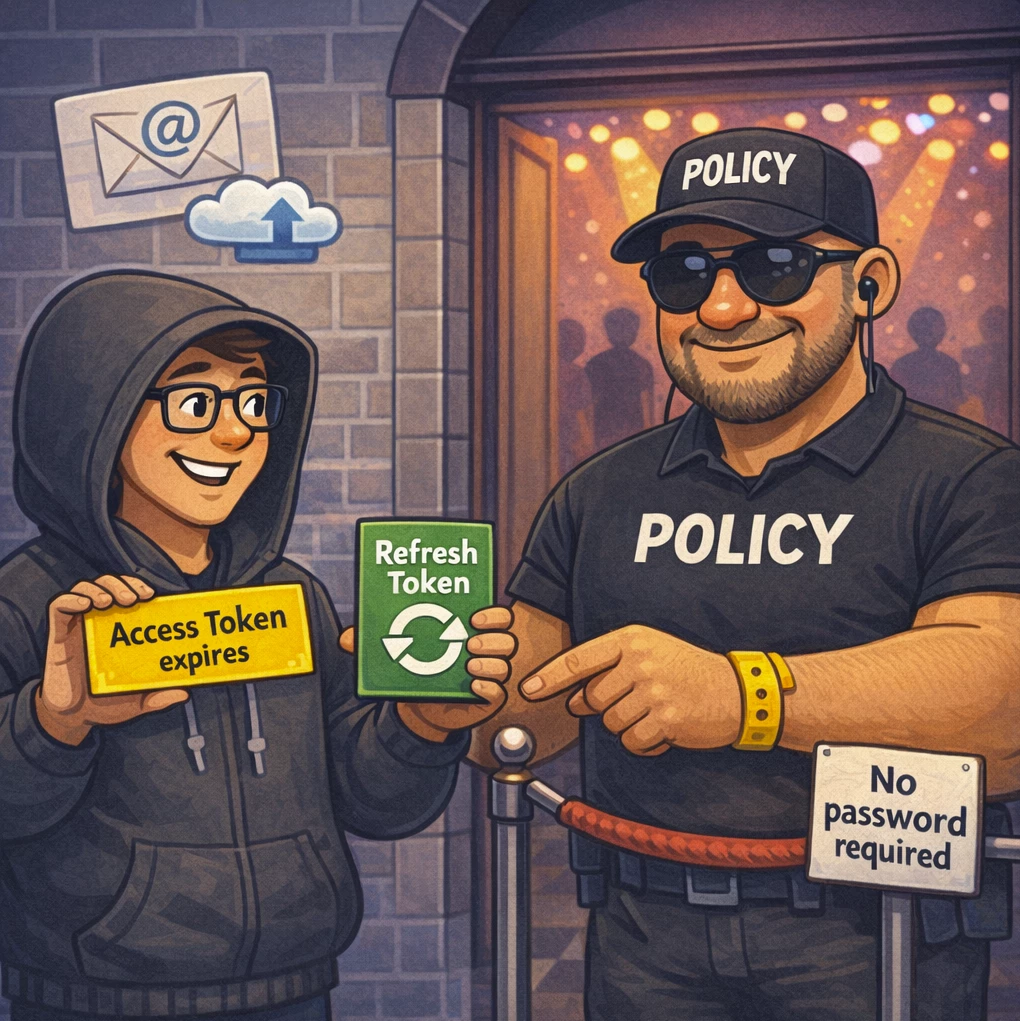
Access tokens are indeed short-lived (typically a few minutes up to ~1 hour). Persistent configuration still works because modern authentication doesn’t rely on a single token—it uses a token pair and a built-in protocol mechanism for renewal.
1) Access token vs. refresh token (the two keys on the keychain)
- Access token: This is what allows an application like Veeam to use SMTP/API to send an email.
- Refresh token: This allows an application like Veeam to request and obtain a new access token without logging in via the browser again, when the old access token has expired.
So the configured app notices its token has expired and silently obtains a new access token in the background using the refresh token.
2) Why do you have to click “Authorize” in a browser at least once?
An initial permission (consent) must be set up—otherwise anyone could use your email. This setup allows the application to send emails on behalf of that account.
After that, Veeam can renew tokens (as long as it remains allowed) without requiring interactive action every time.
3) “But refresh tokens don’t live forever either, right?”
Correct—refresh tokens can also expire or be revoked. If that happens (for example because an admin revoked it, or it expired because it wasn’t used), you must set up the initial authorization again.
4) Why is this more secure than username + password?
Because you’re not storing a password in a configuration permanently—one that never expires and that anyone could use to gain full access.
With OAuth, access can be more tightly scoped and centrally revoked without changing passwords everywhere.
OK—so how do I configure this in VBR (and similarly in VEM)?
First, you need an app registration in Azure:
- Sign in to the Microsoft Entra admin center
- Go to App registrations → New registration
- Enter a meaningful name, e.g. “Veeam VBR HQ”
- Limit it to “Accounts in this organizational directory only”
- Click Register
- Note/copy the Application (client) ID and the Directory (tenant) ID for Veeam
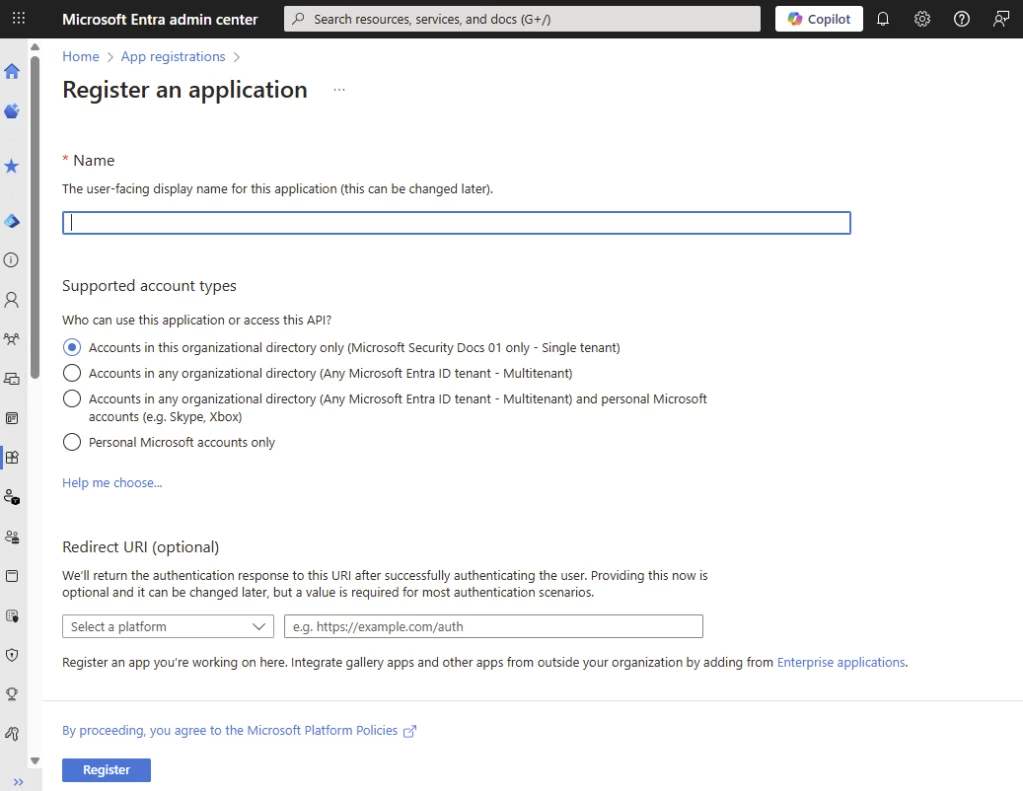
Details: https://learn.microsoft.com/en-us/entra/identity-platform/quickstart-register-app
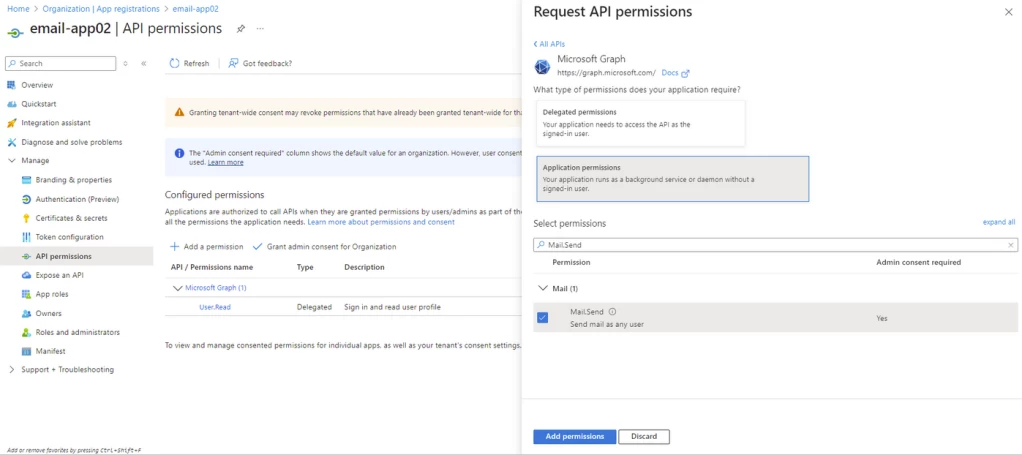
Next, you still need the permission/consent for Mail.Send:
Details: https://helpcenter.veeam.com/docs/vbr/userguide/registering_azure_app.html?ver=13
In VBR, go to the email notification menu:
- Main Menu → Options → E-mail Settings
- Enable e-mail notifications
- Then select the appropriate method:
- SMTP server (basic authentication)
- Google Gmail (modern authentication)
- Microsoft 365 (modern authentication)
- For both Google and Microsoft 365 you must set up the connection as an application.
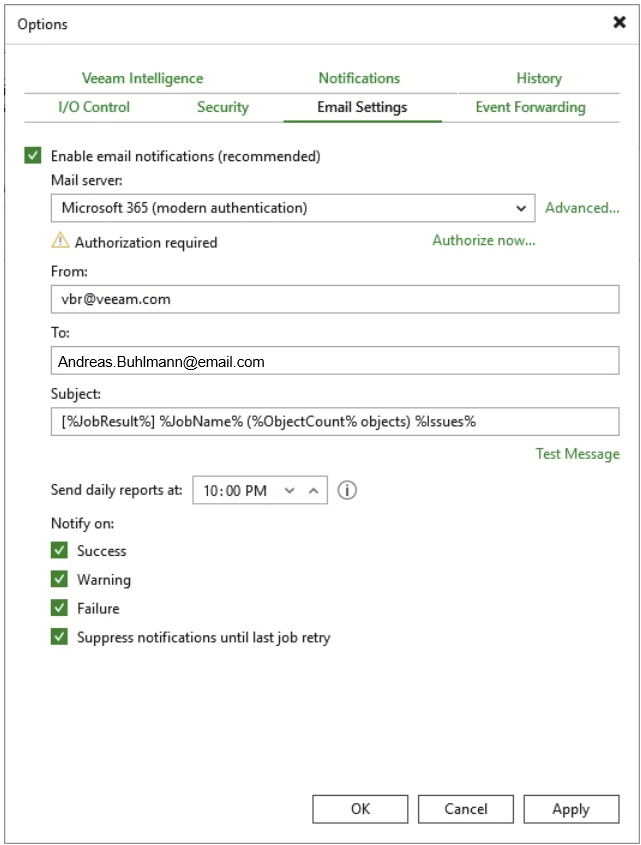
Details: https://helpcenter.veeam.com/docs/vbr/userguide/pve_email_settings.html?ver=13
VEM (Veeam Enterprise Manager)
VEM has its own “Mail Server Settings” documentation (separate VBR EM Help Center): https://helpcenter.veeam.com/docs/vbr/em/mail_server_settings.html
My recommendation
I’m not a fan of getting emails when it’s not necessary. Especially if you receive daily or weekly emails that always say “backup completed successfully,” you get lazy, create an email rule, and stop really looking at them. That’s why I’d send emails only for errors (Errors & Warnings), when you need to do something and look at it.
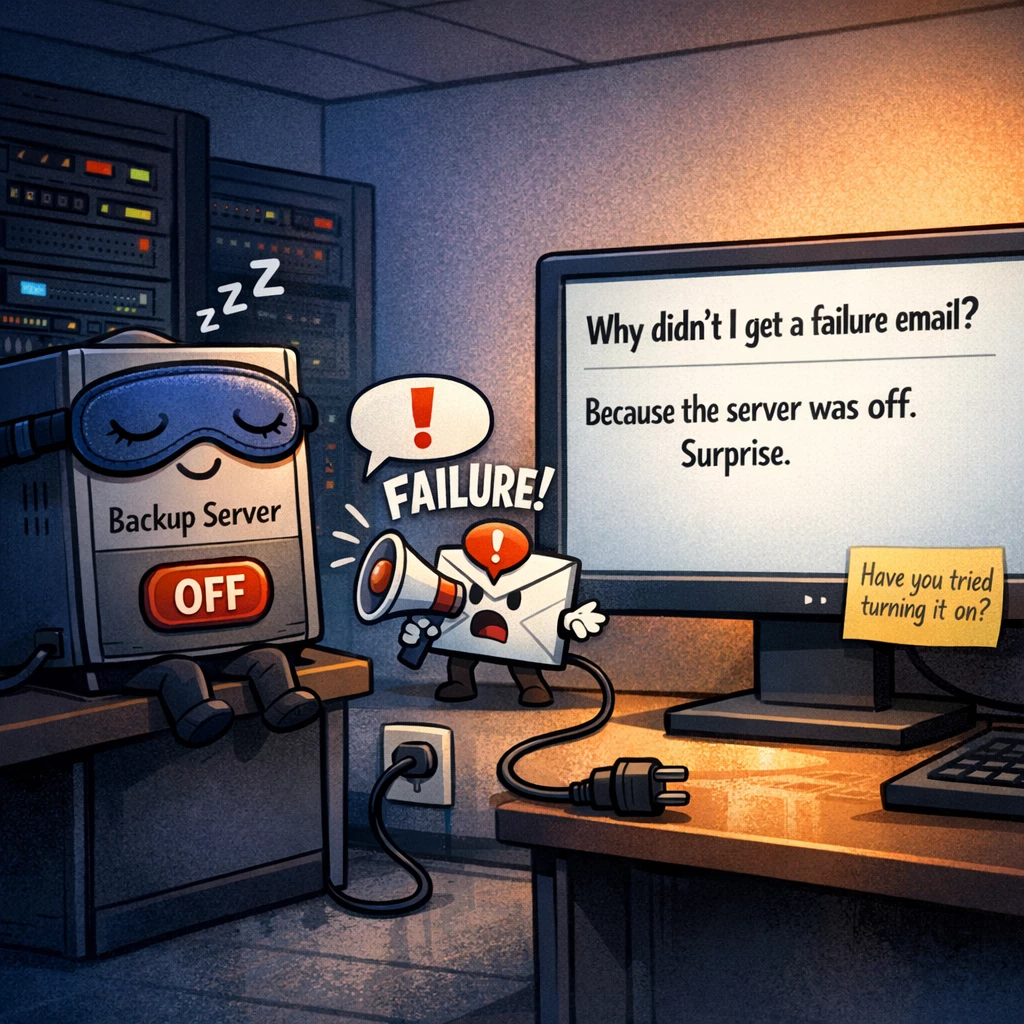
But don’t lose sight of one important factor: “Who alerts you when Veeam itself can’t alert?”
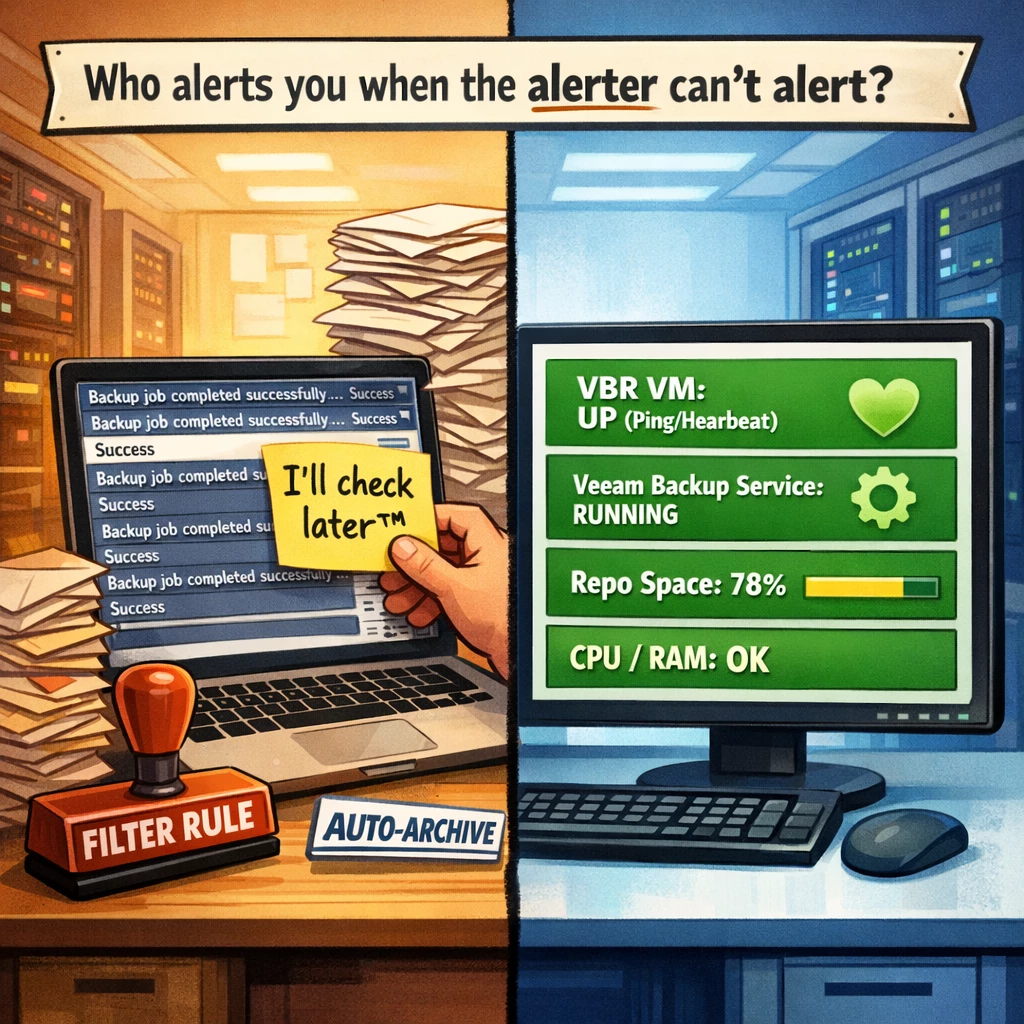
Email alerts only help if the Veeam server and Veeam services are running (VM powered on, services running, resources OK). That’s why you should ALWAYS additionally monitor the VM and the service.
Ideally via a monitoring solution:
- VBR-Server/VM reachable (Ping/Heartbeat)
- Veeam services running (e.g. Veeam Backup Service)
- Optional: free disk space, CPU/RAM, repository capacity
Because you don’t want to end up in the situation where you have no backup—but never received an error message and didn’t look.
“Why didn’t I get a failure email?”
Because the server was off. Surprise.