



How to change name and what to watch out for and what to consider if you have unmanaged plugins.
My Name is „Bond“ – „Repository, Bond“ – Display-Name vs. FQDN – Licensed to Rename

Sometimes, in the backup universe, you simply want to bring order to chaos, fix a mistake, or the naming structure has just changed.
So a repository is supposed to get a new, nicer name. Or the server behind it needs to be renamed because a domain migration is coming up, naming conventions have changed, or a rebranding is being rolled out. Basically: “We’re cleaning everything up now.”
And this is exactly where you need to: “Change the name”. I know it sounds harmless at first — but it rarely is. Especially in IT, names often have… well… everything attached to them. And while it’s totally understandable that you don’t want to redeploy everything just because of a name, it’s worth popping the hood. That way you’ll know what impact a name change really has — and how to implement it cleanly.
Important: In Veeam, there are two very different categories of “names” that can affect a repository:
- Display Name: “basically” just cosmetics in the VBR UI
- FQDN/Hostname: the identity/addressing of the repository server
On top of that: a repository can be standalone or exist as an extent in a SOBR — and depending on the case, that requires different handling.
Welcome to the License to Rename, Mr. Bond.
As always, Q will brief you on the technology…
Scope of this blog (so we don’t confuse a Martini cocktail with Martini Bianco)
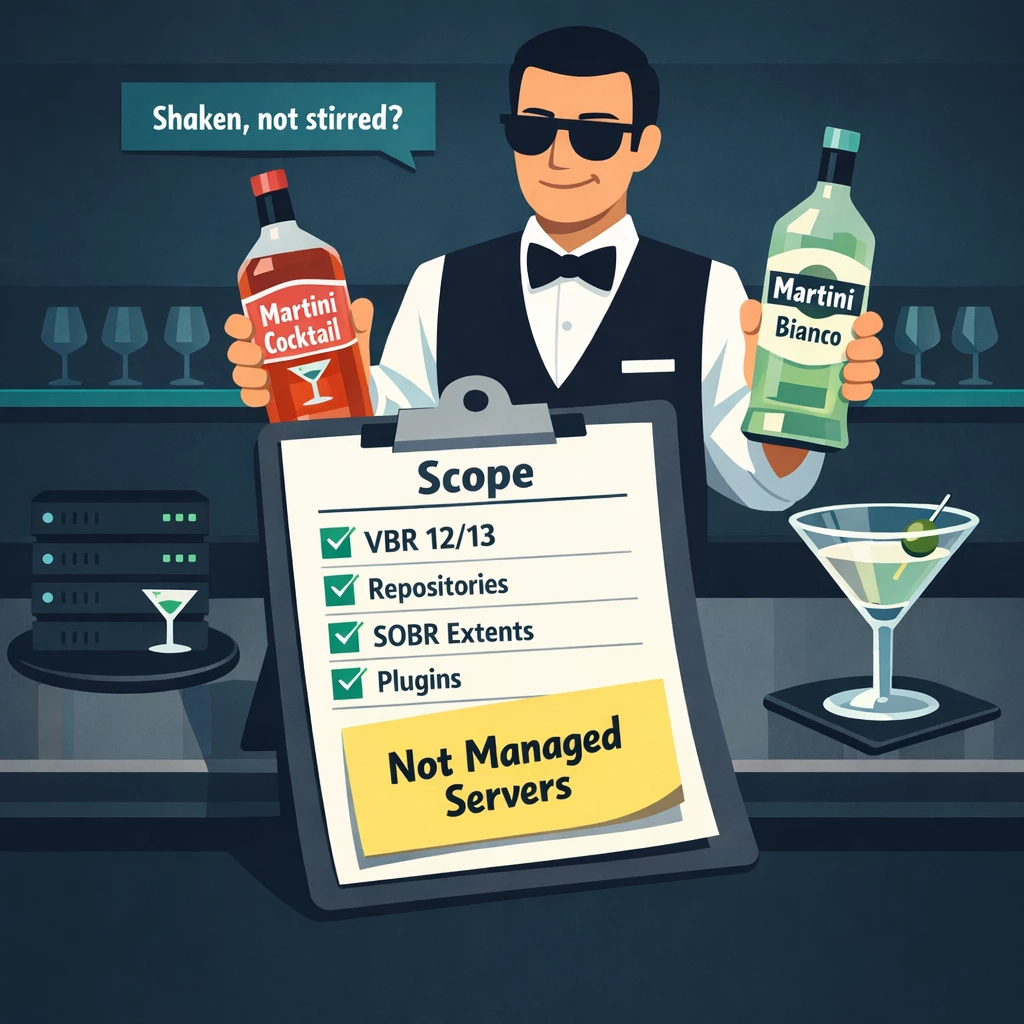
This blog covers Veeam Backup & Replication v13/v12 in the context of Backup Repositories (standalone or SOBR extents) and the handling of managed and unmanaged (standalone) plugins.
It does not cover FQDN changes of Managed Server objects (for that, see KB article KB1905, which explains this other topic deeply)
Before renaming: Q Branch (Prereqs)
Before we get into the good stuff, you’ll need a few prerequisites:
- Backup Administrator rights in VBR
- Access to the VBR Console
- A Veeam Configuration Backup exists (Menu → Configuration Backup)
- DNS and network/ports (old and new) are validated, documented, and tested
- Ideally: test in lab first, then production
Part 1: Change the Display Name (UI) — the “tuxedo swap”
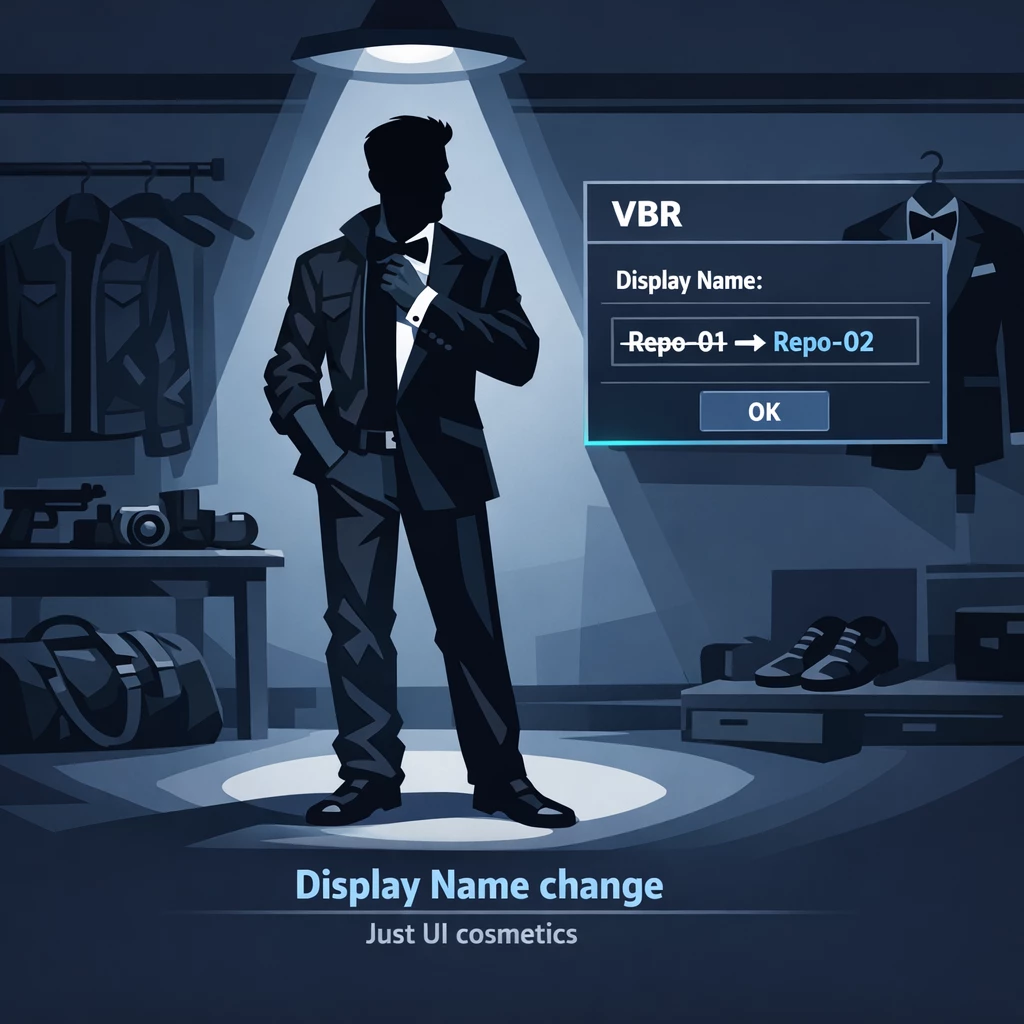
“It’s just Veeam’s display name… what could possibly happen?”
Doing:
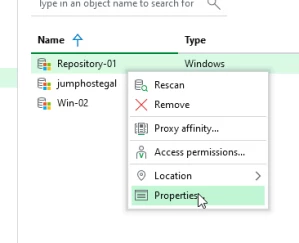
VBR Console → Backup Infrastructure → Backup Repositories
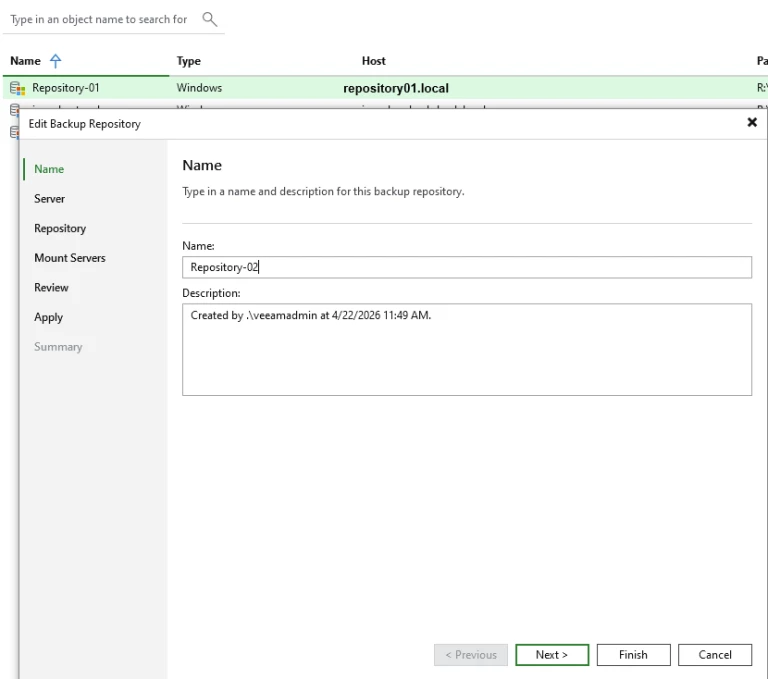
Repository → right-click → Properties → change the Name field → Finish
Example: Repository-01 → Repository-02
What really happens
This only changes the display name inside Veeam. No magic, no migration, no DNS.
- Jobs remain unchanged
- Target paths remain unchanged
- UNC/hostname remains unchanged
- The repository server just looks “different” in the UI
However…
The only catch: Enterprise Standalone Plugins
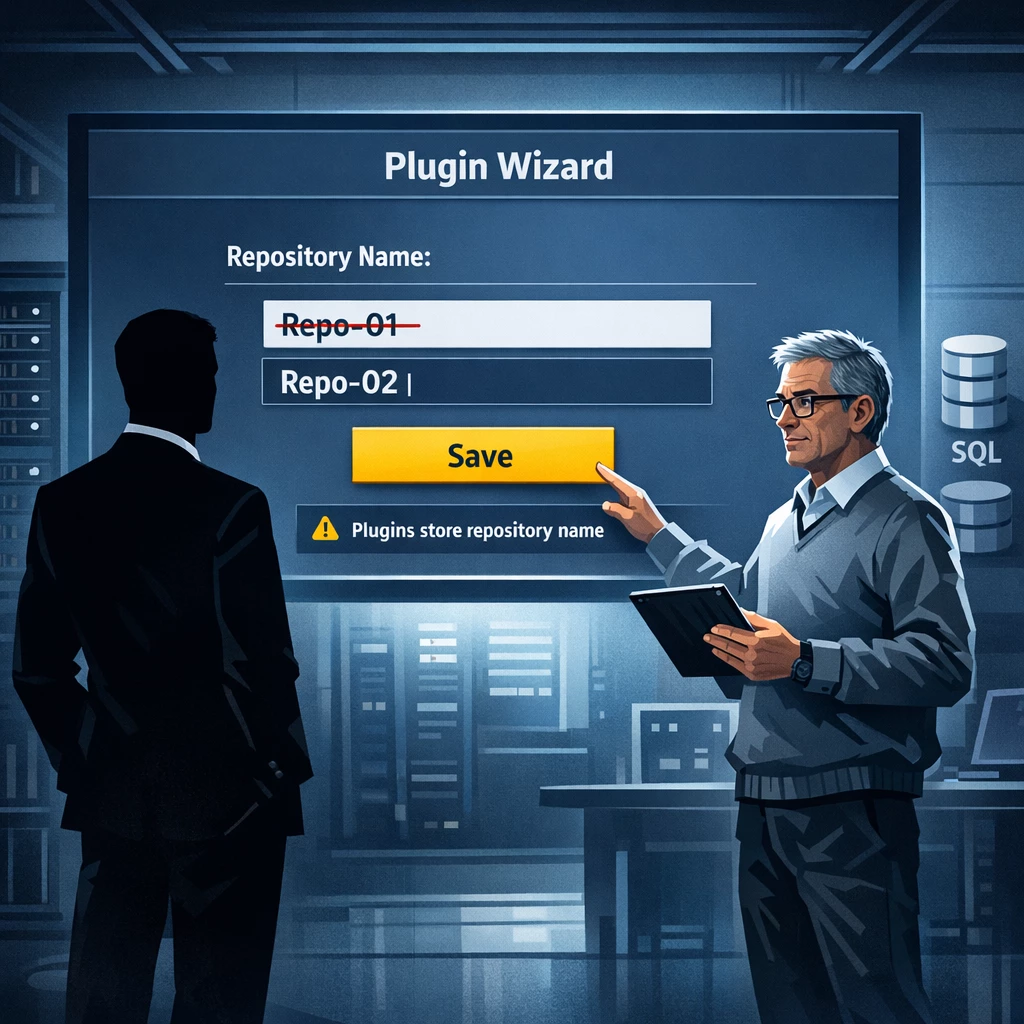
If you use Enterprise Standalone Plugins in unmanaged mode (Oracle, SQL, etc.), you of course need to tell the plugin the new name, because it works with repository names when connecting to Veeam. So the rule is:
After renaming, make sure to run the Standalone Plugin/s wizard/s again and enter the new repository name.
Why? Because these plugins store the target/repository name in their own configuration and don’t automatically “notice” the UI cosmetic change — it’s an unmanaged configuration!
In rare cases it can happen, that the plugin creates a new full backup in the next run.
Part 2: Change the FQDN/Hostname — “This is not the same Bond anymore”
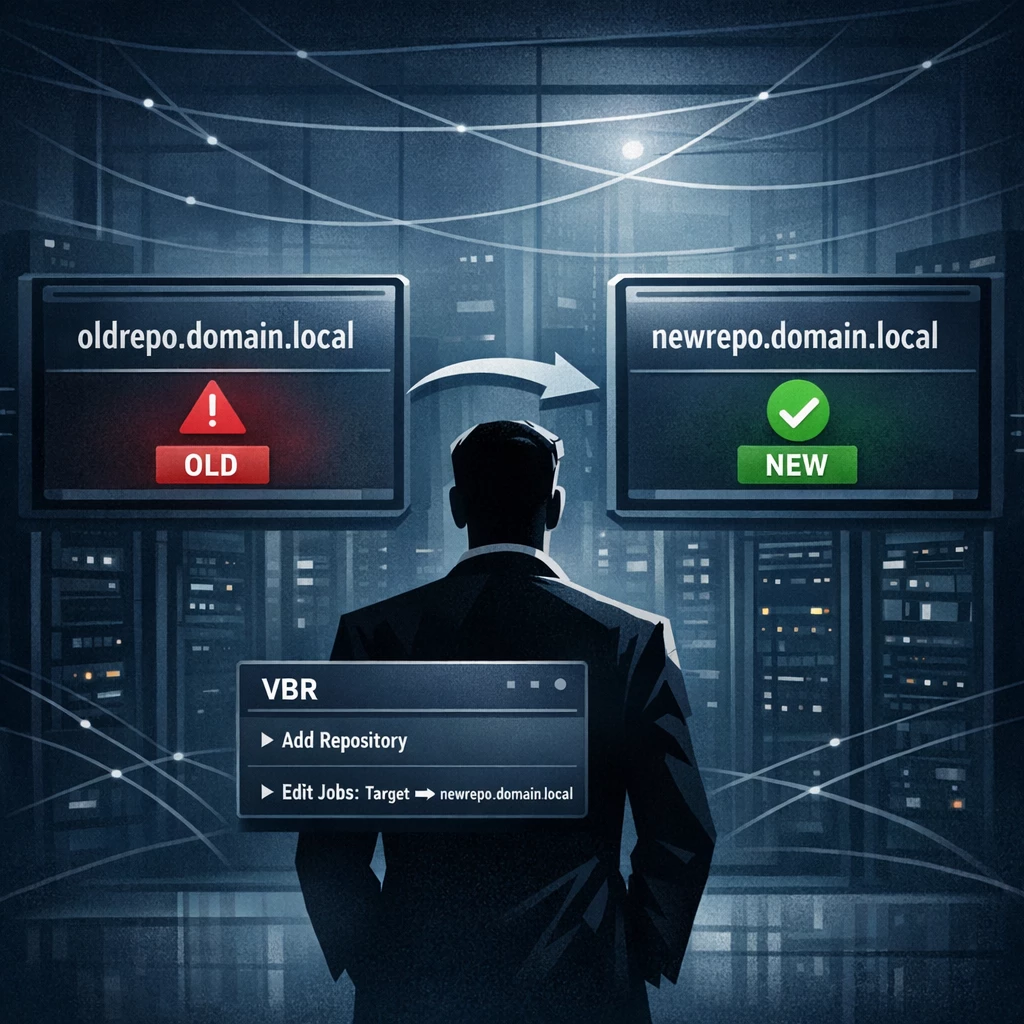
Now it gets interesting: the server behind the repository suddenly has a different name.
Example: oldrepo.domain.local → newrepo.newdomain.local
In VBR, this is not “just a rename” — it’s a new identity. So you need a new repository object, and your jobs must point to it. Luckily, we can add the same repository multiple times with different names, FQDNs, and paths.
The clean procedure
1) Add the repository again using the new FQDN
Backup Infrastructure → Backup Repositories → Add Repository
Choose repo type (e.g., Microsoft Windows / Linux) → enter the new FQDN
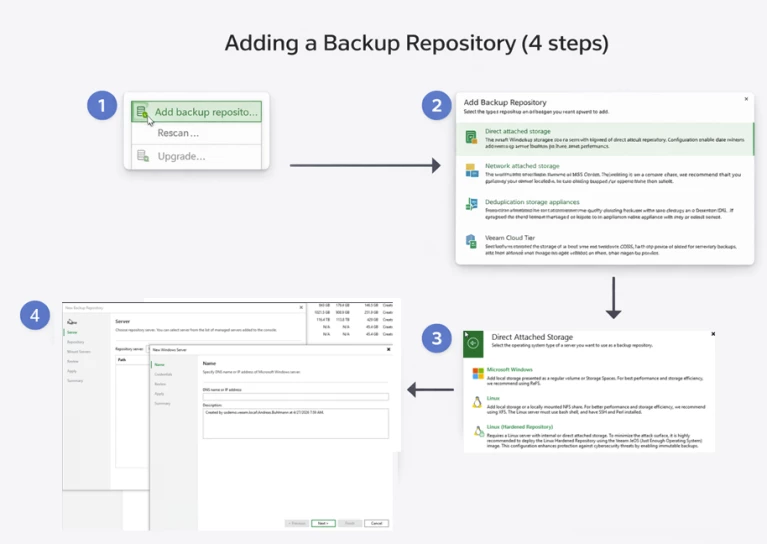
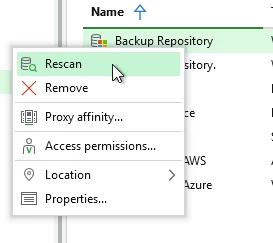
2) Rescan the new repository
So VBR can properly detect the state/paths and the repository content, including backups and metadata.
3) Re-point the jobs
For each job that targets oldrepo...:
Edit job → change Target Repository to newrepo... → save
4) Remove the old repository (only once it really works)
When all affected jobs have run successfully at least once to the new repo:
Old repository → right-click → Remove
This restores consistency and avoids “zombie targets”.
But be aware, when you have unmanged plugins, as before:
After renaming, make sure to run the Standalone Plugin/s wizard/s again and enter the new repository name.
Part 3: Rename a SOBR extent — “M stays the same, only the agent name changes”
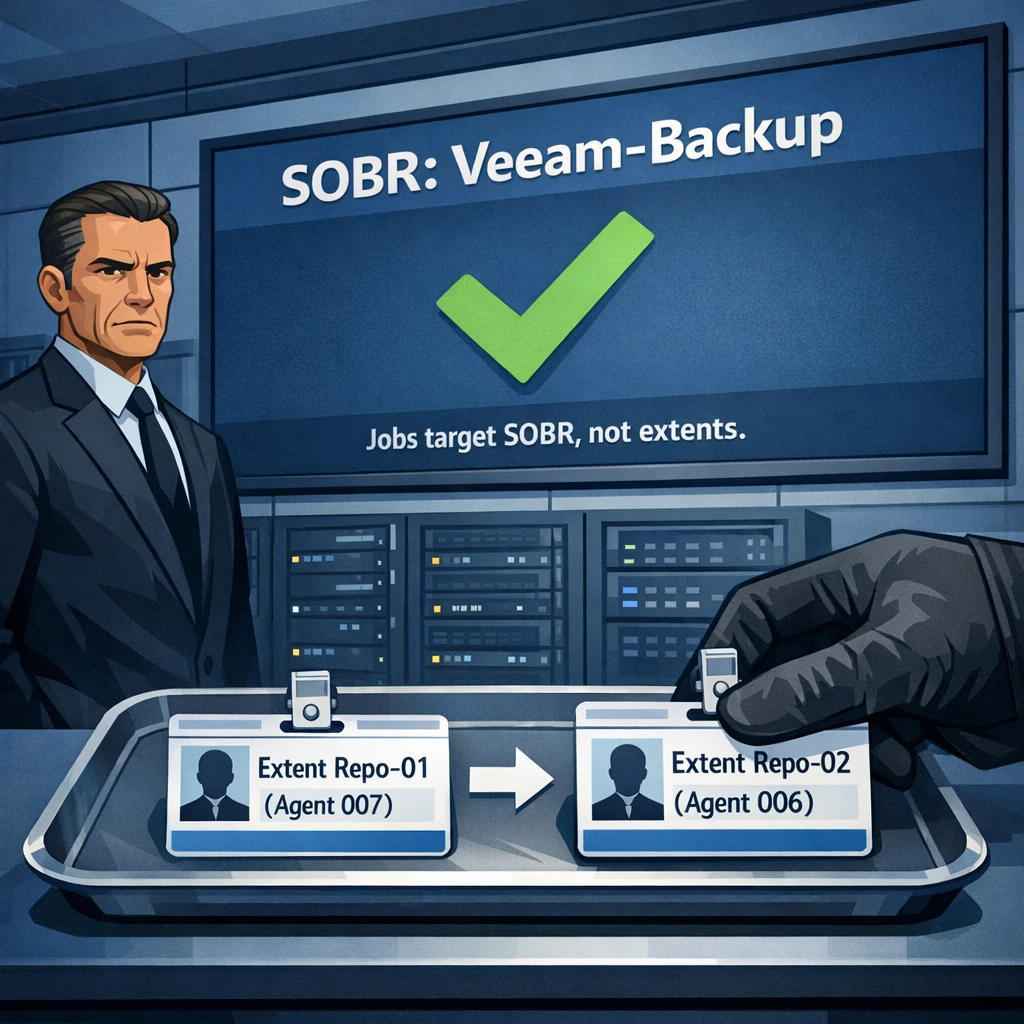
In a Scale-Out Backup Repository (SOBR), jobs target the SOBR name, not individual extents. That’s your joker: you can swap/rename extents without touching the backup jobs.
Example
SOBR Veeam-Backup contains extent Repository-01.
In the future, this extent should be called Repository-02 (or it has a new FQDN).
Procedure
- Rescan the SOBR
- Add the extent under the new name/FQDN
- Rescan the extent and the SOBR again
- Remove the old extent from the SOBR
- Rescan the extent and the SOBR again
Result
- Jobs remain unchanged (still targeting the SOBR)
- Data stays within the SOBR context
- The extent carries the new name
Best practices: License to Rename
- Always do a Config Backup first. Even for changing “Display Name only.”
- Test DNS/connectivity before applying an FQDN change in VBR.
- A CNAME as a transition is possible, but only as a temporary crutch. I’ve seen customer environments with file servers and 40+ alias names — that gets ugly and confusing over time.
- Renaming the VBR server itself is a completely different topic and typically requires a separate, planned migration/restore approach. Maybe we’ll cover that in a future blog post.
Cheat Sheet (fits in every Aston Martin DB5 glovebox)

| Change | What it really is? | Update Jobs? | Enterprise Standalone Plugins (unmanaged) Wizard? | Action |
|---|---|---|---|---|
| Display name in VBR | UI/Friendly Name | No | Yes | Repo Properties → Name change |
| FQDN/hostname Repo-Server | neues Ziel-Objekt | Yes | Yes | Add new Repo → change Jobs → delete old Repo |
| SOBR Extent Name/FQDN | Extent-Tausch im SOBR | No | No | new extent → rescan → delete old extent |